
An experimental based techniques to solve sound (can't hear) related problems in iPhone
iPhone Volume and Receiver
Turn up the volume
- While you're on a call, adjust the volume with the volume buttons. Make sure that you can see the volume indicator on the screen when you press the volume buttons.
- From our experience with iPhones, we have seen that many issues can be traced back to your iPhone accessories.
- The first thing to try is to remove your iPhone’s cover/case and see if the muffled sound issue on your iPhone goes away.
- This issue with iPhone covers is even more critical if you are using an iPhone case that flips.
- Sometimes, when you try to flip the cover to the back while on a call, it can block the rear microphone thereby interfering with the call volume and quality on your iPhone.
- If you bought the Apple Folio cover for your iPhone X Series or iPhone 8, remove the cover and give it a try.
- Since your iPhone is new/’er’, the chances are that the microphones are not covered with any debris or dirt. It still may be a good idea to check and make sure that the microphone positions on your device are relatively clean.
- If using wired earbuds or headsets, clean the lightning port where they attach to your iPhone
Apple consistently releases iOS updates.
- If you have not yet updated your iPhone, update your device to this latest iOS and see if the issue is resolved.
Apple’s iOS upgrades include bug fixes and performance improvements.
- A few folks found some relief by trying out a workaround that pertains to noise canceling on your iPhone.
- Tap on Settings > General > Accessibility> Phone Noise Cancellation.
- Switch this setting to OFF.
- This change does work for many folks, but we don’t think that this is a sustainable workaround. It defeats one of the good features on your iPhone.
- A reader found some relief by changing the Cellular settings on his device.
- If you have LTE, Tap on Settings > Cellular > Cellular Data Options > Enable LTE.
- Here change it from ‘Voice & Data’ to Data Only.
- Are you by any chance using any third party call blocking/filtering app on your iPhone?
- Try and uninstall the Phone related third-party apps and see if it resolves your call sound issue.
- This problem is rare, but we have seen at times when third-party apps or extensions can interfere with the iPhone experience especially after iOS upgrades.
- There is no harm trying out the Reset Network Settings.
- When your issue is related to networks, try this reset. Tap on Settings > General > Reset > Reset Network Settings.
- Once the iPhone starts back up, you should also check and see if any pending carrier updates needed on your iPhone.
- Tap on Settings > General > About your phone…and carrier.
- Sometimes when the problem is carrier related, your particular carrier usually offers better guidance on how to address the sound issues. This tip might just save you a trip to the Apple store.
If you can't hear a person on a call or voicemail or if the sound isn't ...
https://support.apple.com/en-in/HT203800
Get help
If you still have issues after testing the microphone on your device, try these steps:
- Unplug any accessories and disconnect any Bluetooth headsets.
- Avoid blocking the microphone with your fingers or case while holding the device or recording video.
- Remove screen protectors, films, or cases that cover the microphone or iPhone receiver.
- Clear any debris from the microphones or iPhone receiver.
- Restart your device.
- Make sure you have the latest version of iOS.
If you've tried these steps and people still can't hear you on phone or FaceTime calls or Siri doesn’t hear your requests, contact Apple Support.
FaceTime is not available in all countries or regions.
If the microphones on your iPhone, iPad, and iPod touch aren't working
If the sound is unclear during phone calls or FaceTime calls, or if Siri is unable to detect your voice, learn what to do.
With your iOS device, you might experience one of these issues when you make a call, use FaceTime or Siri, or play recorded audio:
- People can't hear you during a phone or FaceTime call.
- You sound unclear to others during a phone or FaceTime call.
- Siri says, "I didn't get that" or doesn't hear your request or hears only part of it.
- When playing back recorded audio, the sound you hear is unclear, or you don’t hear sound.
- You're unable to change audio sources during a call.
Test the microphones on your device
To find out if there’s an issue with the microphone on your device—and not your cellular connection or the app that you're using—test each microphone. Microphone location can vary by device. You can use your product's technical specifications to find the microphones.
When you test your microphones, make sure that your iOS device isn't connected to a wired or wireless headset.
iPhone
There is more than one microphone on your iPhone.
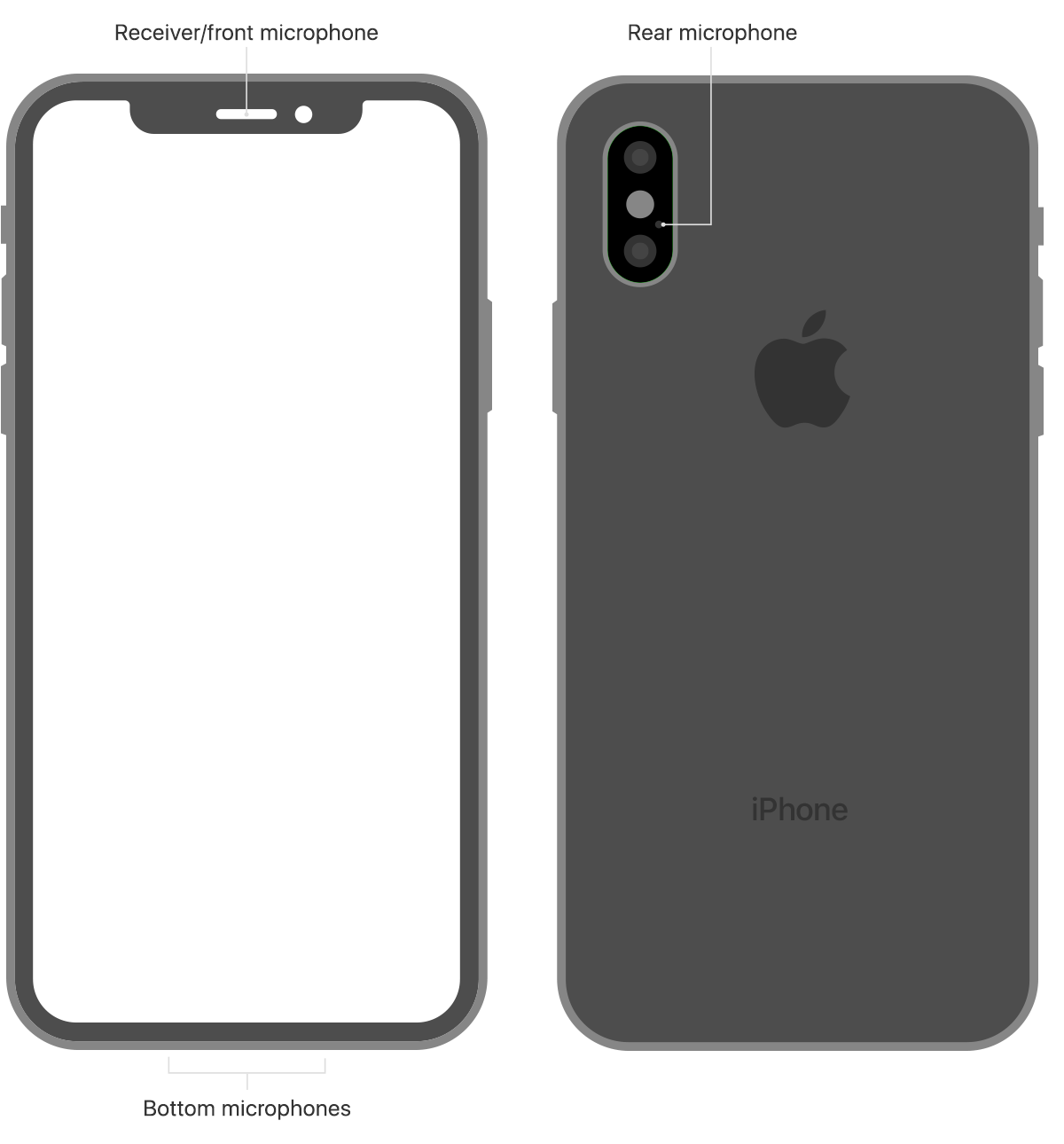
To test the primary microphone on the bottom of your iPhone, open Voice Memos and tap the record icon. Then speak into the microphone and tap the play icon to play back the recording. You should be able to hear your voice clearly.
To test the front microphone, open the Camera app and record a video using the front camera. To test the rear microphone, open the Camera app and record a video using the back camera. When you play back the video you should hear your voice clearly.
If your voice sounds faint when you’re on a phone call, make sure that your rear microphone isn’t blocked or covered.
If Siri can't hear you, make sure that the receiver and front microphone on top of your iPhone aren't covered or dirty.
If the microphones on your iPhone, iPad, and iPod touch aren't working
https://support.apple.com/en-us/HT203792