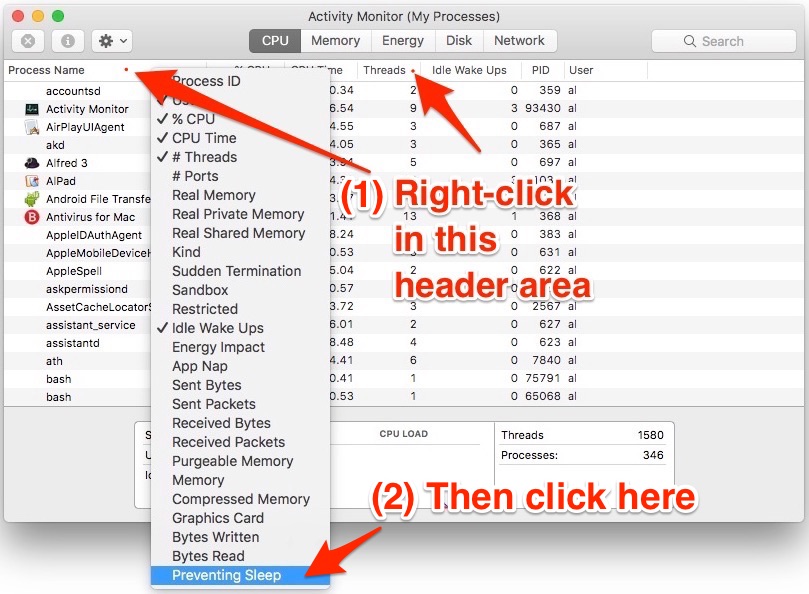
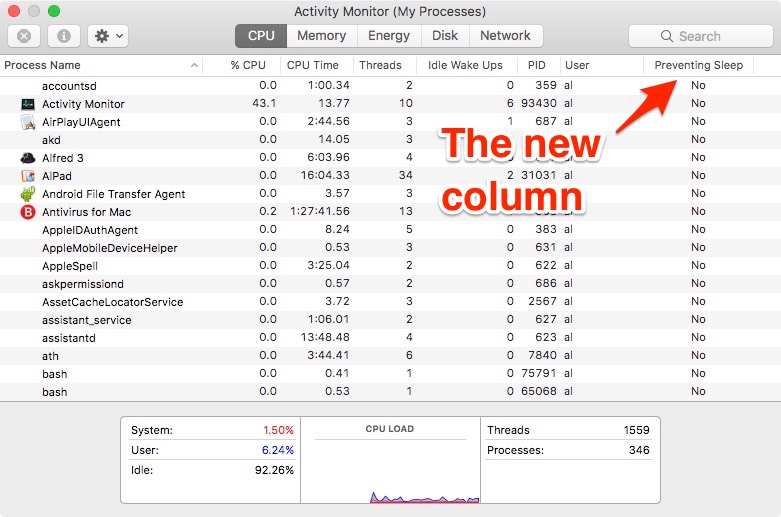
Cont......
Finding the process that’s preventing the screensaver from working :
The thing to do now is to scroll through the Preventing Sleep column and look for the word “Yes.” If you have the same problem my friend had, one (or more) of these rows will show the word Yes instead of No. This means that the process that’s identified by that row is the one that’s stopping the screensaver from working.
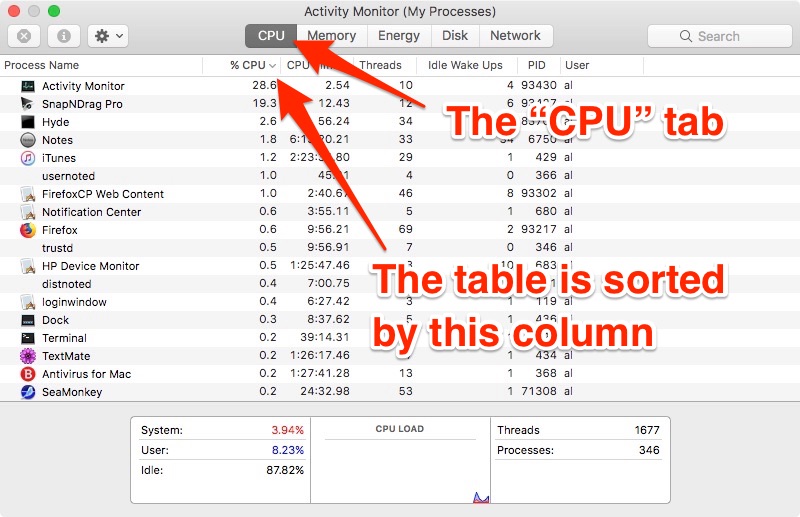
As an example of what I mean, imagine that the “HP Device Monitor” row in this image had a Yes in the Preventing Sleep column:
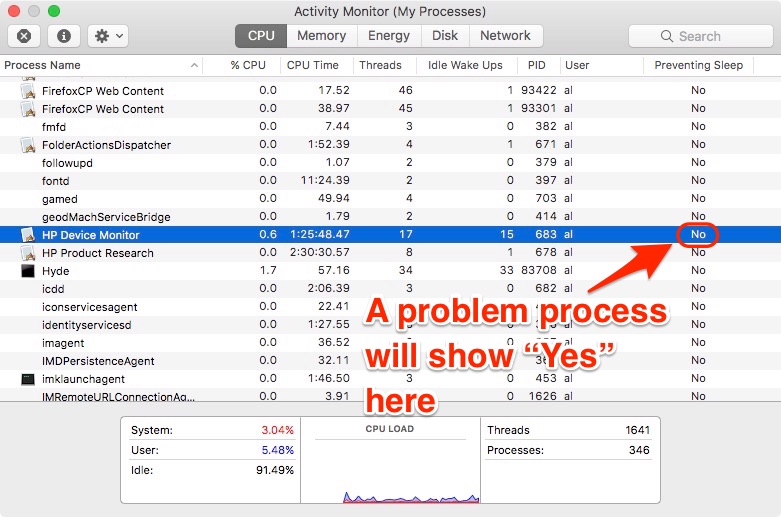
If there had been a Yes in that column, it would indicate that the HP Device Monitor is preventing the screensaver from running.
Next, click the Information icon at the top-left of the Activity Monitor window:
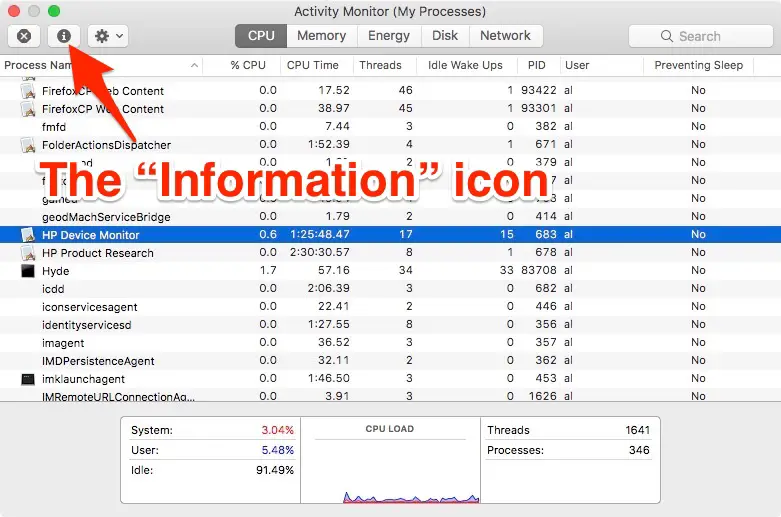
This brings up a “process information” dialog that looks like this:
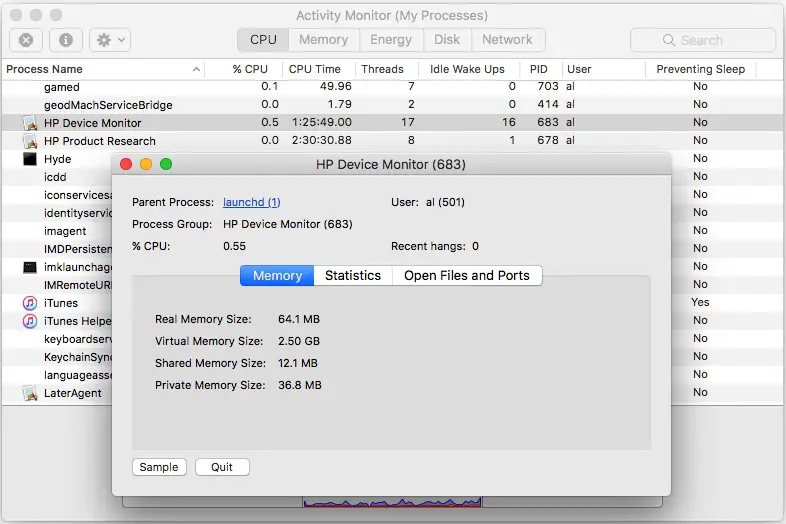
On this dialog, click the “Quit” button at the bottom. This will show a confirmation dialog that looks like this:
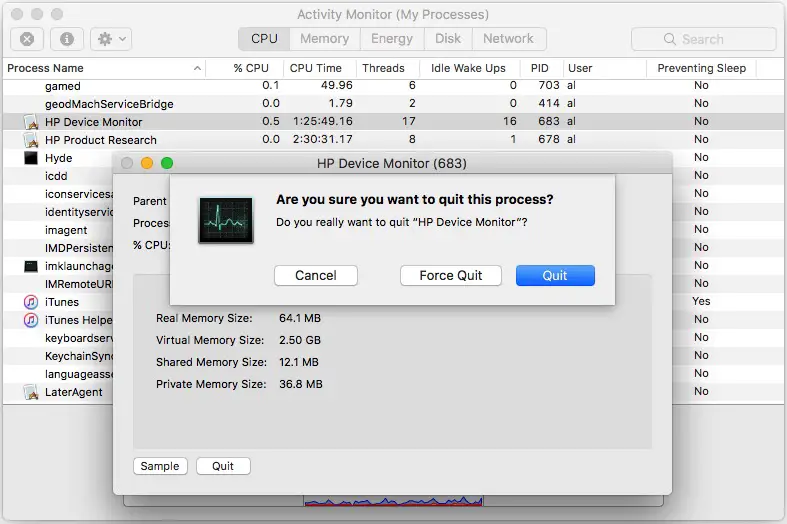
Click Quit on this dialog.
If you’re not comfortable with killing/quitting a process, here are some other things you can try:
- Once you see which process (or processes, if you have more than one) are marked Yes in the Preventing Sleep column, see if you can find another way to restart that process.
Before moving on, there are two things to do. First, make sure you look at every process listed in the Activity Monitor and make sure that none of them have a “Yes” entry in the Preventing Sleep column.
After you confirm that, you can remove the Preventing Sleep column from the view with these steps:
- Right-click the Preventing Sleep column header
- Move down to the Preventing Sleep item on the popup menu and de-select it
When you do that, the Preventing Sleep column should go away. You can quit the Activity Monitor now if you want, you shouldn’t need it any more for this problem.
Testing your screensaver
Once that column was changed to No, I assumed that the screensaver would work properly, but we went ahead and tested it to be sure. To do this we followed these steps:
- Click the Apple icon in the Mac menu bar
- Click the System Preferences menu item
- Click the “Desktop & Screen Saver” icon
- Click the Screen Saver tab
- Select any screen saver in the column on the left. For instance, I scrolled to the bottom and selected the “Word of the Day” screensaver.
- Just beneath that area, click the “Start after” drop-down menu and select “1 Minute”
After you do that, step away from the keyboard and mouse and let your Mac sit there. After a minute the screensaver should start. Once you’ve confirmed that it’s working properly, go ahead and set the “Start after” time back to whatever time you want it on.
Regards