In case, you wanted to partition your Mac hard disk drive (HDD) so you can run a separate operating system say any version of macOS or Windows — along with your current one, it's surprisingly easy to do using the help of Apple's built-in disk utility.
Below I have written a complete steps by step procedure on how to create a partition on Mac drive. However, before that let's have a look on hard disk drive partition.
What actually is Mac hard disk drive partition?
Partitioning a Mac operating system is basically splitting your computer drive into separate, usable systems. It makes it possible to run two separate operating systems on one device, like Windows and macOS or two versions of macOS.
It is important to note that partitioning a Mac drive also splits up your available hard drive space. Each partition will occupy a significant portion of your usable data storage.
Important Things to do Before Partitioning Mac Hard Drive:-
The most important thing to do before making any changes to your hard drive is to take the complete data backup. You can take the help of Apple inbuilt utility, i.e. Time machine to backups your complete hard drive data. This data backup comes handy whenever there occur some data loss problems while performing the partitioning operation. Additionally, try to make sure that you have enough free hard drive-space to properly run a secondary operating system.
Also, read this post to know how to take Mac data backups using Time Machine utility.
How to create a new partition on your Mac drive?
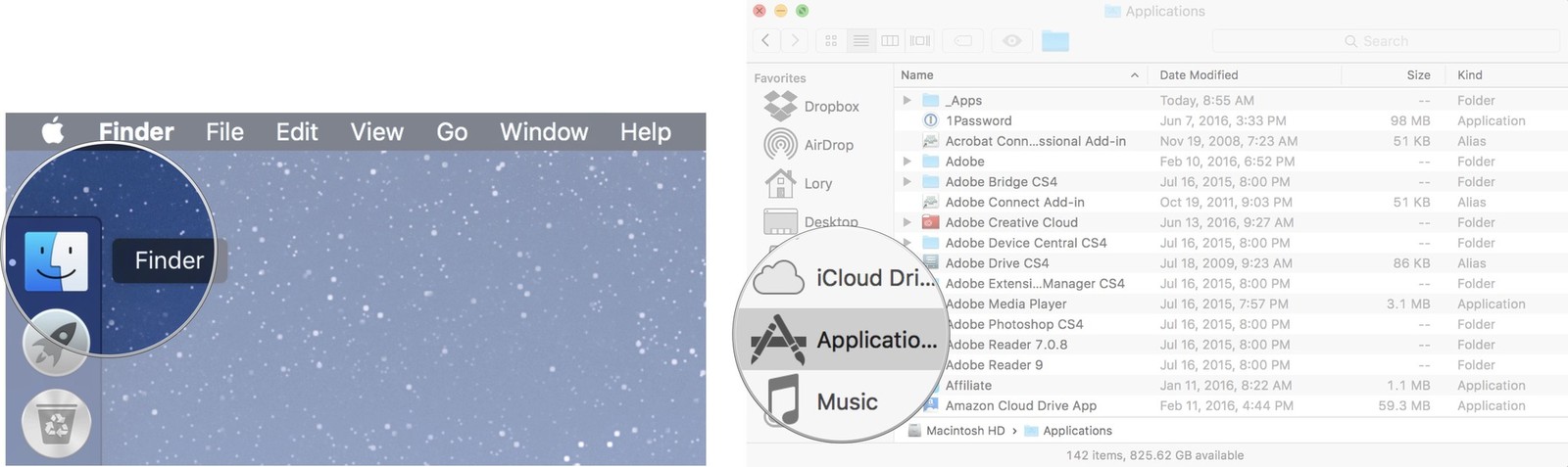
1.First, open Finder from your dock
2.Now, select the Applications
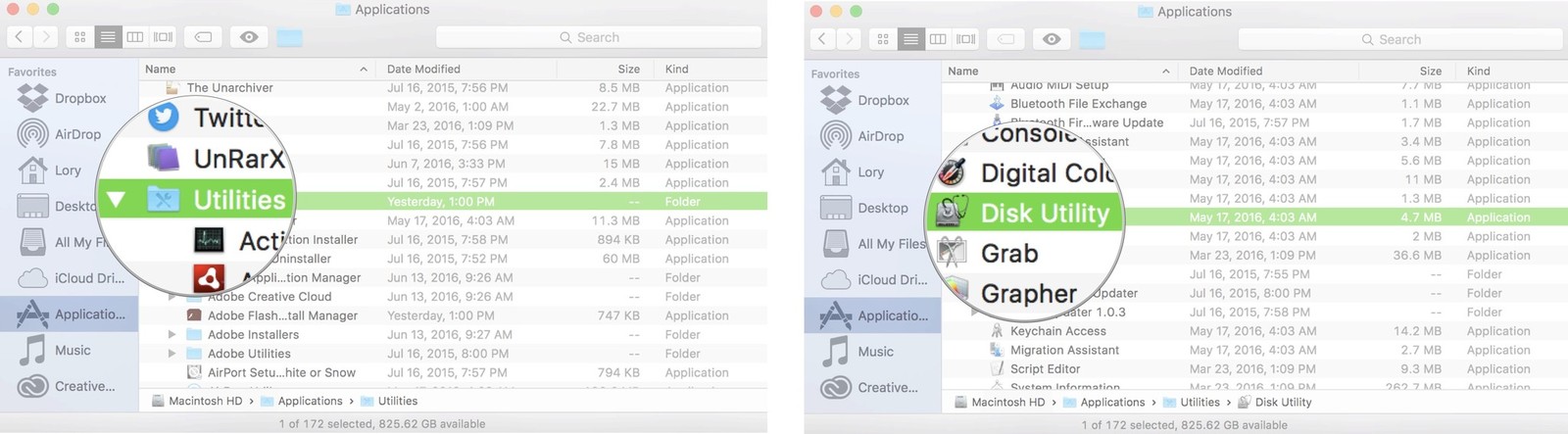
3.Here, further scroll down and open the Utilities folder
4.Double-click to open Disk Utility
5.Select your hard drive in the Disk Utility window. It will be the first drive on the list. It might be named "Fusion," or "Macintosh HD."
6.Click on the Partition tab
7.Click the plus (+) button
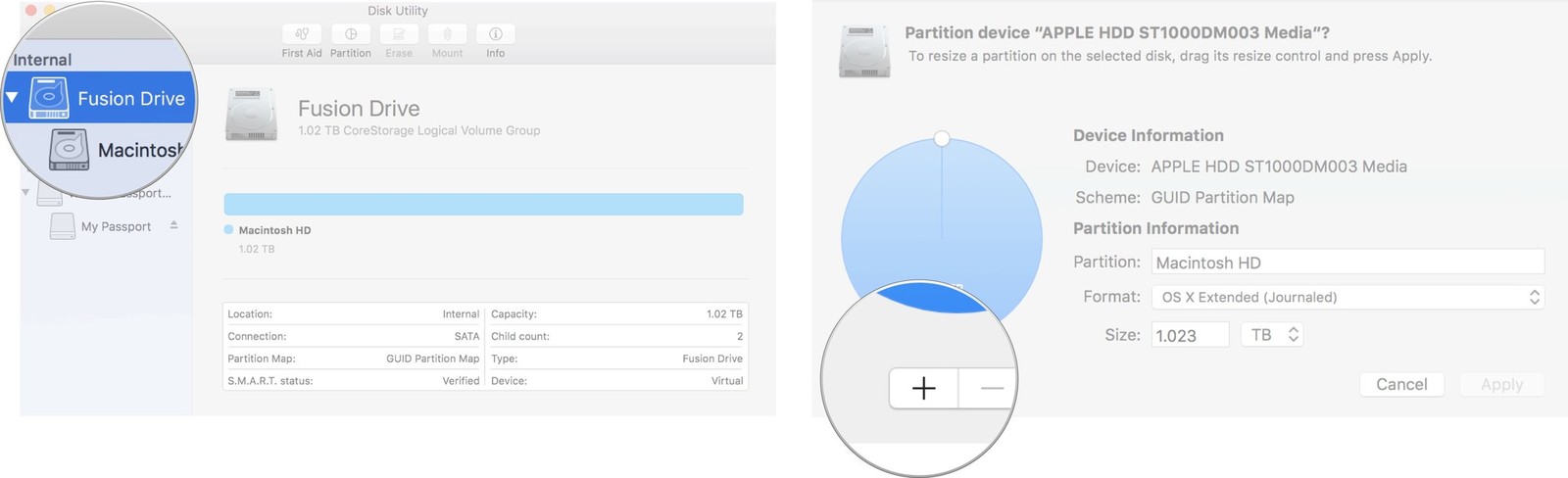
8.Change the size of the partition you wish to use by dragging the resize controls. The used space is represented in blue.
9.Name the new partition
10.Click apply

Disk Utility will check the Mac hard drive and make changes accordingly. This will take several minutes to few hours.
Creating a new partition using the help of Disk Utility is very easy. However, for resizing the Mac hard drive you need to try some professional 3rd party tool like this Mac partition manager software. This Mac partition manager tool helps a macOS user to create, resize, delete, format, repartition the Mac hard drive without giving any kind of data loss problems. Also, you can give a free try GParted to perform the hard drive partitioning features like create, resize etc.
After that, you will be able to create and resize the macOS hard drive partitions.

