
Can't send outgoing email messages
Get message "Cannot connect to the outgoing mail server". I've deleted by password and reentered.
iPhone 6, 12
Get message "Cannot connect to the outgoing mail server". I've deleted by password and reentered.
iPhone 6, 12
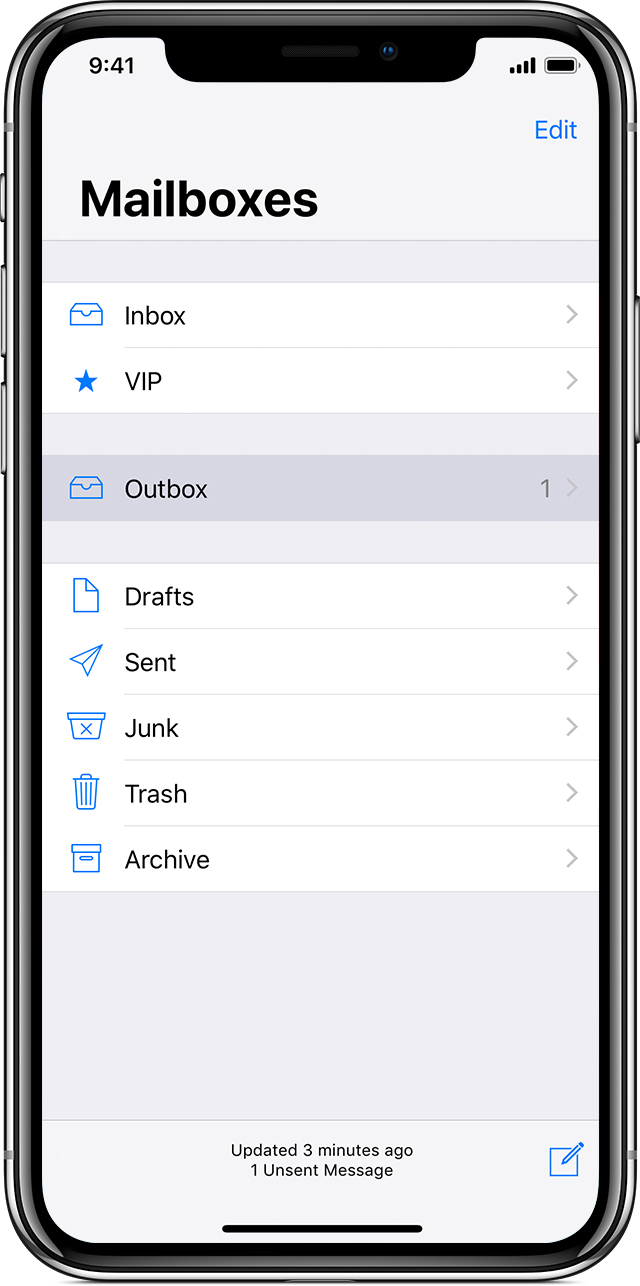
Check the Outbox for unsent emails
If you get a message that says your email wasn’t sent, then that email goes to your Outbox. Check your Outbox and try to send the email again:
Check your email address and password
If Mail asks you to enter a password for your email account, make sure that your password is correct. To check your email address and password, sign in to your email provider's website.
If you still get a username or password error, contact your email provider or system administrator.
Check iOS Mail Fetch and Notification settings
By default, Fetch New Data settings are based on what is provided by your email service. If Push isn't available as a setting, your account will default to Fetch. These settings affect how your device receives email. To adjust these settings:
With iOS 11 and later, Automatically is set by default. Your device will fetch new data in the background only when your device is charging and connected to Wi-FI.
Make sure that your Notification settings are correct for the Mail app:
Check your Mail settings
When you set up your email account on your device, iOS automatically uses the correct account settings for many email providers.
To make sure that your account settings are correct, compare the settings in the Mail app to the settings for your email account:
If you have a POP3 email account, then you can only check email on one device at a time. Close other email programs and sign out of webmail sites that you have open. To check if your email is a POP3 account, go to Settings > Passwords & Accounts, tap your account, tap Account, then look for the label POP Account Information. You can also check the recommended email settings for your POP3 email account in the Mail Settings Lookup tool.
If you can't send or receive emails on your iPhone, iPad, or iPod touch ...
Check the Outbox for unsent emails
If you get a message that says your email wasn’t sent, then that email goes to your Outbox. Check your Outbox and try to send the email again:
Check your email address and password
If Mail asks you to enter a password for your email account, make sure that your password is correct. To check your email address and password, sign in to your email provider's website.
If you still get a username or password error, contact your email provider or system administrator.
Check iOS Mail Fetch and Notification settings
By default, Fetch New Data settings are based on what is provided by your email service. If Push isn't available as a setting, your account will default to Fetch. These settings affect how your device receives email. To adjust these settings:
With iOS 11 and later, Automatically is set by default. Your device will fetch new data in the background only when your device is charging and connected to Wi-FI.
Make sure that your Notification settings are correct for the Mail app:
Check your Mail settings
When you set up your email account on your device, iOS automatically uses the correct account settings for many email providers.
To make sure that your account settings are correct, compare the settings in the Mail app to the settings for your email account:
If you have a POP3 email account, then you can only check email on one device at a time. Close other email programs and sign out of webmail sites that you have open. To check if your email is a POP3 account, go to Settings > Passwords & Accounts, tap your account, tap Account, then look for the label POP Account Information. You can also check the recommended email settings for your POP3 email account in the Mail Settings Lookup tool.
If you can't send or receive emails on your iPhone, iPad, or iPod touch ...
Did not do anything. Says message not trusted. When go into details I get all this US information and I am in Canada. Do I need to contact Apple or my email provider? Apple no longer provides chat , you have to pay.
Can't send outgoing email messages
