Two-factor authentication for Apple ID
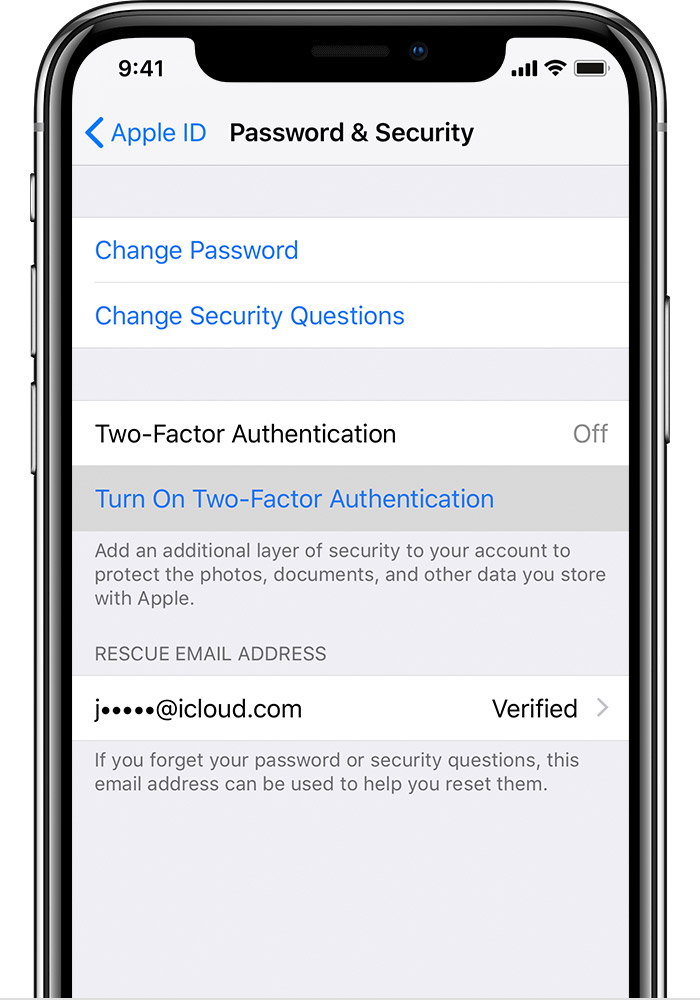
Two-factor authentication is an extra layer of security for your Apple ID designed to ensure that you're the only person who can access your account, even if someone knows your password.
How it works
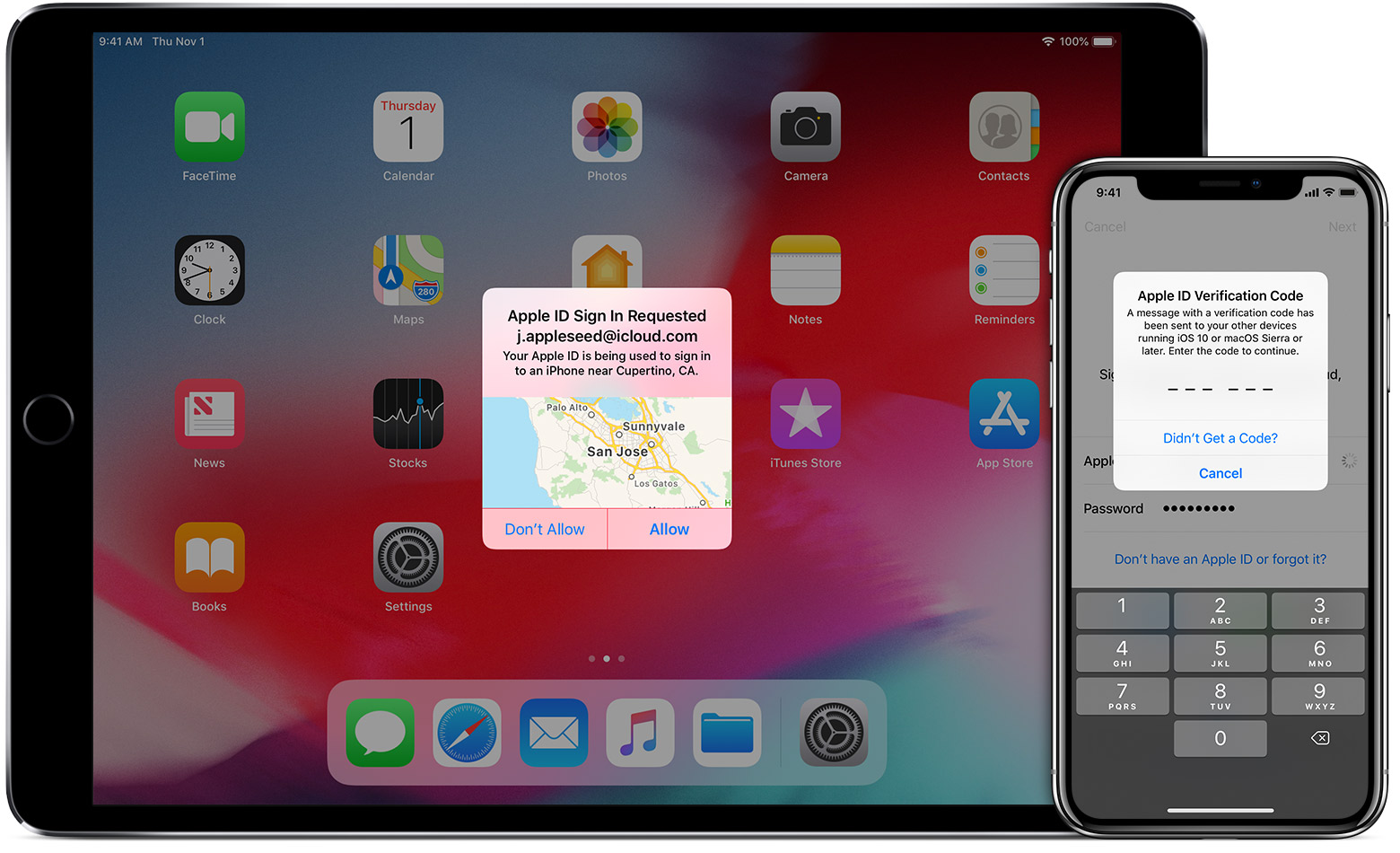
With two-factor authentication, your account can only be accessed on devices you trust, like your iPhone, iPad, or Mac. When you want to sign in to a new device for the first time, you'll need to provide two pieces of information—your password and the six-digit verification code that's automatically displayed on your trusted devices. By entering the code, you're verifying that you trust the new device. For example, if you have an iPhone and are signing into your account for the first time on a newly purchased Mac, you'll be prompted to enter your password and the verification code that's automatically displayed on your iPhone.
Because your password alone is no longer enough to access your account, two-factor authentication dramatically improves the security of your Apple ID and all the personal information you store with Apple.
Once signed in, you won’t be asked for a verification code on that device again unless you sign out completely, erase the device, or need to change your password for security reasons. When you sign in on the web, you can choose to trust your browser, so you won’t be asked for a verification code the next time you sign in from that computer.
Trusted devices
A trusted device is an iPhone, iPad, or iPod touch with iOS 9 and later, or a Mac with OS X El Capitan and later that you've already signed in to using two-factor authentication. It’s a device we know is yours and that can be used to verify your identity by displaying a verification code from Apple when you sign in on a different device or browser.
Trusted phone numbers
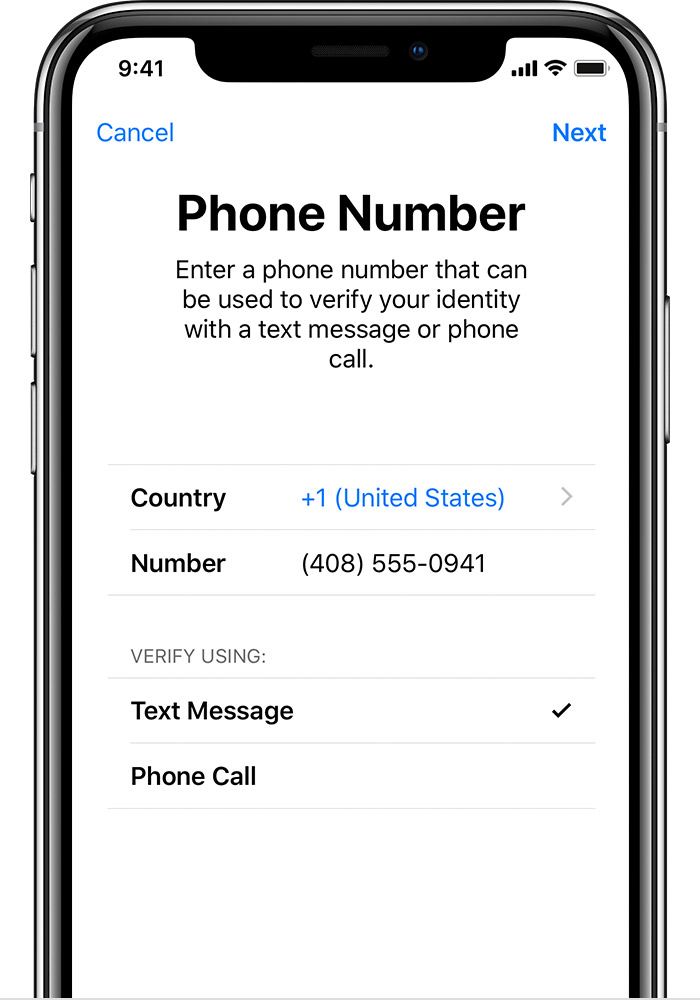
A trusted phone number is a number that can be used to receive verification codes by text message or automated phone call. You must verify at least one trusted phone number to enroll in two-factor authentication.
You should also consider verifying an additional phone number you can access, such as a home phone, or a number used by a family member or close friend. You can use this number if you temporarily can't access your primary number or your own devices.
Verification codes
A verification code is a temporary code sent to your trusted device or phone number when you sign in to a new device or browser with your Apple ID. You can also get a verification code from Settings on your trusted device.
A verification code is different from the device passcode you enter to unlock your iPhone, iPad, or iPod touch.

Two-factor authentication for Apple ID - Apple Support
https://support.apple.com/en-in/HT204915