My phone is locked because I forgot my password I got it two days ago

my phone is locked because I forgot my password I got it two days ago, I been using face id and my phone died today so its making me use the code, its saying locked out and contact itunes


[Re-Titled by Host]

iPhone XR, iOS 12

Posted on Mar 1, 2019 9:16 PM

Reply
Question marked as Top-ranking reply

Posted on Mar 1, 2019 9:59 PM

If you forgot your passcode, or if a message says that your device is disabled, follow these steps to remove your passcode. Data on the device will no longer be available, and you'll need to erase your device.
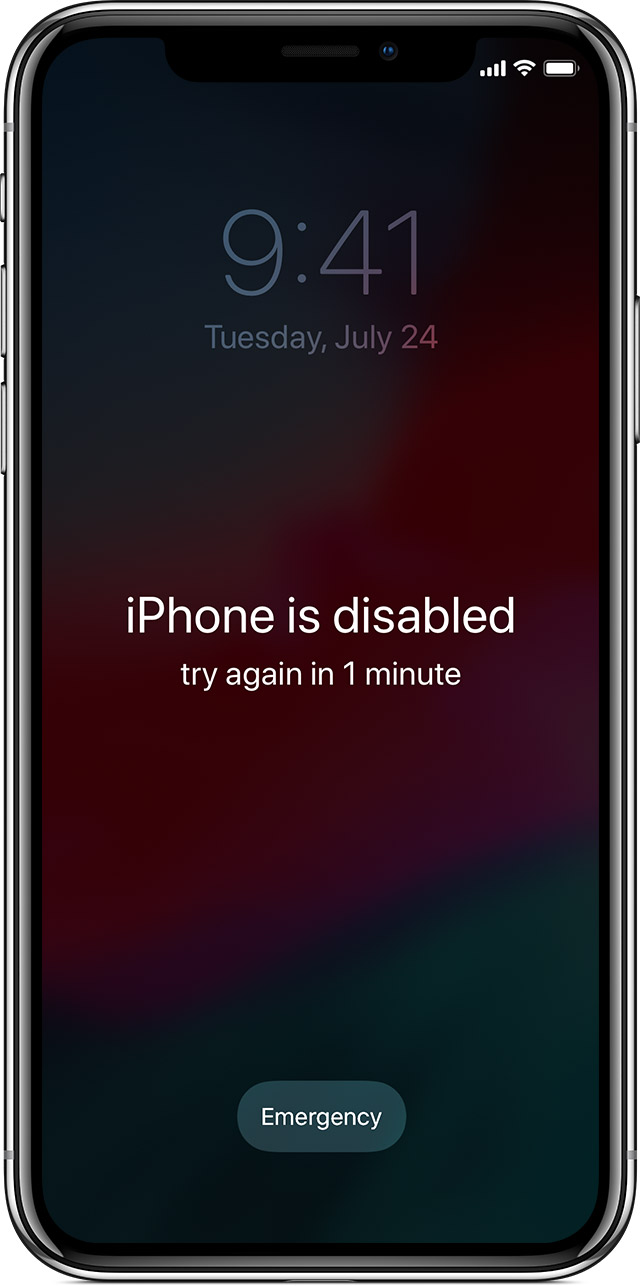

If you enter the wrong passcode on an iOS device too many times, you'll be locked out and a message will say that your device is disabled. At this point, the data on your device has been erased. To recover the use of your device, you'll need to remove your passcode by performing a restore.


Remove your passcode

If you backed up your device, you can restore your data and settings after restoring your device. If you never backed up your device before you forgot your passcode, you won't be able to save your device's data.

  1. If you don't have iTunes, download and install iTunes on your Mac or PC. If you don't have a computer, borrow one from a friend, or go to an Apple Retail Store or Apple Authorized Service Provider.
  2. Connect your iOS device to your computer and open iTunes.
  3. While your device is connected, force restart it:

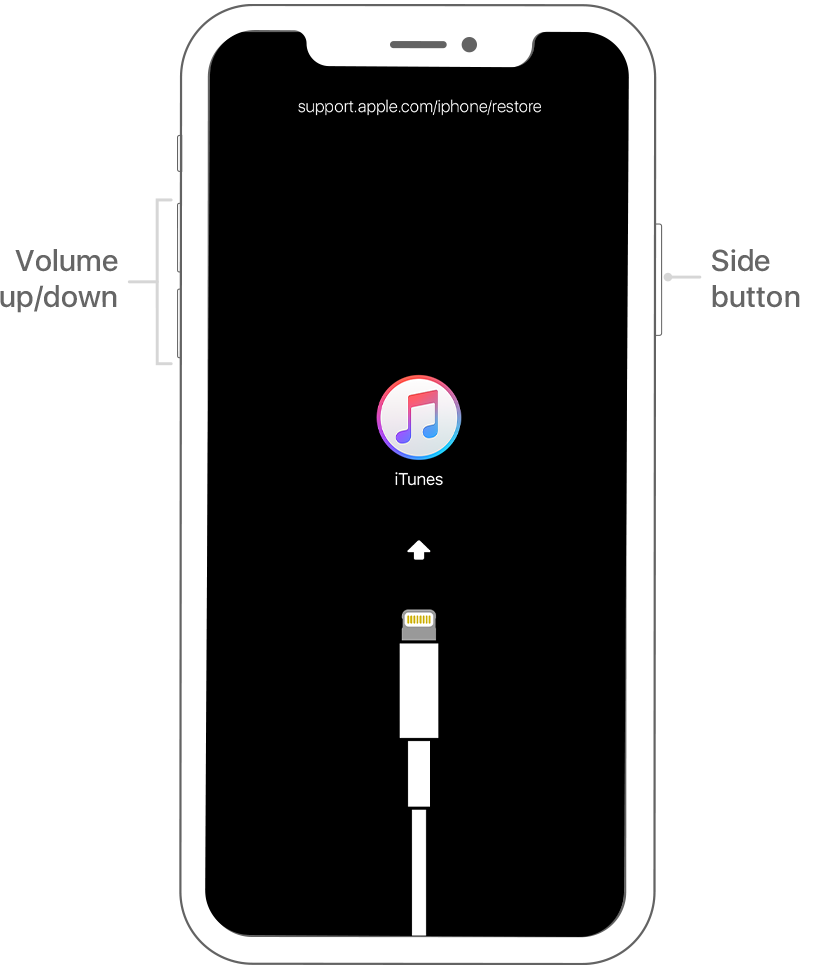
  • On an iPhone X or later, or iPhone 8 or later: Press and quickly release the Volume Up button. Press and quickly release the Volume Down button. Then, press and hold the Side button until you see the recovery-mode screen.
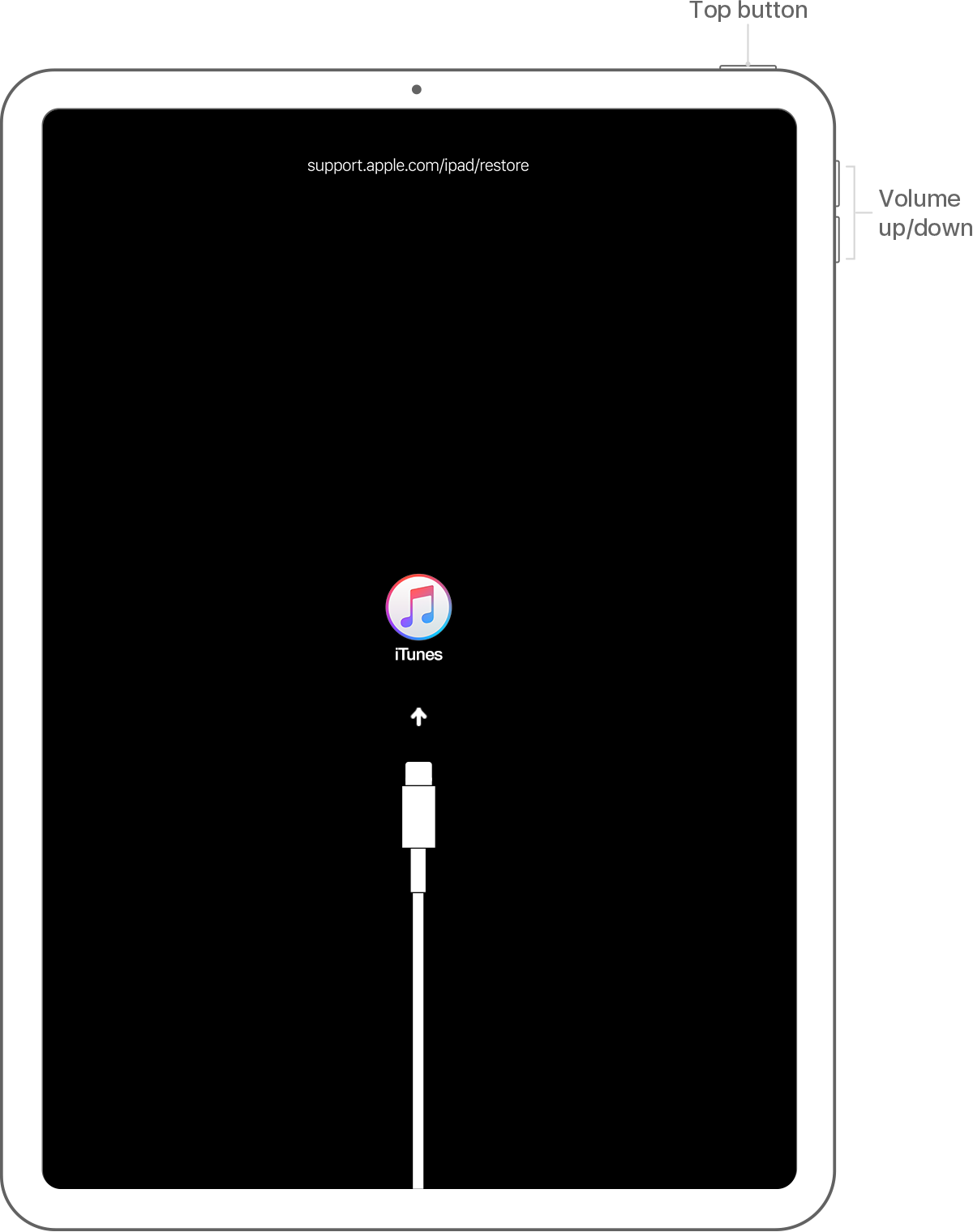
  • On an iPad with Face ID: Press and quickly release the Volume Up button. Press and quickly release the Volume Down button. Then, press and hold the Top button until you see the recovery-mode screen.
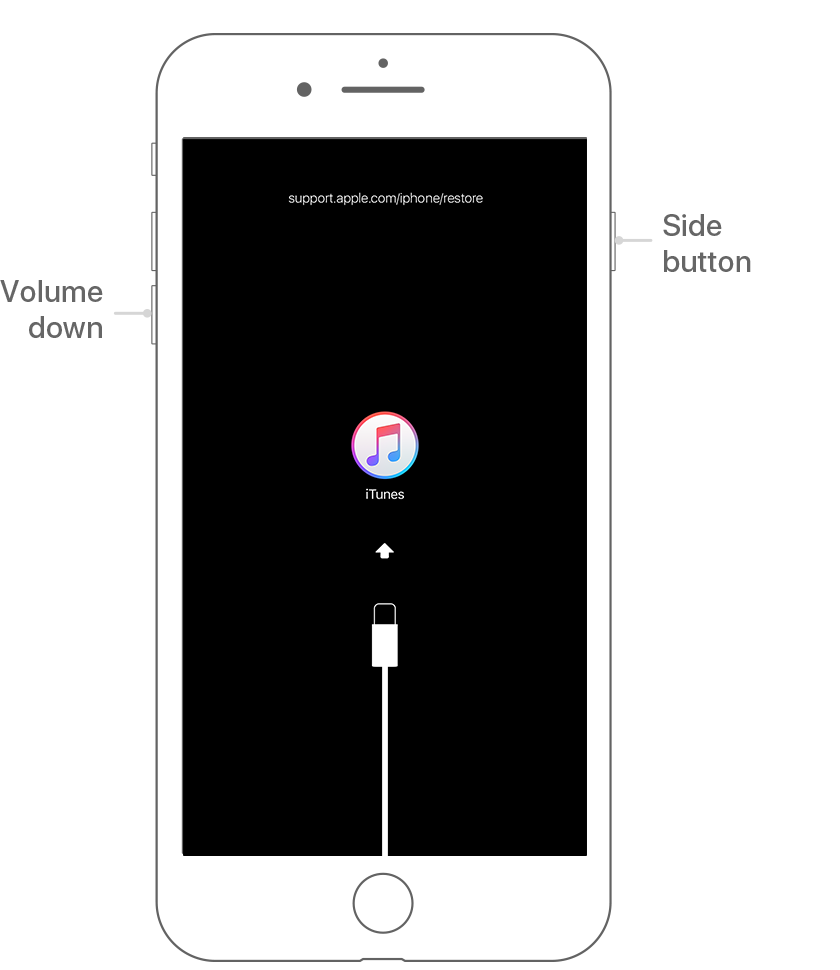
  • On an iPhone 7 or iPhone 7 Plus: Press and hold both the Side and Volume Down buttons at the same time. Keep holding them until you see the recovery-mode screen.
  • On an iPhone 6s and earlier, iPad with a Home button, or iPod touch: Press and hold both the Home and the Top (or Side) buttons at the same time. Keep holding them until you see the recovery-mode screen.
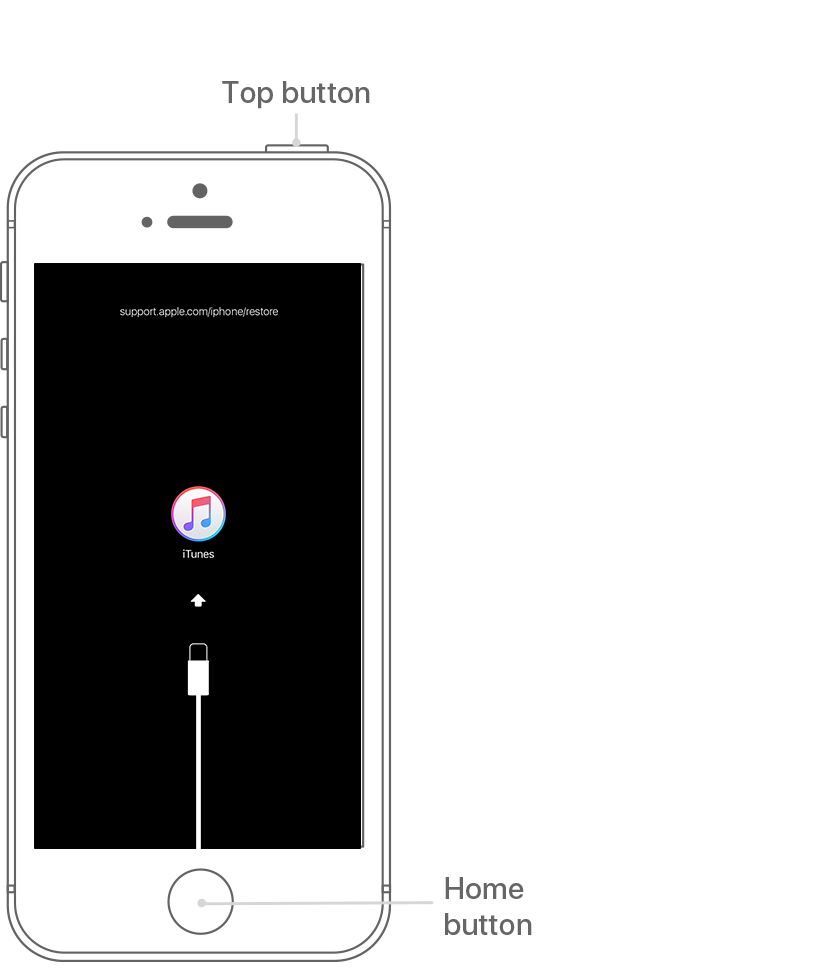
  1. When you see the option to Restore or Update, choose Restore. 
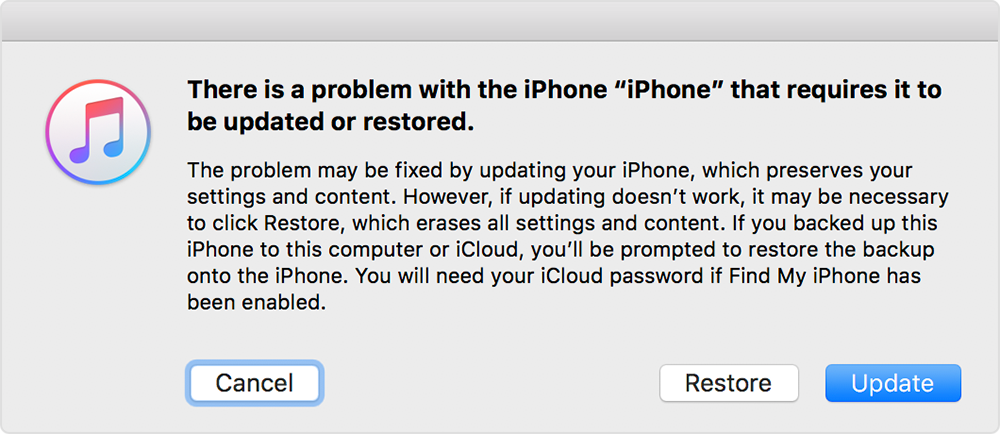
  2. iTunes will download software for your device. If it takes more than 15 minutes, your device will exit recovery mode and you'll need to repeat steps 2 and 3.
  3. Wait for the process to finish. Then you can set up and use your device.


Get more help

If you can't update or restore your device using recovery mode, or you can't use recovery mode because of broken or stuck buttons, contact Apple Support. Then follow the steps to set up service for your iPhone, iPad, or iPod touch.


2 replies
Question marked as Top-ranking reply

Mar 1, 2019 9:59 PM in response to younggodOG

If you forgot your passcode, or if a message says that your device is disabled, follow these steps to remove your passcode. Data on the device will no longer be available, and you'll need to erase your device.


If you enter the wrong passcode on an iOS device too many times, you'll be locked out and a message will say that your device is disabled. At this point, the data on your device has been erased. To recover the use of your device, you'll need to remove your passcode by performing a restore.


Remove your passcode

If you backed up your device, you can restore your data and settings after restoring your device. If you never backed up your device before you forgot your passcode, you won't be able to save your device's data.

  1. If you don't have iTunes, download and install iTunes on your Mac or PC. If you don't have a computer, borrow one from a friend, or go to an Apple Retail Store or Apple Authorized Service Provider.
  2. Connect your iOS device to your computer and open iTunes.
  3. While your device is connected, force restart it:

  • On an iPhone X or later, or iPhone 8 or later: Press and quickly release the Volume Up button. Press and quickly release the Volume Down button. Then, press and hold the Side button until you see the recovery-mode screen.

  • On an iPad with Face ID: Press and quickly release the Volume Up button. Press and quickly release the Volume Down button. Then, press and hold the Top button until you see the recovery-mode screen.

  • On an iPhone 7 or iPhone 7 Plus: Press and hold both the Side and Volume Down buttons at the same time. Keep holding them until you see the recovery-mode screen.

  • On an iPhone 6s and earlier, iPad with a Home button, or iPod touch: Press and hold both the Home and the Top (or Side) buttons at the same time. Keep holding them until you see the recovery-mode screen.

  1. When you see the option to Restore or Update, choose Restore. 

  2. iTunes will download software for your device. If it takes more than 15 minutes, your device will exit recovery mode and you'll need to repeat steps 2 and 3.
  3. Wait for the process to finish. Then you can set up and use your device.


Get more help

If you can't update or restore your device using recovery mode, or you can't use recovery mode because of broken or stuck buttons, contact Apple Support. Then follow the steps to set up service for your iPhone, iPad, or iPod touch.

Mar 2, 2019 8:06 AM in response to younggodOG

You have two ways to go with this, if the device is new then I assume you still don’t have too much data accumulated and therefore a Restore as New might not be that inconvenient (as suggested -MRX), but when done store your new password somewhere safe.


If you have something important stored on it already that you really don’t want to loose, then I would sit back and give yourself a little more time to try and think what the password/passcode could of been. It’s surprising when not trying how these things can pop up in the mind, also think about how you select passwords, could it be a memorable date, location, name of pet or pop group.


Not sure what else to suggest but with luck and given a little more time it may come back to you.

This thread has been closed by the system or the community team. You may vote for any posts you find helpful, or search the Community for additional answers.

My phone is locked because I forgot my password I got it two days ago

Welcome to Apple Support Community
A forum where Apple customers help each other with their products. Get started with your Apple Account.