Natural / Inverted / Reversed Scrolling - Microsoft Windows - BootCamp
For the short time that I worked as an AppleCare Senior Advisor, this was one of the banes of my existence. I couldn't seem to find a functional result for my customers that didn't require the installation of sketchy software, and I often found myself hopelessly and helplessly referring them to the largely non-existent service that is Microsoft support.
After Bootcamping my own MacBook Pro I started digging into this issue, because it really is irking having scrolling become unnatural when you have to go from MacOS to WindowsBS.
I found the answer I'm posting below provided by one of the only existant and helpful Microsoft Agents, Louie Del, in response to a StephenFlink's question about reversing scroll direction. I amended the information in this post (Bold, Italicized, and Underlined) to add the Natural Horizontal Scrolling. If you wish to see the original post, go to "Reverse the scroll of mouse - Microsoft Community".
How to Replicate MacOS Natural Scrolling in Microsoft Windows
Important: This section, method, or task contains steps that tell you how to modify the registry. However, serious problems might occur if you modify the registry incorrectly. Therefore, make sure that you follow these steps carefully. For added protection, back up the registry before you modify it. Then, you can restore the registry if a problem occurs. For more information about how to back up and restore the registry, refer to the following Microsoft Knowledge Base article. How to back up and restore the registry in Windows
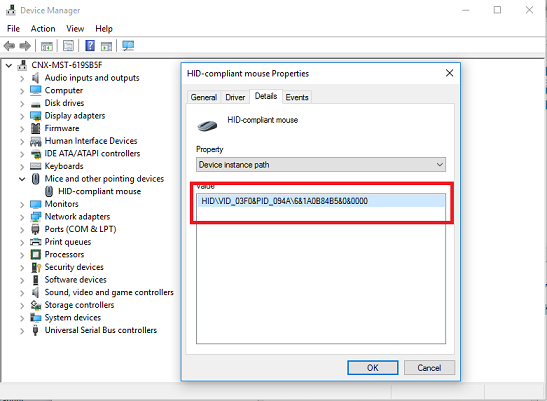
- In the search box, type Device Manager and click on the result.
- Select Mice and other pointing devices and double-click your mouse.
- Go to the Details tab, select Device instance path from the drop-down menu.
- Right-click the value that shows in the Value box and select Copy.
- Press OK and close the Device Manager window.
- Open a Notepad or Word so you can take note of the VID ID, then paste it from there. We’ll be using the VID ID as a reference for the next steps.
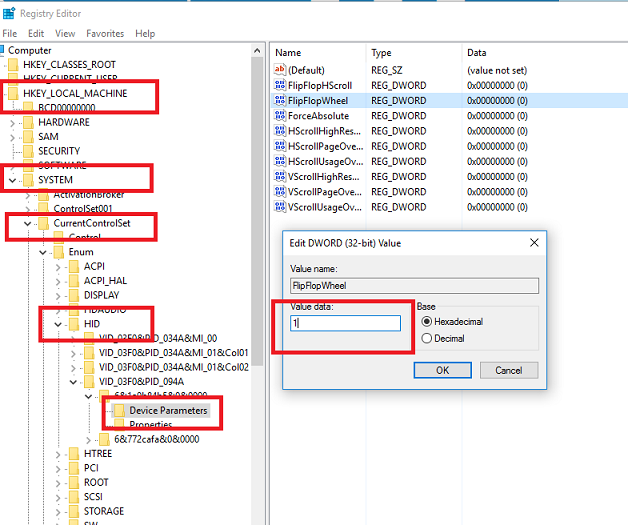
- In the search box, type regedit and click the result.
- Go to this registry location: HKEY_LOCAL_MACHINE\SYSTEM\CurrentControlSet\Enue\HID.
- This is where we’ll uses the VID ID. Click the key that matches the VID ID that was copied earlier.
- Select Device Parameters.
- Select and double-click FlipFlopWheel.
- Change the Value data from 0 to 1 and press OK.
- To Add Natural Horizontal Scrolling; Select and double-click FlipFlopHScroll.
- Change the Value data from 0 to 1 and press OK.
- Close the Registry Editor windows.
- Restart your device to reflect the changes.
- Check the result.