
What is my charging case acting like it is charging but is not
The red light is on but is not charging
iPhone 6s, iOS 12
The red light is on but is not charging
iPhone 6s, iOS 12
Charge your iPhone with your Smart Battery Case
Your Smart Battery Case protects and charges your iPhone, giving you more time to use your device. Learn how to use your Smart Battery Case.
Charge your Smart Battery Case
Before you start using your Smart Battery Case, update your iPhone to the latest version of iOS. Also make sure that you charge your Smart Battery Case before you use it.

Attach and remove your case
To attach your case, pull back its top edge and slide your iPhone in. When you put your iPhone in a Smart Battery Case that has a charge, your iPhone charges automatically.
To remove your case, pull back its top edge and slide your iPhone toward the top of the case. Slide up—not toward you—or you could damage the connector.
Check the charge
When you attach your iPhone to your case, a charging status appears on the Lock screen. The status also appears when you connect the case to power or disconnect from power. If you already attached your iPhone to your case, look for the charging status in Today View on your iPhone.
Charge your case and your iPhone
When your iPhone isn't in the case, you'll see a green status light when the case is fully charged or an amber light when the case is charging.
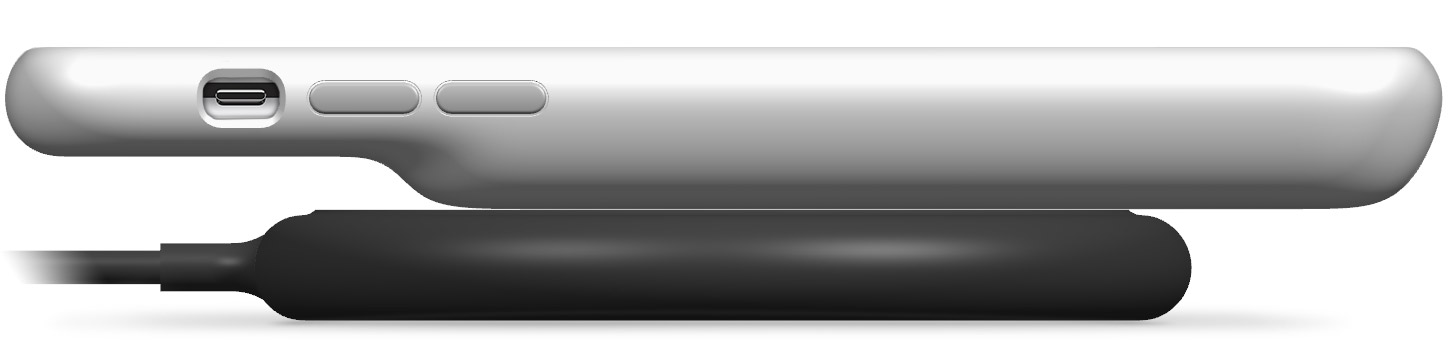
If you have the Smart Battery Case for iPhone XS, iPhone XS Max, or iPhone XR, you can wirelessly charge it with Qi-certified charging accessories.
You can also charge your Smart Battery Case without your iPhone.
Get help
Follow the steps below if your Smart Battery Case won't charge, charges slowly,* if it won't charge your iPhone, or if you can't use an accessory while using your Smart Battery Case.
If your Smart Battery Case won't charge or charges slowly
Follow these steps. Try to charge again after each step:
If you’re using a Qi-certified wireless charging mat to charge the Smart Battery Case for iPhone XS, iPhone XS Max, or iPhone XR, make sure that there’s nothing between the case and the wireless charging mat. Also, center the Apple logo—on the back of the Smart Battery Case—on the charging mat. Or place your iPhone where the manufacturer recommends.
* Charging both your iPhone and your Smart Battery Case takes longer than it does to charge your iPhone alone.
If your iPhone won't charge
Follow these steps. Try to charge again after each step:
If you can't use an accessory while using your Smart Battery Case
If you can't use an Apple or Made for iPhone accessory with your Smart Battery Case, follow these steps:
Charge your iPhone with your Smart Battery Case - Apple Support
Charge your iPhone with your Smart Battery Case
Your Smart Battery Case protects and charges your iPhone, giving you more time to use your device. Learn how to use your Smart Battery Case.
Charge your Smart Battery Case
Before you start using your Smart Battery Case, update your iPhone to the latest version of iOS. Also make sure that you charge your Smart Battery Case before you use it.
Attach and remove your case
To attach your case, pull back its top edge and slide your iPhone in. When you put your iPhone in a Smart Battery Case that has a charge, your iPhone charges automatically.
To remove your case, pull back its top edge and slide your iPhone toward the top of the case. Slide up—not toward you—or you could damage the connector.
Check the charge
When you attach your iPhone to your case, a charging status appears on the Lock screen. The status also appears when you connect the case to power or disconnect from power. If you already attached your iPhone to your case, look for the charging status in Today View on your iPhone.
Charge your case and your iPhone
When your iPhone isn't in the case, you'll see a green status light when the case is fully charged or an amber light when the case is charging.
If you have the Smart Battery Case for iPhone XS, iPhone XS Max, or iPhone XR, you can wirelessly charge it with Qi-certified charging accessories.
You can also charge your Smart Battery Case without your iPhone.
Get help
Follow the steps below if your Smart Battery Case won't charge, charges slowly,* if it won't charge your iPhone, or if you can't use an accessory while using your Smart Battery Case.
If your Smart Battery Case won't charge or charges slowly
Follow these steps. Try to charge again after each step:
If you’re using a Qi-certified wireless charging mat to charge the Smart Battery Case for iPhone XS, iPhone XS Max, or iPhone XR, make sure that there’s nothing between the case and the wireless charging mat. Also, center the Apple logo—on the back of the Smart Battery Case—on the charging mat. Or place your iPhone where the manufacturer recommends.
* Charging both your iPhone and your Smart Battery Case takes longer than it does to charge your iPhone alone.
If your iPhone won't charge
Follow these steps. Try to charge again after each step:
If you can't use an accessory while using your Smart Battery Case
If you can't use an Apple or Made for iPhone accessory with your Smart Battery Case, follow these steps:
Charge your iPhone with your Smart Battery Case - Apple Support
What is my charging case acting like it is charging but is not
