Hi Coxfamilysix,
Are you seeing the below screen?
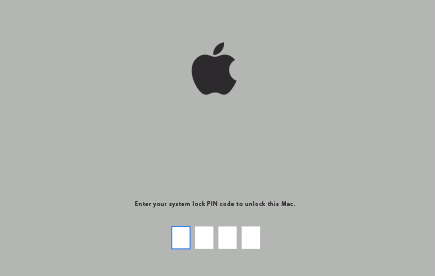
If yes, that screen is only supposed to appear when you lock your Mac via Find My Mac. If you don't know the passcode, you'll need to bring your Mac to the nearest Apple Store or Apple Authorized Service Provider. Only Apple can remove a forgotten firmware password. You can, however, try to brute force the password:
- Hold down the Option key as you turn on or restart your Mac. Release the key when you see the first screen shown below.
- Try to guess the correct passcode. No delays between attempts will be enforced. If you guess the correct passcode, you'll see the second screen shown below:

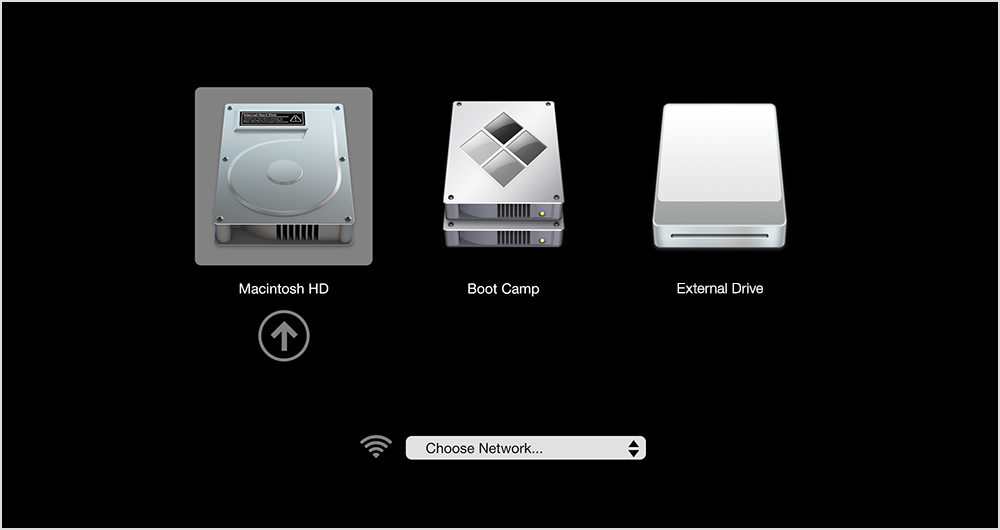
At this point, select your startup disk via the arrow keys and hit Enter (Return). You'll see the PIN code screen again. Enter the same PIN to unlock your Mac and remove the firmware password.
You can exit the above screens by holding the power button on your Mac until it turns off. Touch ID acts as the power button, if your Mac has it.
If you don't see any of the above screens at all, and:
The T2 chip may be locking you out, as explained in this white paper from Apple (see page 7): https://www.apple.com/mac/docs/Apple_T2_Security_Chip_Overview.pdf. Hold down Command-R as you turn on or restart your Mac to boot into macOS Recovery. Once in, I'd suggest doing the following:
If you know the password
- Select Reinstall macOS. None of your data will be lost.
- Follow the onscreen instructions until you're prompted to select a destination disk.
- Select your startup disk and enter the password when prompted.
- If successful, macOS should reinstall and your Mac will be ready to use once reinstallation is complete.
If you don't know the password
- Go to the top menu bar (where the Apple logo resides). Click Utilities.
- From the drop-down menu, select Terminal.
- Type resetpassword and hit Enter (Return).
- The Password Reset Assistant should appear. Follow the onscreen instructions.

