
How to change my method of payment
How to change the payment. For some reason it won’t let me remove the old and put in the new one.
iPhone X, iOS 12
How to change the payment. For some reason it won’t let me remove the old and put in the new one.
iPhone X, iOS 12
Change, add, or remove Apple ID payment methods
You can manage your Apple ID payment information in Settings on your iPhone, iPad, or iPod touch; in iTunes on your Mac or PC; or in the Apple Music app on your Android device.
Your Apple ID is the personal account that you use to access Apple services like the App Store, iTunes Store, iCloud, and more. When you change your payment method or billing address, your information also updates everywhere that you use your Apple ID.


Change your payment method
Change your payment method on your iPhone, iPad, or iPod touch
Before you change your payment information, make sure that you have the latest version of iOS.
Update or add
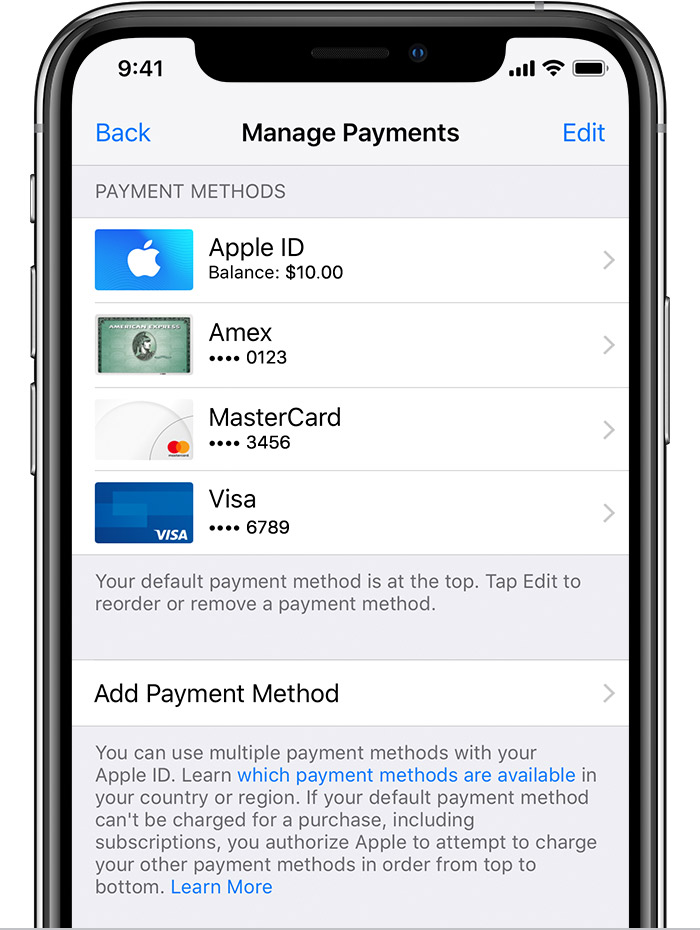
Remove or reorder
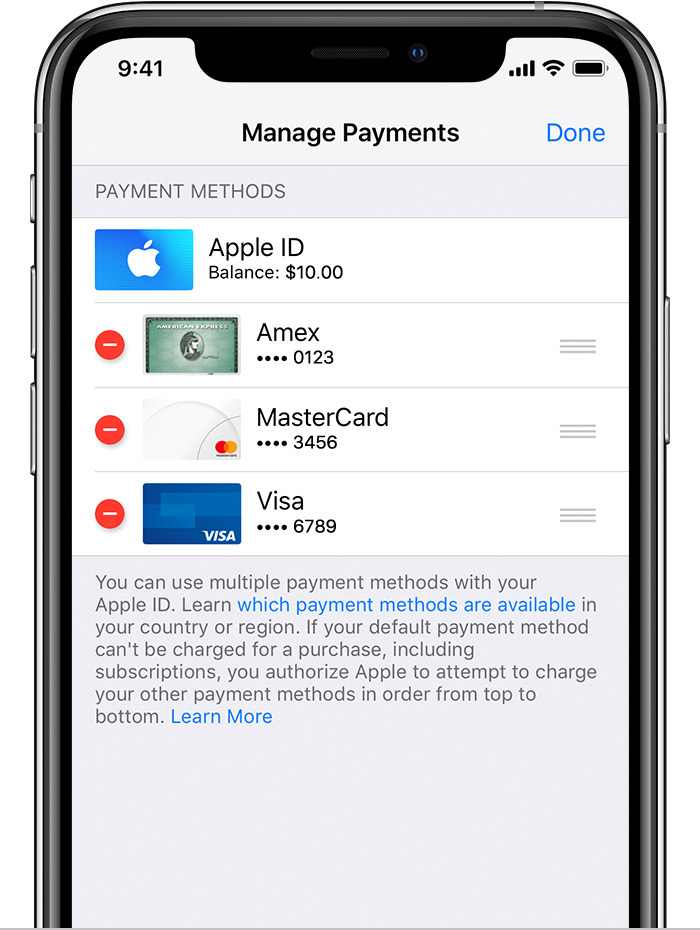
 or swipe left and tap delete.
 to rearrange your payment methods. Apple will attempt to charge payment methods in order from top to bottom. You can't change the order in which Apple ID balance is charged.
*With iOS 12.2 or later, you can also manage your payment methods from Settings > [your name] > Payment & Shipping. If you have a device with iOS 12.1.x or earlier and you edit your payment methods from Payment & Shipping, all payment methods that you have on file will be removed.

Change, add, or remove Apple ID payment methods - Apple Support
Change, add, or remove Apple ID payment methods
You can manage your Apple ID payment information in Settings on your iPhone, iPad, or iPod touch; in iTunes on your Mac or PC; or in the Apple Music app on your Android device.
Your Apple ID is the personal account that you use to access Apple services like the App Store, iTunes Store, iCloud, and more. When you change your payment method or billing address, your information also updates everywhere that you use your Apple ID.
Change your payment method
Change your payment method on your iPhone, iPad, or iPod touch
Before you change your payment information, make sure that you have the latest version of iOS.
Update or add
Remove or reorder
or swipe left and tap delete. to rearrange your payment methods. Apple will attempt to charge payment methods in order from top to bottom. You can't change the order in which Apple ID balance is charged.
*With iOS 12.2 or later, you can also manage your payment methods from Settings > [your name] > Payment & Shipping. If you have a device with iOS 12.1.x or earlier and you edit your payment methods from Payment & Shipping, all payment methods that you have on file will be removed.
Change, add, or remove Apple ID payment methods - Apple Support
How to change my method of payment

 iPhone, iPad, or iPod touch
 Mac or PC
 Android device