
Calling activation on iPhone 6 s plus
How can I activate wi-fi calling on iPhone 6 s plus or calling in the calling app on the same divide a iPhone 6 s plus
[Image Edited by Moderator]
How can I activate wi-fi calling on iPhone 6 s plus or calling in the calling app on the same divide a iPhone 6 s plus
[Image Edited by Moderator]
Make a call with Wi-Fi Calling
With Wi-Fi Calling, you can make or receive a phone call if you have a Wi-Fi connection in an area with little or no cellular coverage. Learn how to make a voice call using Wi-Fi Calling.
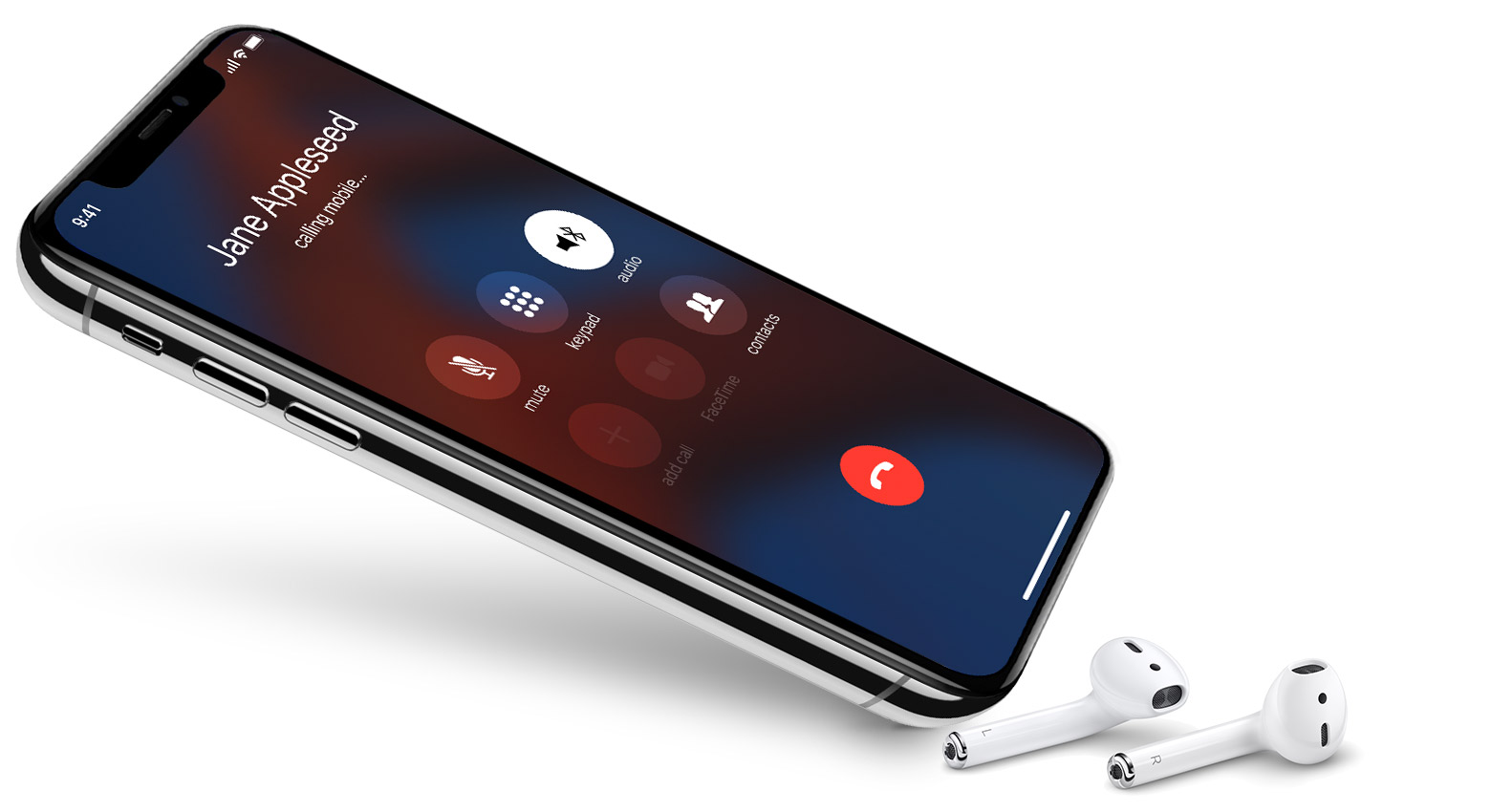
To use Wi-Fi Calling, you need an iPhone 5c or later on a supported carrier.

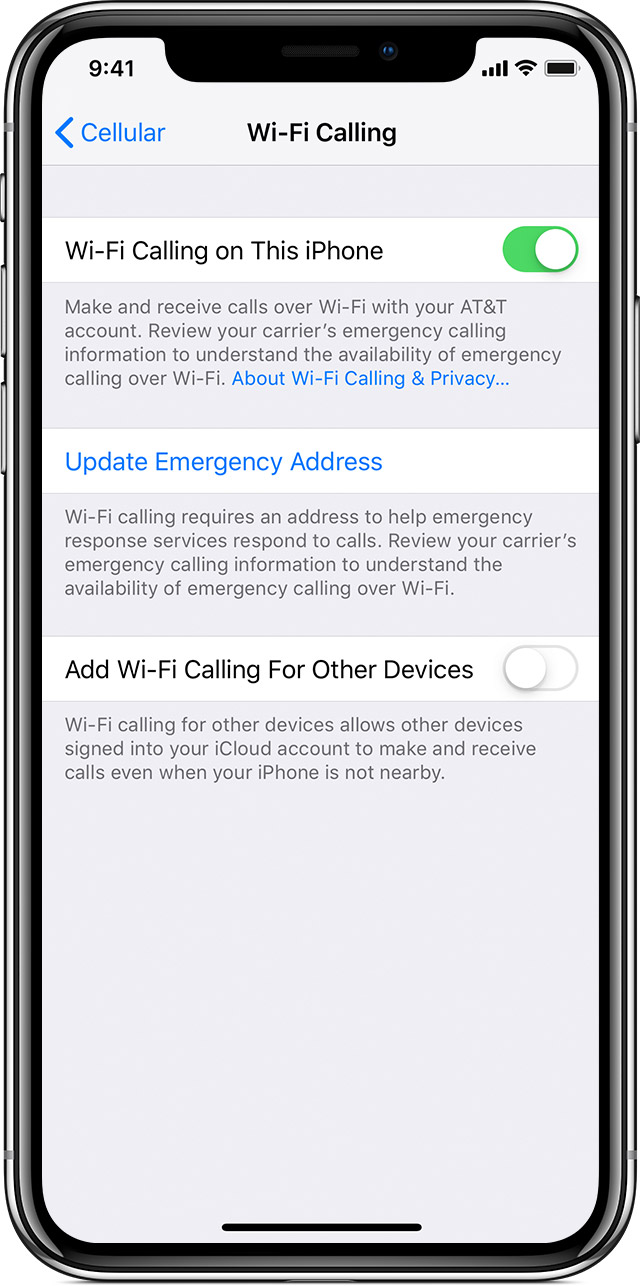
Place Wi-Fi calls from your iPhone
Turn on Wi-Fi calling in Settings > Phone > Wi-Fi Calling. You might need to enter or confirm your address for emergency services.*
If Wi-Fi Calling is available, you’ll see Wi-Fi after your carrier name in the status bar. Then your calls will use Wi-Fi Calling.
*When cellular service is available, your iPhone uses it for emergency calls. If you turned on Wi-Fi Calling and cellular service isn't available, emergency calls might use Wi-Fi calling. Your device's location may be used to aid response efforts when you place an emergency call, regardless of whether you enable Location Services.
Add a device
Make sure that the device you want to add has the latest version of software. Then follow these steps:

On Apple Watch, Wi-Fi Calling turns on when Calls on Other Devices is enabled.

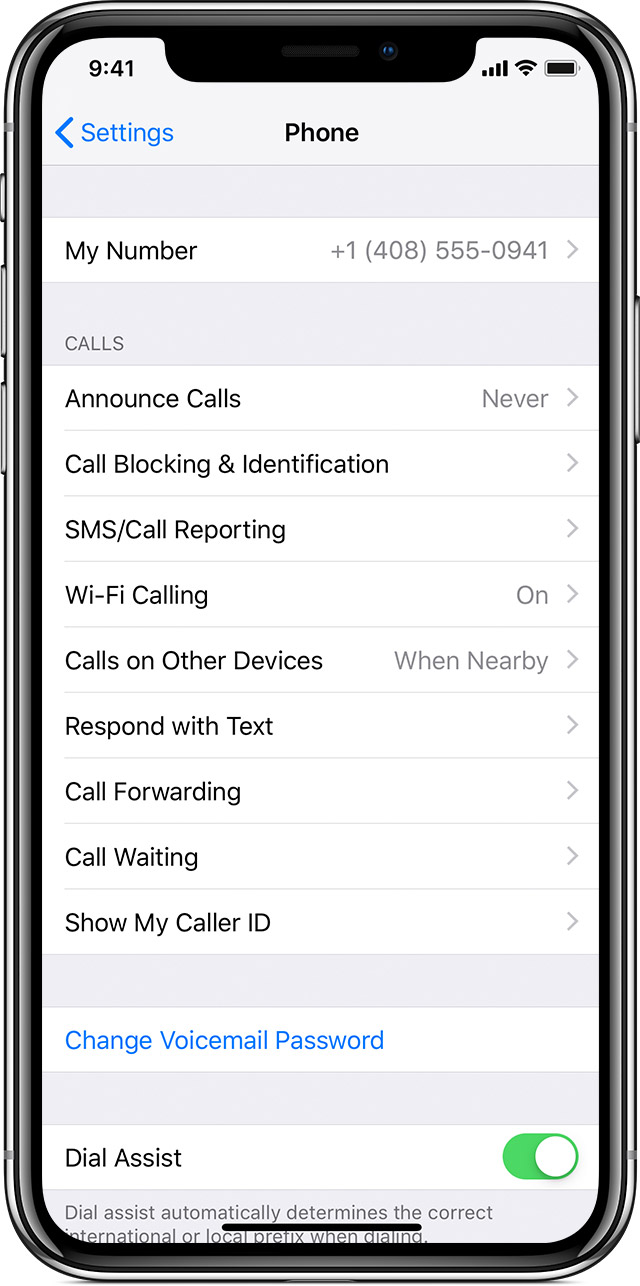
If you can't add a device, check these items:
Make and receive Wi-Fi calls from another device
If your carrier supports Wi-Fi Calling on iCloud-connected devices, you can also make and receive Wi-Fi calls on other devices.
Wi-Fi Calling isn't available on Mac Pro (Mid 2012).
Make sure that you're signed in to iCloud and FaceTime with the same Apple ID that you use on your iPhone. Also make sure that your devices have the latest software.
To place a Wi-Fi call from your iPad, iPod touch, Apple Watch, or Mac, follow these steps.
Call from your iPad, iPod touch, or Mac
 .
.You can also place a call by tapping a phone number in Contacts, Mail, Messages, Safari, and other apps.
Call from your Apple Watch
 .
.
Remove a device
If you don't want to use Wi-Fi Calling from one of your devices, you can remove it:
To turn off Wi-Fi Calling on your Apple Watch, go to the Watch App on your iPhone, tap My Watch, tap Phone, then turn off Wi-Fi Calling.
Make a call with Wi-Fi Calling
With Wi-Fi Calling, you can make or receive a phone call if you have a Wi-Fi connection in an area with little or no cellular coverage. Learn how to make a voice call using Wi-Fi Calling.
To use Wi-Fi Calling, you need an iPhone 5c or later on a supported carrier.
Place Wi-Fi calls from your iPhone
Turn on Wi-Fi calling in Settings > Phone > Wi-Fi Calling. You might need to enter or confirm your address for emergency services.*
If Wi-Fi Calling is available, you’ll see Wi-Fi after your carrier name in the status bar. Then your calls will use Wi-Fi Calling.
*When cellular service is available, your iPhone uses it for emergency calls. If you turned on Wi-Fi Calling and cellular service isn't available, emergency calls might use Wi-Fi calling. Your device's location may be used to aid response efforts when you place an emergency call, regardless of whether you enable Location Services.
Add a device
Make sure that the device you want to add has the latest version of software. Then follow these steps:
On Apple Watch, Wi-Fi Calling turns on when Calls on Other Devices is enabled.
If you can't add a device, check these items:
Make and receive Wi-Fi calls from another device
If your carrier supports Wi-Fi Calling on iCloud-connected devices, you can also make and receive Wi-Fi calls on other devices.
Wi-Fi Calling isn't available on Mac Pro (Mid 2012).
Make sure that you're signed in to iCloud and FaceTime with the same Apple ID that you use on your iPhone. Also make sure that your devices have the latest software.
To place a Wi-Fi call from your iPad, iPod touch, Apple Watch, or Mac, follow these steps.
Call from your iPad, iPod touch, or Mac
.You can also place a call by tapping a phone number in Contacts, Mail, Messages, Safari, and other apps.
Call from your Apple Watch
.
Remove a device
If you don't want to use Wi-Fi Calling from one of your devices, you can remove it:
To turn off Wi-Fi Calling on your Apple Watch, go to the Watch App on your iPhone, tap My Watch, tap Phone, then turn off Wi-Fi Calling.
To use Wi-Fi Calling, you need an iPhone 5c or later on a supported carrier.
Calling activation on iPhone 6 s plus
