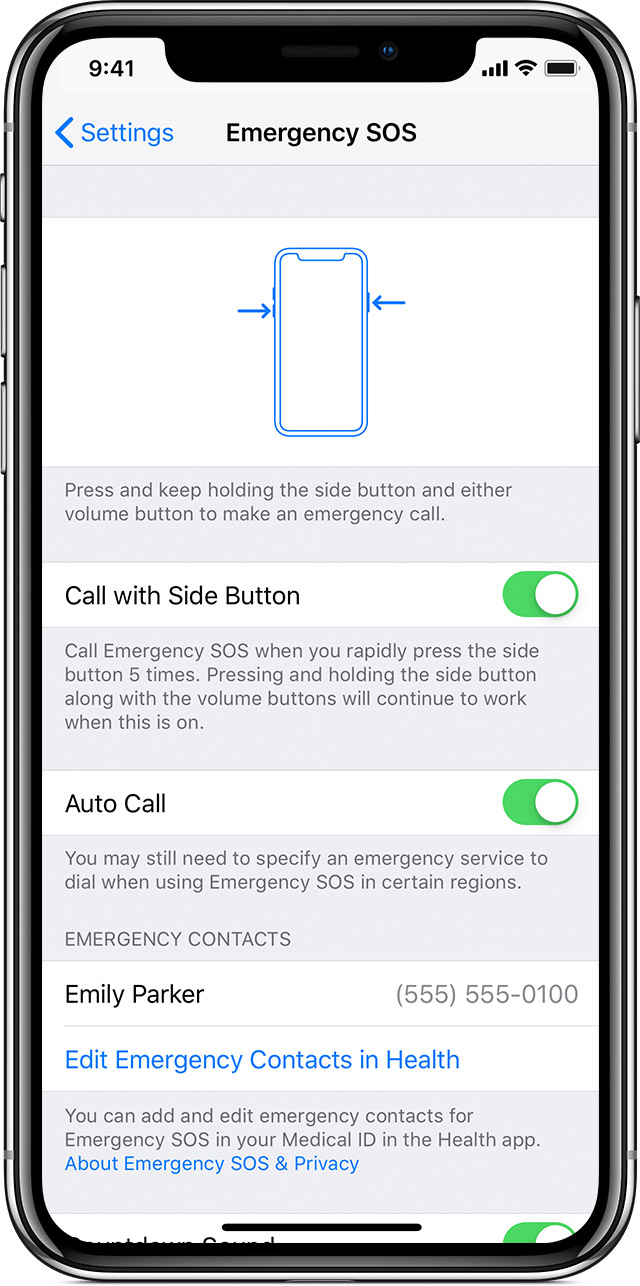
Use Emergency SOS on your iPhone
With Emergency SOS in iOS 11 or later, you can quickly and easily call for help and alert your emergency contacts.
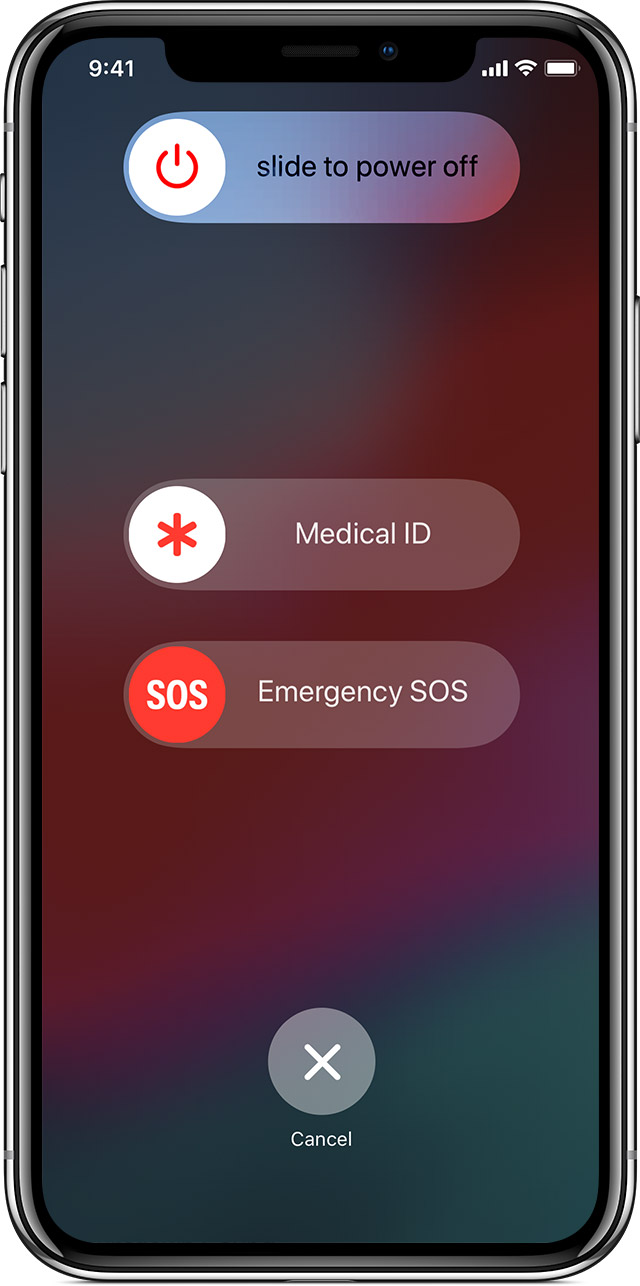
Here's how it works
When you make a call with SOS, your iPhone automatically calls the local emergency number. In some countries and regions, you might need to choose the service that you need. For example, in China mainland you can choose police, fire, or ambulance.
You can also add emergency contacts. After an emergency call ends, your iPhone alerts your emergency contacts with a text message, unless you choose to cancel. Your iPhone sends them your current location, and, for a period of time after you enter SOS mode, it sends updates to your emergency contacts when your location changes.

Call emergency services
Here's how to make the call on iPhone 8 or later:
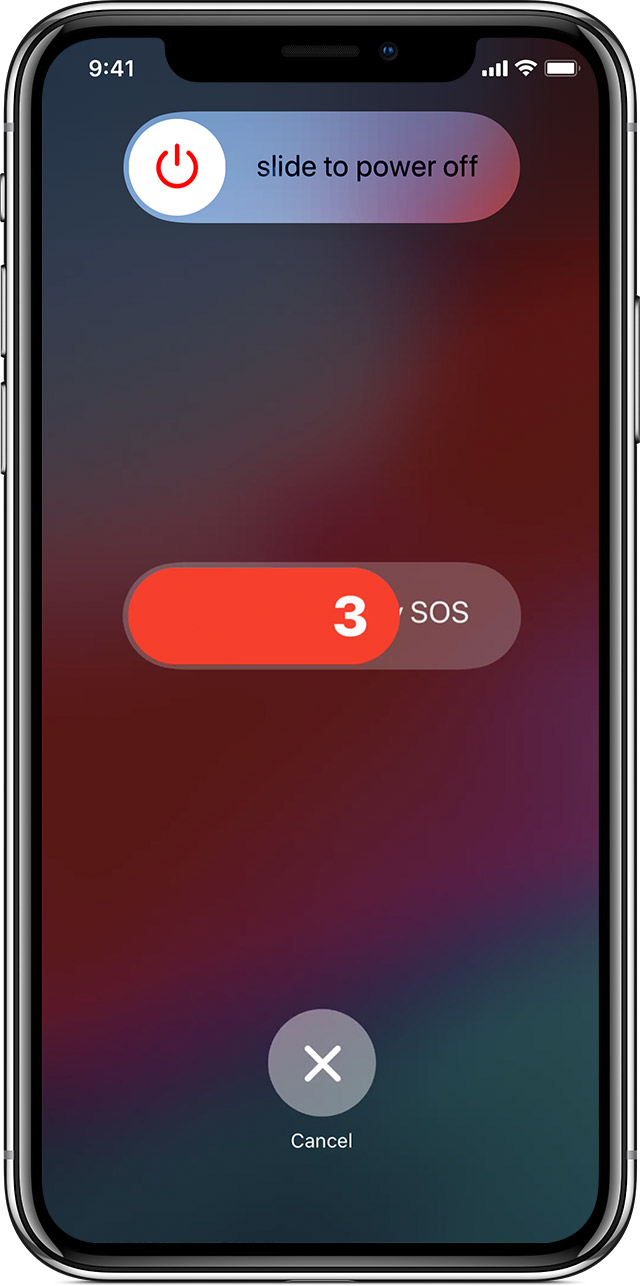
- Press and hold the side button and one of the Volume buttons until the Emergency SOS slider appears.
- Drag the Emergency SOS slider to call emergency services. If you continue to hold down the side button and Volume button, instead of dragging the slider, a countdown begins and an alert sounds. If you hold down the buttons until the countdown ends, your iPhone automatically calls emergency services.
Here's how to make the call on iPhone 7 or earlier:
- Rapidly press the side (or top) button five times. The Emergency SOS slider will appear. (In India, you only need to press the button three times, then your iPhone automatically calls emergency services.)
- Drag the Emergency SOS slider to call emergency services.
After the call ends, your iPhone sends your Emergency contacts a text message with your current location, unless you choose to cancel. If Location Services is off, it will temporarily turn on. If your location changes, your contacts will get an update, and you'll get a notification about 10 minutes later.
If you use the Emergency SOS shortcut, you need to enter your passcode to re-enable Touch ID, even if you don't complete a call to emergency services.
Stop sharing your location
When your location is being shared, you'll get a reminder to stop every 4 hours for 24 hours. To stop the updates, tap the status bar and select "Stop Sharing Emergency Location."
End a call
If you start the countdown by accident, you can cancel. On iPhone 8 or later, release the side button and Volume button. On iPhone 7 or earlier, press the Stop button, then tap Stop Calling.
If you accidentally call emergency services, you can end the call. Tap  , then confirm that you want to stop calling.
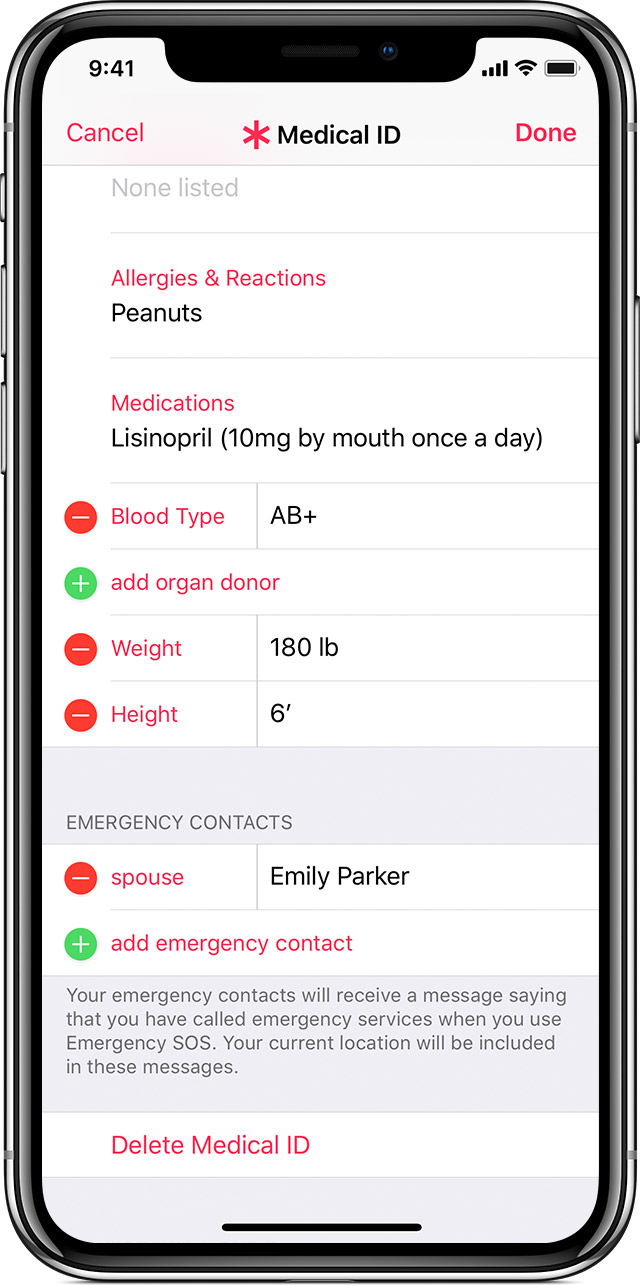
Add or remove contacts
You can add emergency contacts from the Health app on your iPhone:
- Open the Health app and tap the Medical ID tab.
- Tap Edit, then scroll to Emergency Contacts.
- Tap
 to add an emergency contact.
 - Tap a contact, then add their relationship.
- Tap Done to save your changes.
Here's how to remove emergency contacts:
- Open the Health app and tap the Medical ID tab.
- Tap Edit, then scroll to Emergency Contacts.
- Tap
 next to a contact, then tap Delete.
 - Tap Done to save your changes.
You can't set emergency services as an SOS contact.