Change iTunes Hard Drive

I have my iTunes files (mostly songs) on an external hard drive. I want to move it to another hard drive. This second hard drive has been used to backup the first one, so all the songs / files are already on there.


I go to Preferences/Advanced and select the new hard drive. I leave 'Keep iTunes Media folder organized'. When I select OK, it asks do I want to keep things organized and I say yes.


The computer does its thing, looks like it is comparing songs.


When done, I select a song, right-click to 'Show In Finder' and it displays the song in the old external hard drive.


If I eject the old external hard drive, iTunes cannot find the music.

Posted on Oct 2, 2019 8:30 AM

Reply
Question marked as Top-ranking reply

Posted on Oct 7, 2019 2:21 PM

It looks like I have figured out how to move iTunes Media (music, podcasts, movies, TV shows, etc.) from one external hard drive to another. Or, for that matter, from an internal drive to an external drive. Also note that in this case, all the iTunes program library files will remain on the current drive, which originally is the internal hard drive.


1) Do not copy the files manually. Do not use Carbon Copy Cloner or any other software. iTunes will copy the files.

2) On the drive to be selected, create a folder and name it 'iTunes', 'iTunesMedia' or similar.

3) Go to iTunes/Preferences/Advanced and select the location for the new media folder created in step #2. The location will appear as /Volumes/[Name of drive]/[name of folder]
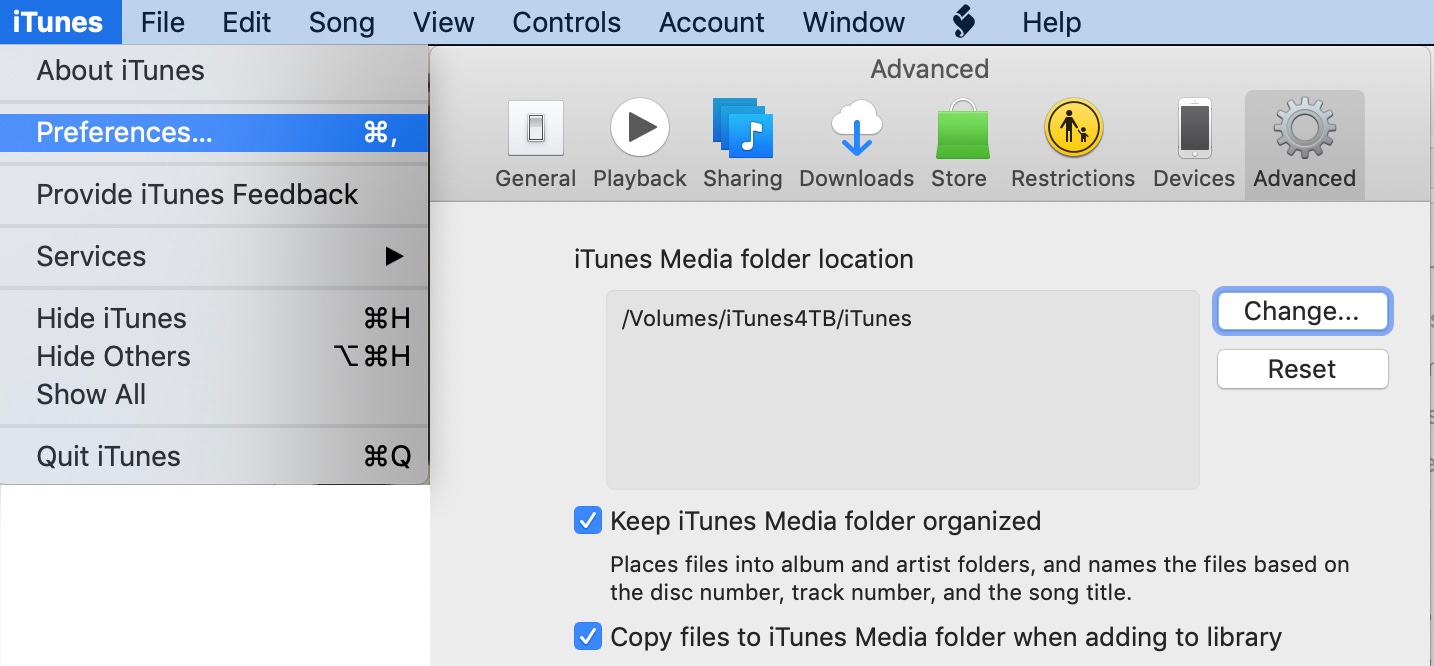

3) Be certain to also check 'Keep iTunes Media folder organized' and 'Copy files to iTunes Media Folder when adding to library'.

4) Click 'OK'. At this point, iTunes will update the iTunes library information and now points to that new external drive. But no existing media will be copied to that new external drive.


Stop here if you want to keep existing Media in the former drive, and only copy new Media to the newly selected hard drive. This allows people to split their media between hard drives.


However, if one wants to consolidate all Media into the newly selected file, continue with these steps:


5) Go to Files/Library/OrganizeLibrary. Select 'Consolidate files'. If desired, also select 'Reorganize files in the folder iTunes'. This last option separates the Media into Music, Podcasts, Movies, etc.


6) Click OK. Depending on the size of the Media folder, the transfer of files from the former drive and folder to the newly selected one may take hours.


Note that all of the original files will remain in the original location. Once you are satisfied that the files have been completely copied, you may delete the original iTunes folder. But I recommend keeping it for as long as possible, as a backup. And in case something did not copy.



Similar questions

12 replies
Question marked as Top-ranking reply

Oct 7, 2019 2:21 PM in response to LexVAPin

It looks like I have figured out how to move iTunes Media (music, podcasts, movies, TV shows, etc.) from one external hard drive to another. Or, for that matter, from an internal drive to an external drive. Also note that in this case, all the iTunes program library files will remain on the current drive, which originally is the internal hard drive.


1) Do not copy the files manually. Do not use Carbon Copy Cloner or any other software. iTunes will copy the files.

2) On the drive to be selected, create a folder and name it 'iTunes', 'iTunesMedia' or similar.

3) Go to iTunes/Preferences/Advanced and select the location for the new media folder created in step #2. The location will appear as /Volumes/[Name of drive]/[name of folder]


3) Be certain to also check 'Keep iTunes Media folder organized' and 'Copy files to iTunes Media Folder when adding to library'.

4) Click 'OK'. At this point, iTunes will update the iTunes library information and now points to that new external drive. But no existing media will be copied to that new external drive.


Stop here if you want to keep existing Media in the former drive, and only copy new Media to the newly selected hard drive. This allows people to split their media between hard drives.


However, if one wants to consolidate all Media into the newly selected file, continue with these steps:


5) Go to Files/Library/OrganizeLibrary. Select 'Consolidate files'. If desired, also select 'Reorganize files in the folder iTunes'. This last option separates the Media into Music, Podcasts, Movies, etc.


6) Click OK. Depending on the size of the Media folder, the transfer of files from the former drive and folder to the newly selected one may take hours.


Note that all of the original files will remain in the original location. Once you are satisfied that the files have been completely copied, you may delete the original iTunes folder. But I recommend keeping it for as long as possible, as a backup. And in case something did not copy.


Oct 2, 2019 7:16 PM in response to BDAqua

Sure you can. The one setting in preferences is for the media location. It does not define the location of the iTunes library data which is on the internal drive. Been doing that for years.


In fact, it is set up that way right now: iTunes library data on internal drive, media stored on the external drive.


I just want want to move the media location from one external drive to a new one.

Oct 3, 2019 11:52 AM in response to BDAqua

Yes. CCC is great. Problem is that even though I have selected my new, larger disk as the 'Media' folder, iTunes continues to look at the old smaller external disk for the location of the files.


I am thinking that I need to delete my backup on this new disk, then tell iTunes to use that disk as the 'Media' folder and keep songs / files organized. Then iTunes will laboriously copy all the songs to the new disk. That will take forever. And I don't have a lot of confidence that iTunes will copy them all.

This thread has been closed by the system or the community team. You may vote for any posts you find helpful, or search the Community for additional answers.

Change iTunes Hard Drive

Welcome to Apple Support Community
A forum where Apple customers help each other with their products. Get started with your Apple Account.