Alternating row colors bug

Hi,


I'm attempting to create a Pages document in MacOS with a table that displays alternating row colors — one row will be a lighter shade of blue, while the other row will be a darker shade of blue.


However, there seems to be a bug in Pages that only allows the color of one of the two rows to be specified — the other row is automatically left unfilled, with no ability to specify the color.


Does anyone know of a workaround for this bug?


Thanks in advance!


—J

Posted on Mar 5, 2020 9:07 AM

Reply
Question marked as Top-ranking reply

Posted on Mar 6, 2020 3:50 AM

Just had another question on this topic, did a little exploration and found a way to actually apply fill colours to the table rather than messing about with aligning that colour shape behind the table. The question started out with the statement below, but the OP was also interested in choosing and applying colour fill to the uncoloured rows.


" All I want is a table with no background alternating with a light gray background."


Which is precisely what "alternating row color" is designed to provide you—alternating (body) rows with color fill (set using the Color well) beside the Alternating row color checkbox in the Table section of the Format Inspector) and rows with No Fill.


After applying Alternating Row color, you can select the uncoloured rows, and use the controls in the Cell section of the Format Inspector to fill these rows with a different colour, As I've done here:
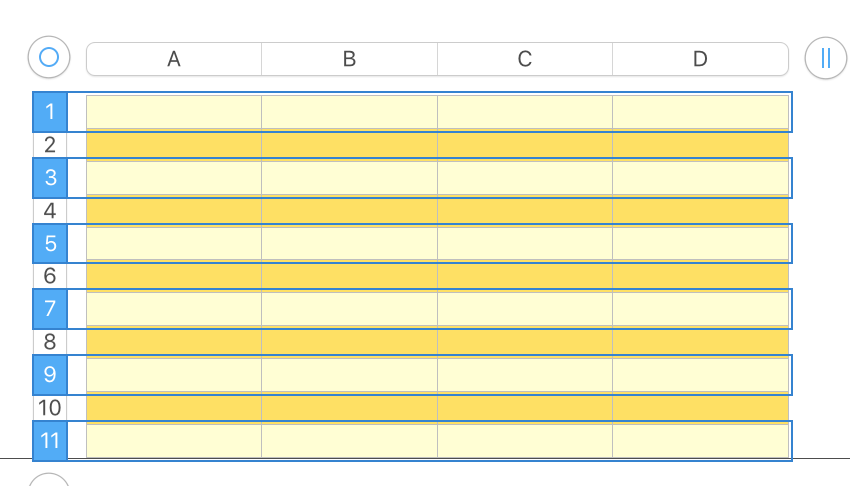
Clicking anywhere not on the table deselects it and all the selected rows, removing those Selection rectangles from view:


Default Table styles are set in the choices available when you select a table to insert in the document.

Most use No Fill or Alternating Fill Color in the body cells, and a Color fill in the Header row and Header column cells.


If you want different colours, you could create a document containing examples of each style of Table in the colour(s) you want. Quite easy to select and Copy a table from that document and Paste it into the on you are working on.


Regards,

Barry

3 replies
Question marked as Top-ranking reply

Mar 6, 2020 3:50 AM in response to J_dot_C

Just had another question on this topic, did a little exploration and found a way to actually apply fill colours to the table rather than messing about with aligning that colour shape behind the table. The question started out with the statement below, but the OP was also interested in choosing and applying colour fill to the uncoloured rows.


" All I want is a table with no background alternating with a light gray background."


Which is precisely what "alternating row color" is designed to provide you—alternating (body) rows with color fill (set using the Color well) beside the Alternating row color checkbox in the Table section of the Format Inspector) and rows with No Fill.


After applying Alternating Row color, you can select the uncoloured rows, and use the controls in the Cell section of the Format Inspector to fill these rows with a different colour, As I've done here:

Clicking anywhere not on the table deselects it and all the selected rows, removing those Selection rectangles from view:


Default Table styles are set in the choices available when you select a table to insert in the document.

Most use No Fill or Alternating Fill Color in the body cells, and a Color fill in the Header row and Header column cells.


If you want different colours, you could create a document containing examples of each style of Table in the colour(s) you want. Quite easy to select and Copy a table from that document and Paste it into the on you are working on.


Regards,

Barry

Mar 5, 2020 9:55 AM in response to J_dot_C

Alternating Row Color applies to the template rows that indicate fill. There is no means to set the other row colors with that color well on the Table panel. To manually fill each of the other table rows, you must visit the Cell panel, and with the row selected, choose the fill color. Once you have one row in a different color, and while that row is still selected, choose Format menu : Copy Style. Select the next row to paint, and select Format menu : Paste Style.

Mar 5, 2020 11:30 AM in response to J_dot_C

Unfilled cells are transparent, providing an alternate path you might explore:


Set the Alternate row colours as usual, using the checkbox and color well in the Table Inspector panel.

Set the Table to Stay on Page.


Insert a rectangle shape, using the Shapes button.

Set the shape to Stay on Page

Set its fill color to your second colour, and set the Shadow to none.

Resize and position the rectangle to fit exactly over the table.

With the Shape selected and the Table NOT selected, go to the Arrange menu and select Send Backward. Repeat until the Table is in front of the shape, as seen below (The shape here is the green object).


Regards,

Barry

This thread has been closed by the system or the community team. You may vote for any posts you find helpful, or search the Community for additional answers.

Alternating row colors bug

Welcome to Apple Support Community
A forum where Apple customers help each other with their products. Get started with your Apple Account.