IOS Files in Storage

I have been looking into my storage on my Mac, and I was wondering if I delete my current iPhone from the IOS files will it effect my iPhone; or can I delete it because my phone is now backup to iCloud.


MacBook Air 13", macOS 10.15

Posted on Apr 9, 2020 10:09 PM

Reply
Question marked as Top-ranking reply

Posted on Apr 9, 2020 10:36 PM

Are you referring to these? See the pic below


Deleting those also will have no effect on iPhone's data. Ensure you have a backup of iCloud


What does iCloud back up? - Apple Support

iCloud backup doesn’t include information already stored in iCloud, like Contacts, Calendars, Bookmarks, Mail, Notes, Voice Memosshared photosiCloud Photos*, Health data, call history, and files you store in iCloud Drive.

*-If you had turned on iCloud Photos, your content is automatically stored in iCloud. 


Alternatively


Delete or copy backups on your Mac or PC

Don't edit, relocate, rename, or extract content from your backup files, because these actions might ruin the files. Use the following sections to make copies of your backups or delete backups that you no longer need.


Copy backups to another location

If you need copies of your backups, you can find the Backup folder and copy the entire folder (not just part of it) to another place, like an external drive or network-storage location.

When you use Time Machine, it automatically copies your Backup folder when you back up the Home folder on your Mac.

Delete backups

  1. On a Mac with macOS Catalina 10.15 or later, open the Finder. On a Mac with macOS Mojave 10.14 or earlier, or on a PC, open iTunes. Click your device. 
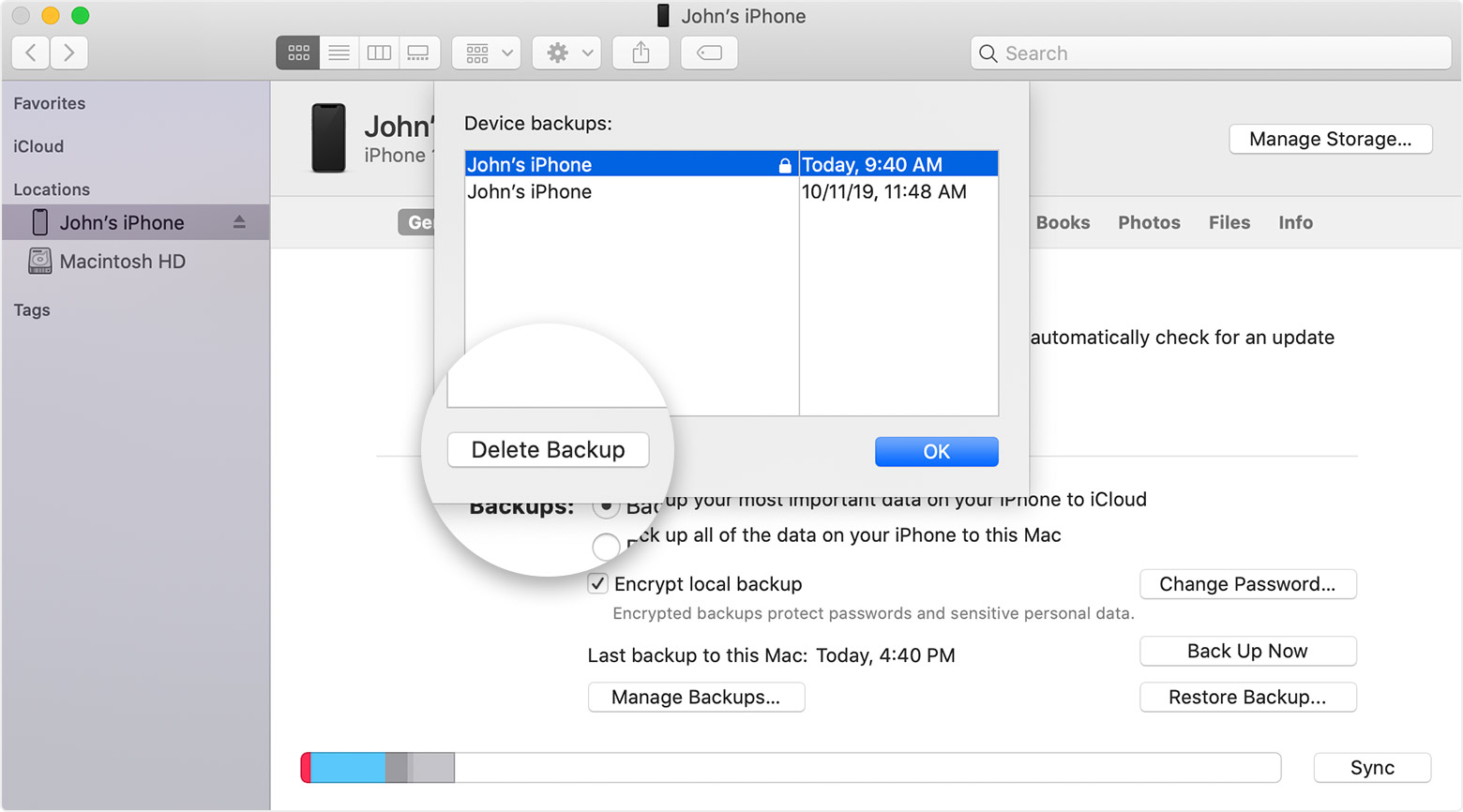
  2. In Finder, under the General tab, click Manage Backups to see a list of your backups. From here, you can right-click on the backup that you want, then select Delete or Archive. In iTunes, choose Preferences, then click Devices. From here, you can right-click on the backup that you want, then choose Delete or Archive. Click OK when you're finished.
  3. Click Delete Backup, then confirm.


4 replies
Question marked as Top-ranking reply

Apr 9, 2020 10:36 PM in response to LucyDrewett

Are you referring to these? See the pic below


Deleting those also will have no effect on iPhone's data. Ensure you have a backup of iCloud


What does iCloud back up? - Apple Support

iCloud backup doesn’t include information already stored in iCloud, like Contacts, Calendars, Bookmarks, Mail, Notes, Voice Memosshared photosiCloud Photos*, Health data, call history, and files you store in iCloud Drive.

*-If you had turned on iCloud Photos, your content is automatically stored in iCloud. 


Alternatively


Delete or copy backups on your Mac or PC

Don't edit, relocate, rename, or extract content from your backup files, because these actions might ruin the files. Use the following sections to make copies of your backups or delete backups that you no longer need.


Copy backups to another location

If you need copies of your backups, you can find the Backup folder and copy the entire folder (not just part of it) to another place, like an external drive or network-storage location.

When you use Time Machine, it automatically copies your Backup folder when you back up the Home folder on your Mac.

Delete backups

  1. On a Mac with macOS Catalina 10.15 or later, open the Finder. On a Mac with macOS Mojave 10.14 or earlier, or on a PC, open iTunes. Click your device. 
  2. In Finder, under the General tab, click Manage Backups to see a list of your backups. From here, you can right-click on the backup that you want, then select Delete or Archive. In iTunes, choose Preferences, then click Devices. From here, you can right-click on the backup that you want, then choose Delete or Archive. Click OK when you're finished.
  3. Click Delete Backup, then confirm.


Apr 9, 2020 10:36 PM in response to LucyDrewett

Alternatively


Delete or copy backups on your Mac or PC

Don't edit, relocate, rename, or extract content from your backup files, because these actions might ruin the files. Use the following sections to make copies of your backups or delete backups that you no longer need.


Copy backups to another location

If you need copies of your backups, you can find the Backup folder and copy the entire folder (not just part of it) to another place, like an external drive or network-storage location.

When you use Time Machine, it automatically copies your Backup folder when you back up the Home folder on your Mac.


Delete backups

  1. On a Mac with macOS Catalina 10.15 or later, open the Finder. On a Mac with macOS Mojave 10.14 or earlier, or on a PC, open iTunes. Click your device. 
  2. In Finder, under the General tab, click Manage Backups to see a list of your backups. From here, you can right-click on the backup that you want, then select Delete or Archive. In iTunes, choose Preferences, then click Devices. From here, you can right-click on the backup that you want, then choose Delete or Archive. Click OK when you're finished.
  3. Click Delete Backup, then confirm.


This thread has been closed by the system or the community team. You may vote for any posts you find helpful, or search the Community for additional answers.

IOS Files in Storage

Welcome to Apple Support Community
A forum where Apple customers help each other with their products. Get started with your Apple Account.