If you have a lot of iMessages on your iPhone or iPad, the best way to back them up to your computer or share them with others would be to export them as PDF. PDFs are secure in that they can't be edited easily. They are also a widely available format that is easy to share.
But how can you easily export iMessages to PDF? In this article, we will share with you a simple way to accomplish this. We will first start by exporting the iMessages to HTML and then converting the HTML file to PDF.
How to Export iMessages using iMyFone D-Port
The easiest way to export iMessages to your computer is to use iMyFone D-Port iOS data exporter. The program is designed to scan your iPhone, find the messages and then export them to your computer. Despite its usefulness and effective, D-Port makes the whole process very easy, so much so that you can use it even if you have never exported data to a computer before. The following are some of its features.
Steps to Export iMessages using D-Port
Begin by downloading and installing D-Port to your computer and then follow these simple steps.
Step 1: Launch the program and from the main window, select "Back Up & Export from Device". Connect the iPhone to the computer using USB cable and click "Export Data".
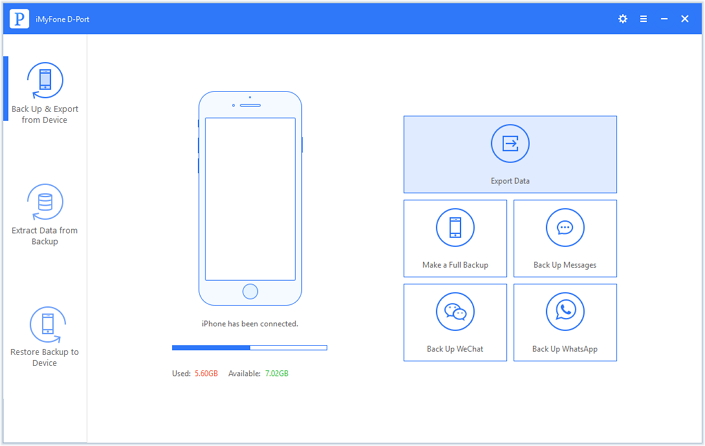
Then select "Message" from the next window. Click "Next" to continue.

Step 2: After you click "Next", iMyFone D-Port will start to scan your iPhone for the iMessages.
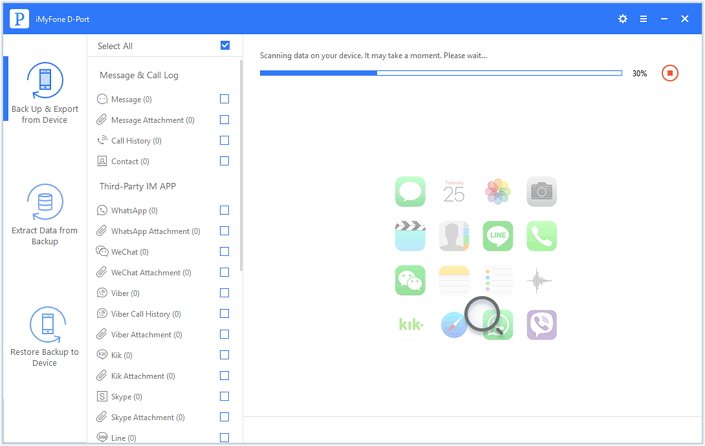
Step 3: Wait for the scanning process to be completed. Once it's done, preview and select the iMessages you want to export and click "Export". In the popup window that appears, choose a location to save the exported iMessages in HTML file.
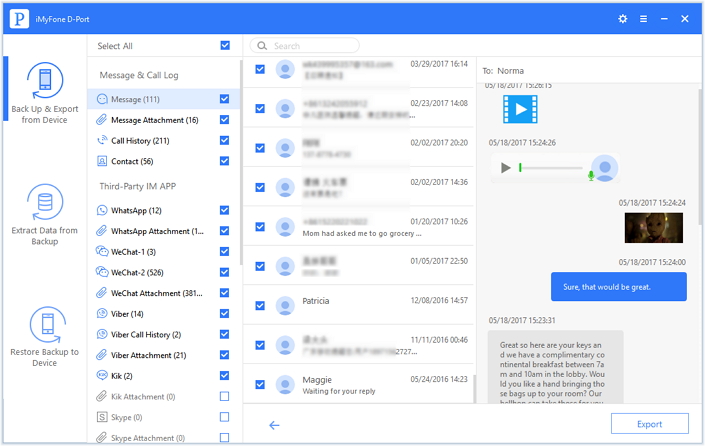
Convert the HTML File to PDF
Adobe Document Cloud gives users a way to convert HTML to PDF online. You can take advantage of their free trial offer to convert the HTML file of your iMessages to PDF in a few simple steps.
All you have to do is open the HTML webpage either in Chrome or Firefox for Windows or Firefox for Mac. Then, click on the "Convert" button in the Adobe PDF toolbar and name the PDF file. Save the converted PDF to a desired location on your computer.
Source www.imyfone.com