
can't find two-step verification button
Hello
I'm using iOS 13.4.1 on an iPhone X and I wanted to enable two-step verification but I couldn't find the enabling button in Password & Security section.
iPhone X, iOS 13
Hello
I'm using iOS 13.4.1 on an iPhone X and I wanted to enable two-step verification but I couldn't find the enabling button in Password & Security section.
iPhone X, iOS 13
Set up two-factor authentication for your Apple ID
Two-factor authentication is available for Apple ID accounts with at least one device that's using the latest iOS, iPadOS, or macOS. Learn more.
You can follow these steps on your iPhone, iPad, or iPod touch to turn on two-factor authentication.



Turn on two-factor authentication in Settings
If you're using iOS 10.3 or later:
If you're using iOS 10.2 or earlier:
You might be asked to answer your Apple ID security questions.

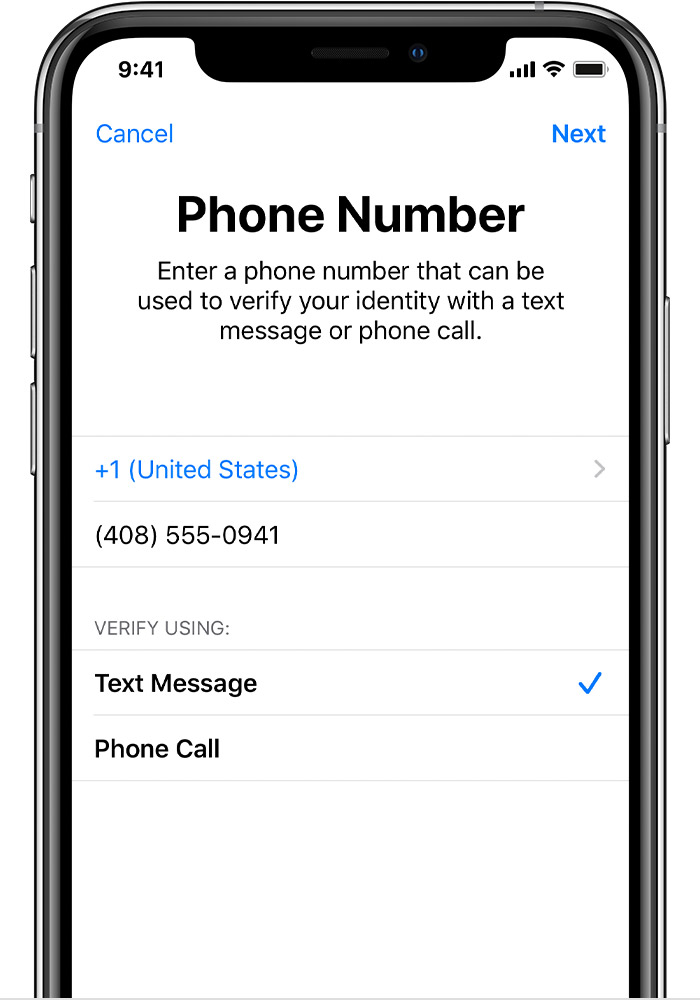
Enter and verify your trusted phone number
Enter the phone number where you want to receive verification codes when you sign in. You can choose to receive the codes by text message or automated phone call.
When you tap Next, Apple sends a verification code to the phone number you provided.
Enter the verification code to verify your phone number and turn on two-factor authentication.
Set up two-factor authentication for your Apple ID
Two-factor authentication is available for Apple ID accounts with at least one device that's using the latest iOS, iPadOS, or macOS. Learn more.
You can follow these steps on your iPhone, iPad, or iPod touch to turn on two-factor authentication.
Turn on two-factor authentication in Settings
If you're using iOS 10.3 or later:
If you're using iOS 10.2 or earlier:
You might be asked to answer your Apple ID security questions.
Enter and verify your trusted phone number
Enter the phone number where you want to receive verification codes when you sign in. You can choose to receive the codes by text message or automated phone call.
When you tap Next, Apple sends a verification code to the phone number you provided.
Enter the verification code to verify your phone number and turn on two-factor authentication.
Two-step verification is no longer available except for legacy accounts that already had it. It has been replaced by two-factor authentication.
can't find two-step verification button

