You are unlikely to find it by that name anywhere on your Mac.

To ascertain the cause so that you can eliminate it, start by inspecting the contents of the following folder:
~/Library/LaunchAgents
To open that folder, copy the entire line above and paste it in the Finder's Go menu > Go to Folder... field. Make it look like this:

... and click the Go button.
A Finder window will open. Make sure all its file names are readable by selecting View > as List or other selection that shows that folder's complete contents. Then, take a screenshot of that Finder window.
Often, there is nothing in that Launch Agents folder so don't be surprised to find it empty.
In the same manner as the above, navigate to this next folder:
/Library/LaunchDaemons
The Finder's Go menu > Go to Folder... field should look like this:
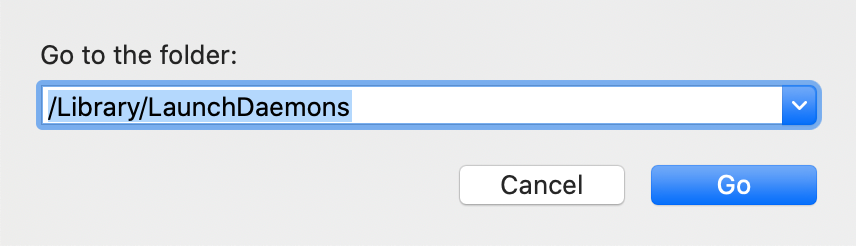
... and click the Go button once again.
Once again ensure all its files and their names are readable and capture a screenshot.
Then, repeat that exercise with the following folder:
/Library/LaunchAgents
Notice its pathname is different than the other two. The Finder's Go menu > Go to Folder... field should look like this:
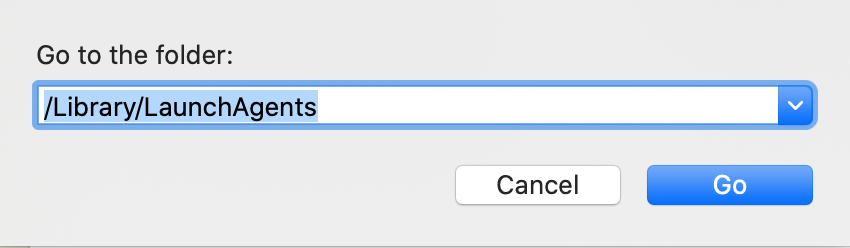
In the end, you will have captured the contents of the following three separate folders:
~/Library/LaunchAgents
/Library/LaunchDaemons
/Library/LaunchAgents
All three will be saved to your Mac's Desktop with names "Screen Shot... " followed by the date and time they were captured. Please be sure to include or otherwise indicate the name of the folder that corresponds to each screenshot, so that you and I can keep track of which ones they are.
Post the entire contents of all three windows, one at a time, using the "picture" icon that appears below your reply text: