Apple iOS Files App Won’t Delete

I used the Files app to upload 4 large (3 and 4 GB) files to Microsoft OneDrive. They are sensitive/confidential files that must now be deleted. But Files won’t let me. If I select the files, “Delete” is ghosted along the bottom right.


I remember the upload took a long time, of course, and I don’t think it displayed the thumbnail or was accessible for a few days.


In Microsoft’s OneDrive iOS app I was able to delete them. But going back to Apple Files, they’re still there. They’re accessible too.


I’ve tried switching the OneDrive “Location” but it’s still there. Anyone know of a way to completely disconnect the Location/Service?


Or how to clear out the Files app ‘cache’?


I’ve also tried uninstalling the Apple Files app, downloading and reinstalling. Still there. Bad situation with potentially severe consequence if files fall into wrong hands.


Situation is the same on both iPad 7th Gen and iPhone 6S.


Any help would be greatly appreciate.


Thank you.



Posted on Sep 24, 2020 11:17 PM

Reply

Similar questions

4 replies

Oct 1, 2020 1:37 PM in response to JohnrC123

Hey John,


It sounds like you're looking to delete some files from the Files app on your iPad. We can understand wanting to get that resolved. We want to help.


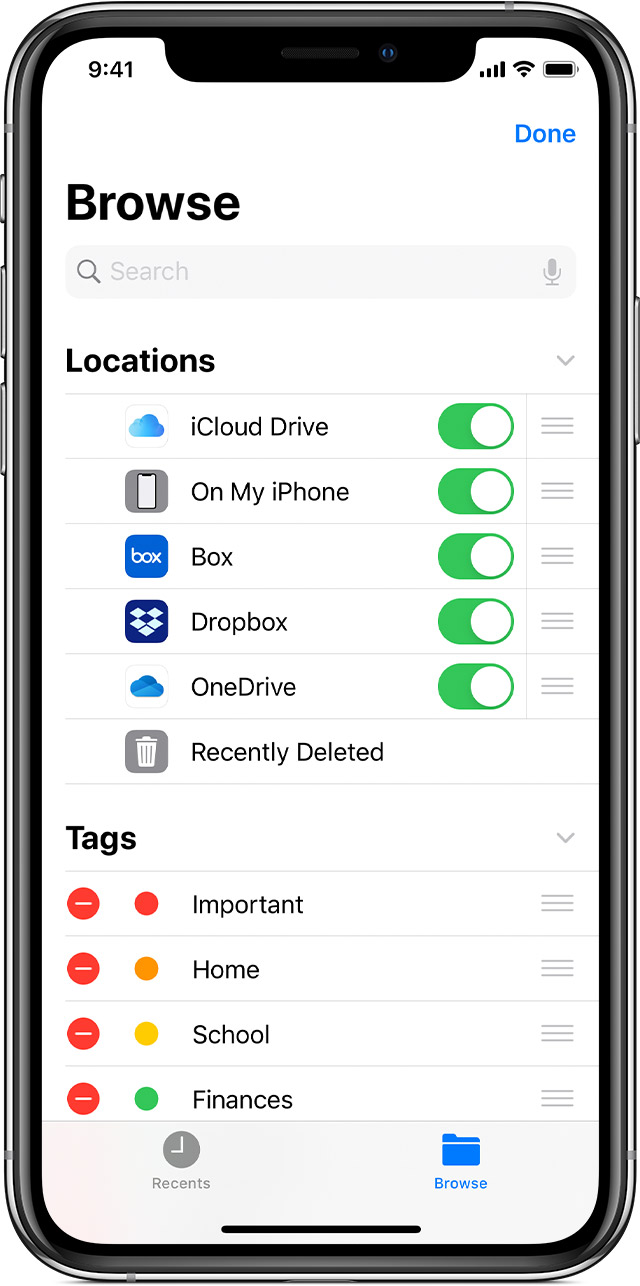
It sounds like iCloud Drive or another cloud storage application may be enabled for Files on your iPad. You can find the steps to check here: Use the Files app on your iPhone, iPad or iPod touch


"Use third-party apps in Files

The Files app lets you add your third-party cloud services — like Box, Dropbox, OneDrive, Adobe Creative Cloud, Google Drive and more — so that you can access all of your files on all of your devices. The files you keep in iCloud Drive automatically appear in the Files app, but you need to set up your other cloud services to access them in the Files app too.

Add third-party apps

  1. Download and set up the third-party cloud app.
  2. Open the Files app.
  3. Tap the Browse tab.
  4. Tap More  > Edit.
  5. Turn on the third-party apps that you want to use in the Files app. 
  6. Tap Done.

If you don't see one of your third-party cloud services in the Files app, check with your cloud provider.

On iOS 12 or earlier, open the Files app then tap Locations > Edit to add third-party apps."


If the files are stored in iCloud or a third-party service, you'll want to delete the files from there to remove them. You can find the steps to delete files from iCloud Drive here: Delete files in iCloud Drive on iCloud.com


Thanks!


Oct 1, 2020 6:11 PM in response to brenden dv

Thank you, Brenden.


It is a 3rd party cloud (Microsoft OneDrive). Connection and file management work fine, except with these 2 large files.


I go to OneDrive in any other app or platform and the 2 files are not there. I can only see them (and access them!) in the Apple Files app. But I can’t delete them. If I select either or both of the 2 files the trash can icon is ghosted.


Please see rest of my original post.


Regards.


This thread has been closed by the system or the community team. You may vote for any posts you find helpful, or search the Community for additional answers.

Apple iOS Files App Won’t Delete

Welcome to Apple Support Community
A forum where Apple customers help each other with their products. Get started with your Apple Account.