
how do I deauthorize all my devices
How do I go about deauthorizing all of my currently authorized devices if I do not have them any longer?
How do I go about deauthorizing all of my currently authorized devices if I do not have them any longer?
Deauthorize All -- use the following instructions from Authorize or deauthorize your computer for iTunes Store purchases - Apple Support and note the Deauthorize All button in the second screenshot below:
To automatically sign in to your Account Information page from your computer, click here. Or follow these steps:
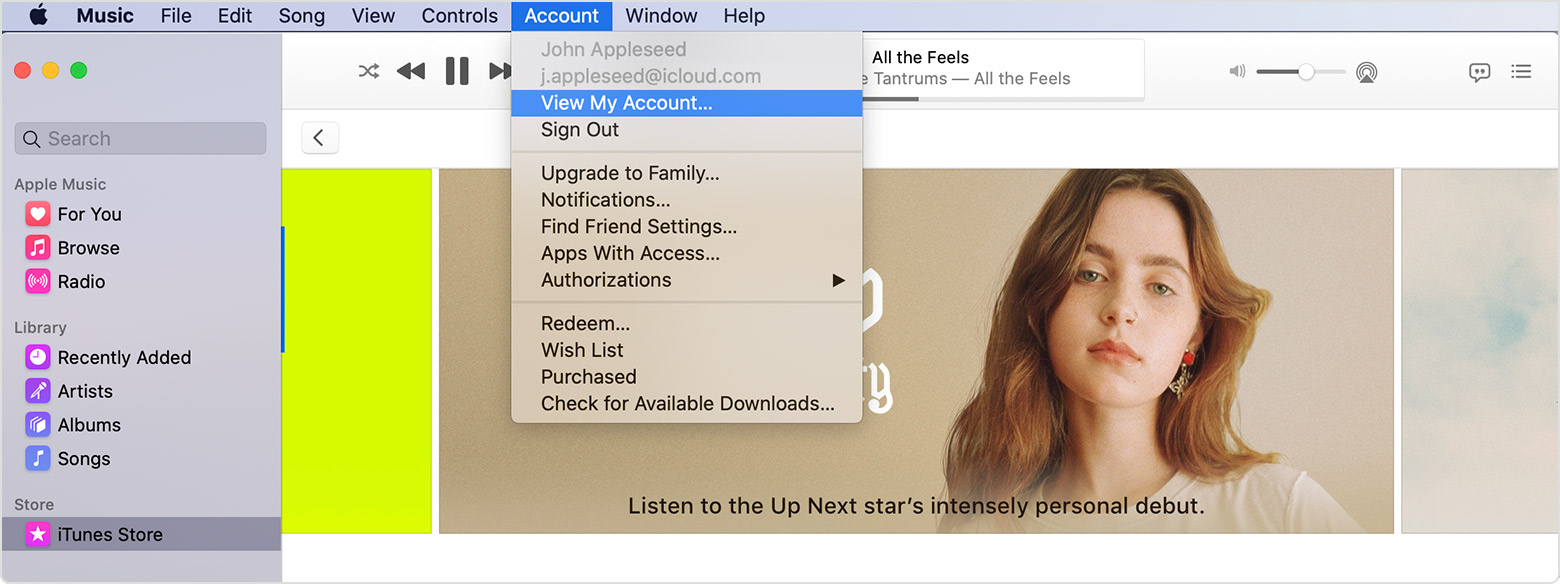
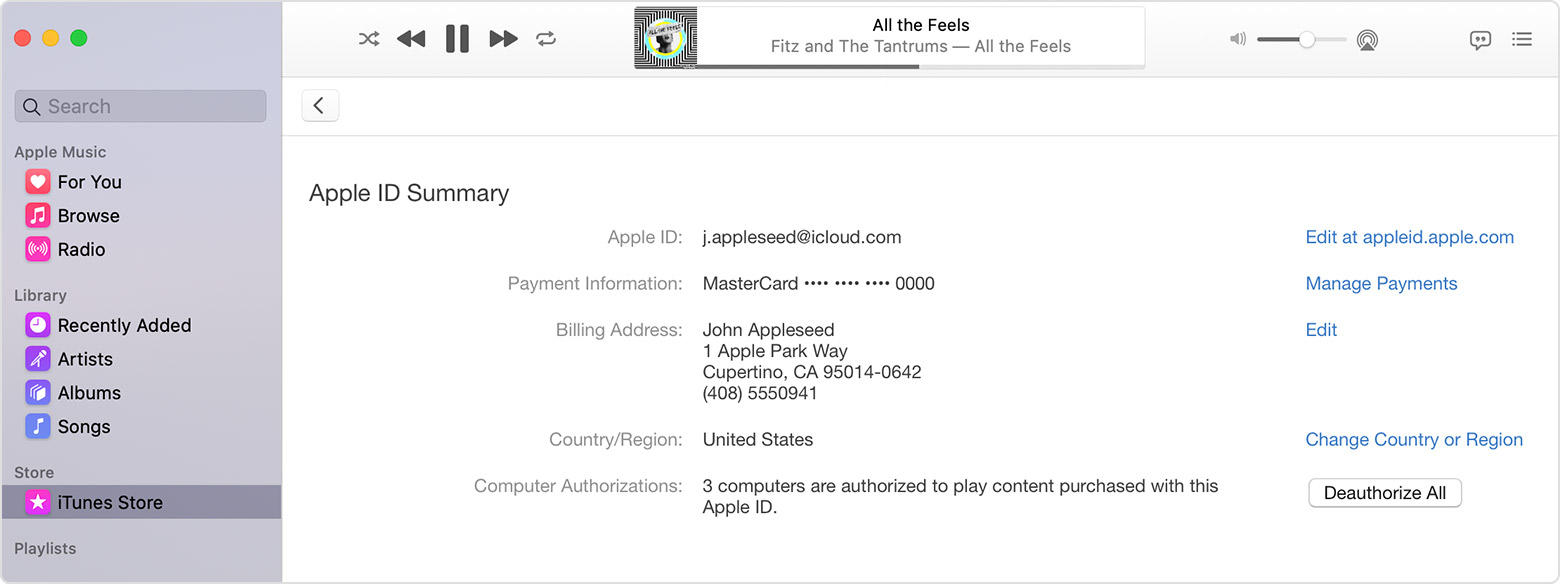
If the number of authorized computers listed is more than what you expect, you might not have deauthorized the computers that you no longer use, gave away, or sold. You need to deauthorize all of your computers and then authorize each one that you still use.
how do I deauthorize all my devices
