
How do I unhide my Wi-Fi options?
How do I unhide my Wi-Fi networks on my iPhone?
How do I unhide my Wi-Fi networks on my iPhone?
Hey referm,
Thank you for using Apple Support Communities!
We see from your post that you're having trouble with hidden Wi-Fi networks and we'd like to help out.
Here's some help to with hidden networks:
Connect to Wi-Fi on your iPhone, iPad, or iPod touch - Apple Support
"Connect to a hidden Wi-Fi network
Hidden networks won’t appear in your list of available networks, so you’ll need to know the exact name of the network to join it.
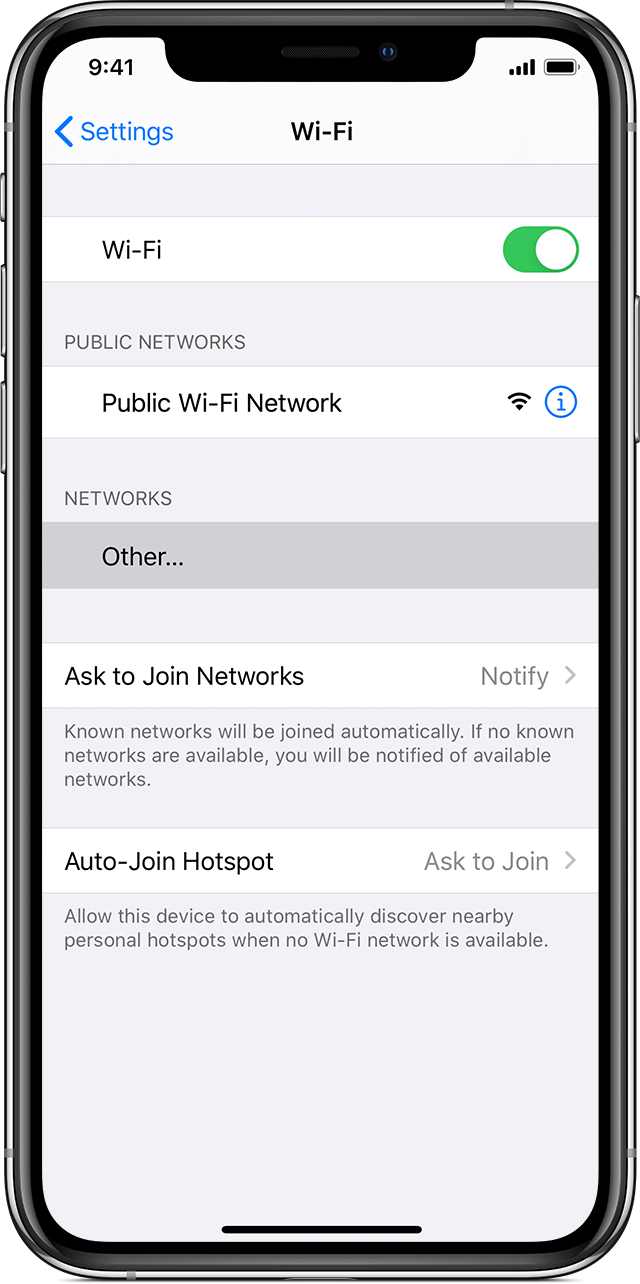
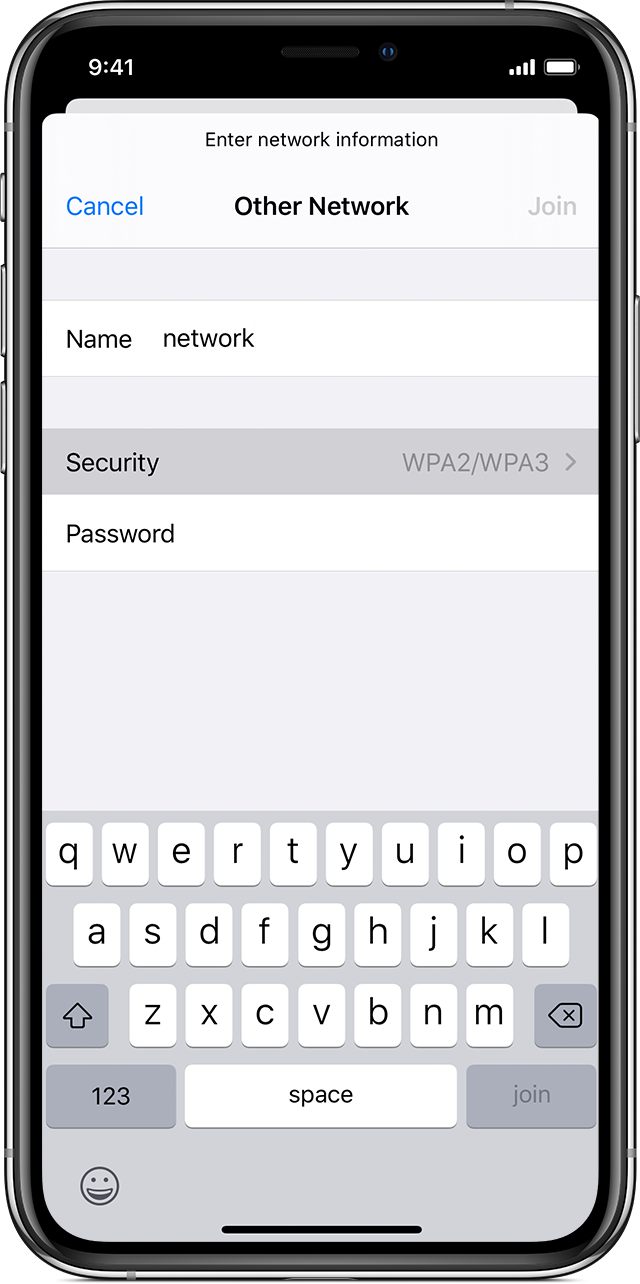
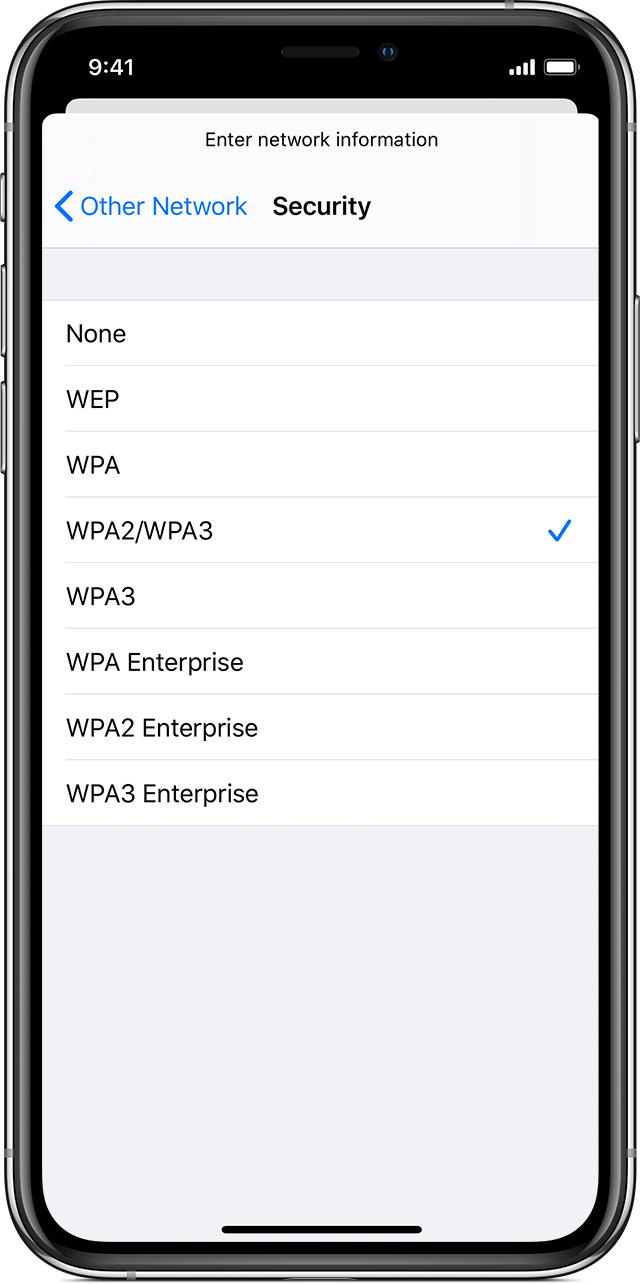
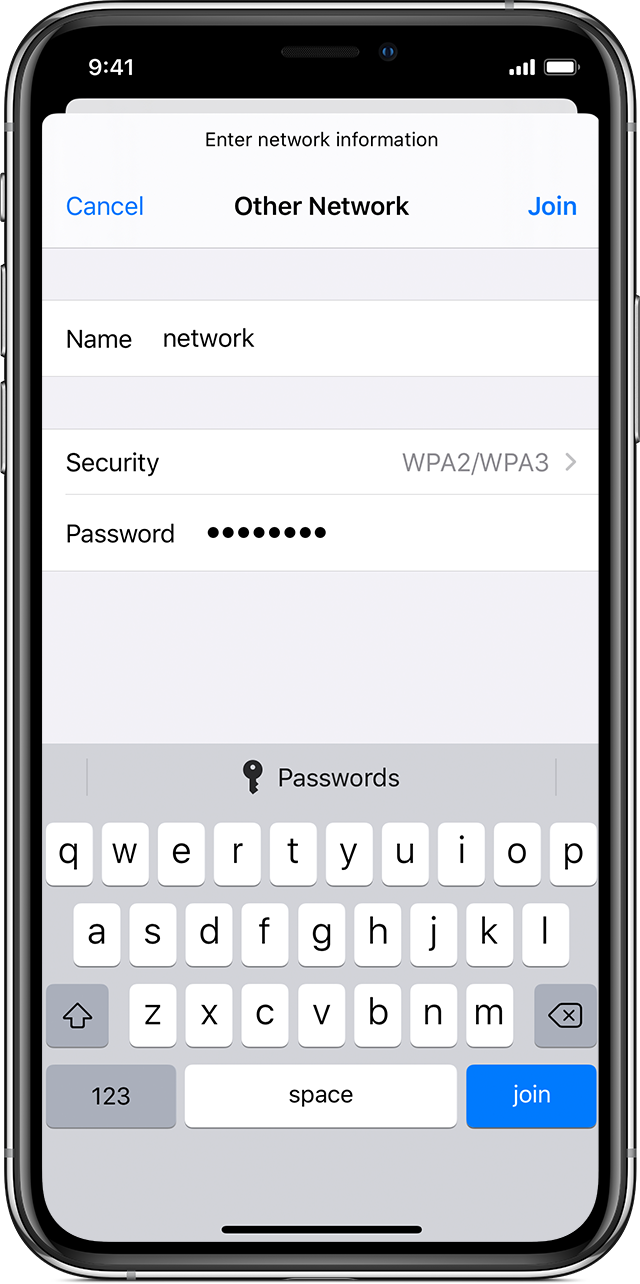
After you join the network, you'll see  next to the network and
  in the upper-left side of your display or the upper-right corner on an iPhone X and later."
Cheers!
How do I unhide my Wi-Fi options?

