Frozen iPhone

I have an iPhone which Is frozen on the apple logo. Have tried forcing a restart but it’s the same problem. Was told by apple to connect it to an iTunes but when I plug into my PC it isn’t recognising the device. I think this is because I have to press “trust device” on the pop up which would usually appear but obviously can’t do that as the phone is frozen.


Posted on Dec 28, 2020 1:27 PM

Reply
Question marked as Top-ranking reply

Posted on Dec 29, 2020 2:19 AM

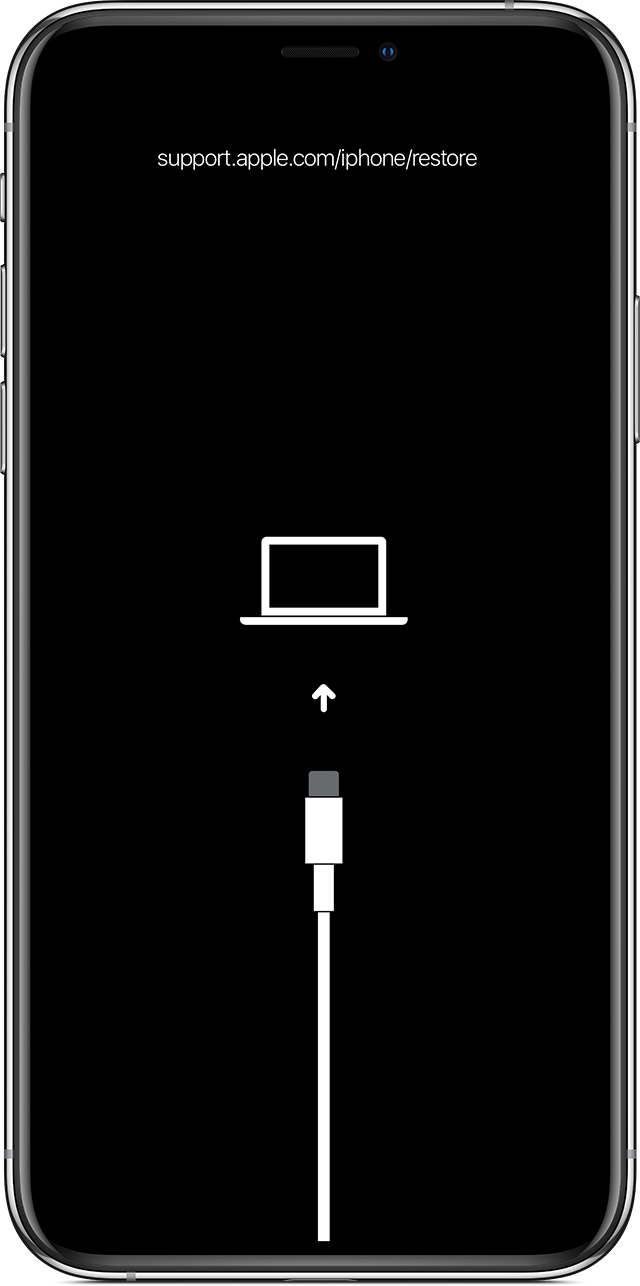
Ignore the step telling you to locate the phone on your computer for now. and make sure you get it into recovery mode by following these steps:


While your device is connected, follow these steps:

  • iPad models that don't have a Home button: Press and quickly release the Volume Up button. Press and quickly release the Volume Down button. Press and hold the Top button until your device begins to restart. Continue holding the Top button until your device goes into recovery mode.
  • iPhone 8 or later: Press and quickly release the Volume Up button. Press and quickly release the Volume Down button. Then, press and hold the Side button until you see the recovery mode screen.
  • iPhone 7, iPhone 7 Plus, and iPod touch (7th generation): Press and hold the Top (or Side) and Volume Down buttons at the same time. Keep holding them until you see the recovery mode screen.
  • iPad with Home button, iPhone 6s or earlier, and iPod touch (6th generation) or earlier: Press and hold both the Home and the Top (or Side) buttons at the same time. Keep holding them until you see the recovery mode screen.


11 replies
Question marked as Top-ranking reply

Dec 29, 2020 2:19 AM in response to MHawkins98

Ignore the step telling you to locate the phone on your computer for now. and make sure you get it into recovery mode by following these steps:


While your device is connected, follow these steps:

  • iPad models that don't have a Home button: Press and quickly release the Volume Up button. Press and quickly release the Volume Down button. Press and hold the Top button until your device begins to restart. Continue holding the Top button until your device goes into recovery mode.
  • iPhone 8 or later: Press and quickly release the Volume Up button. Press and quickly release the Volume Down button. Then, press and hold the Side button until you see the recovery mode screen.
  • iPhone 7, iPhone 7 Plus, and iPod touch (7th generation): Press and hold the Top (or Side) and Volume Down buttons at the same time. Keep holding them until you see the recovery mode screen.
  • iPad with Home button, iPhone 6s or earlier, and iPod touch (6th generation) or earlier: Press and hold both the Home and the Top (or Side) buttons at the same time. Keep holding them until you see the recovery mode screen.


Dec 29, 2020 12:51 PM in response to MHawkins98

Make sure the iPhone is connected to power.


and then do this:

  • iPhone 8 or later: Press and quickly release the Volume Up button. Press and quickly release the Volume Down button. Then, press and hold the Side button until you see the recovery mode screen.


It will first show the apple logo then it should show the recovery screen.


If you don't get to the recovery screen try again.


You might also want to call up apple at:

Contact Apple for support and service - Apple Support


If you want further instructions

This thread has been closed by the system or the community team. You may vote for any posts you find helpful, or search the Community for additional answers.

Frozen iPhone

Welcome to Apple Support Community
A forum where Apple customers help each other with their products. Get started with your Apple Account.