Automator to copy the file name and apply DropBox link.

I'm a photographer and I share pictures via dropbox. I'd like to set up a script to copy the name of the dropbox folder in finder, paste it into an email subject line, and then paste it into the body of the message. I then need to copy the drop-box link of the folder and apply that link to the text in the email.


I got it copying the folder name into the subject field. And it's actually pasting the folder name into the body of the email as well, although I'm not sure why. I get stuck when I want it to copy the dropbox link though.


See the attached pictures for what I have so far.

Posted on Mar 23, 2021 9:09 PM

Reply

Similar questions

25 replies

Mar 24, 2021 9:01 AM in response to AllStarMe

First, the easy part - the filename is appended to the New Mail Message body because it is being passed into this action.


By default, New Mail Message takes its input and uses that to generate the message body. If you don't want that then turn on the 'Ignore this action's input' option.


Now comes the hard part - crafting the message body to include the Dropbox link.


What's missing is the link itself. How are you generating the Dropbox link (forgive me, I'm not a Dropbox user, so don't know how that process happens). Once you can describe that we should be able to craft a solution.

Mar 28, 2021 12:09 PM in response to AllStarMe

After an exhaustive search, I have found an alternative means to place HTML and actually links where desired in an Apple Mail message body.


Your subject line and message body:


This is an AppleScript Script Editor only solution when saved as an application. Not attempted or tested in Automator.


Code:

-- NSSharingService_HMTL_Mail.applescript

(*
  Construct HTML email within Apple Mail by using NSSharingService
  
  Assumptions for this script previous to running it:
  1) Dropbox folder is selected in the Finder
  2) Hyperlink to the Drop Box folder is previously copied to the clipboard
  
  This script was adapted from and made possible by Sal Soghoian from the the following
  link:
  
  https://forum.latenightsw.com/t/create-mac-mail-msg-with-rich-text-content-that-also-has-cc-address-filled-in/2037
  
 Tested: macOS 11.2.3
 VikingOSX, 2021-03-28, Apple Support Communities, no warranties expressed or implied
*)

use framework "Foundation"
use framework "AppKit"
use AppleScript version "2.4" -- Yosemite or later
use scripting additions

# set DEBUG to true if you want to automatically send the email
property DEBUG : false
property NSString : a reference to current application's NSString
property NSAttributedString : a reference to current application's NSAttributedString
property NSUTF8StringEncoding : a reference to current application's NSUTF8StringEncoding
property NSSharingService : a reference to current application's NSSharingService
property NSSharingServiceNameComposeEmail : a reference to current application's NSSharingServiceNameComposeEmail
property NSCharacterSet : a reference to current application's NSCharacterSet

# validate inputs
try
	set anchorTxt to ""
	repeat until (not anchorTxt is "")
		set anchorTxt to text returned of (display dialog "Enter anchor text to replace URL in Mail message: " default answer "")
	end repeat
	
	set recipients to ""
	repeat until (not recipients is "")
		set recipients to text returned of (display dialog "Enter comma separated list of email recipients :" default answer "") as text
	end repeat
	
	# just in case a different separator is used in the recipients string
	set splitSet to NSCharacterSet's characterSetWithCharactersInString:",;:| "
	set recipientAddresses to ((NSString's stringWithString:recipients)'s componentsSeparatedByCharactersInSet:splitSet) as list
	
	# ensure drop box folder was selected before running the script
	# so we can actually get its name
	tell application "Finder"
		if (get selection) is {} then error number -128
		set messageSubject to "Folder Name: " & name of item 1 of (get selection)
	end tell
	set aURL to (the clipboard)
	if (aURL does not start with "http") then error number -128
	set anchor_link to my make_anchor_link(aURL, anchorTxt) as text
on error errmsg number errNo
	my error_handler(errNo, errmsg)
	return
end try

# mail body
set msgHTML to "<!DOCTYPE html>
<html lang=\"en\">
<head>
    <meta charset=\"UTF-8\">
    <meta name=\"viewport\" content=\"width=device-width, initial-scale=1.0\">
    <title>Document</title>
</head>
<body>
  <!-- sadly one cannot use style block in the HTML head section -->
    <p style=\"font-family:sans-serif;font-size:1.4em;\">Hey!</p>
	<p style=\"font-family:sans-serif;font-size:1.4em;\">Here's your pictures from   " & anchor_link & " </p>
    <p>
    <p style=\"font-family:sans-serif;font-size:1.4em;\">Best,</p>
    <p style=\"font-family:sans-serif;font-size:1.4em;\">Jake</p>
</body>
</html>"

set theSource to NSString's stringWithString:msgHTML
set theData to theSource's dataUsingEncoding:NSUTF8StringEncoding
set anAttributedString to NSAttributedString's alloc()'s initWithHTML:theData documentAttributes:{}

-- USE THE MAIL SHARING SERVICE TO CREATE A NEW MAIL MESSAGE
set aSharingService to NSSharingService's sharingServiceNamed:(NSSharingServiceNameComposeEmail)
if aSharingService's canPerformWithItems:{"someone@somewhere.com"} then
	set aSharingService's subject to messageSubject
	set aSharingService's recipients to recipientAddresses
	tell aSharingService to performSelectorOnMainThread:"performWithItems:" withObject:{anAttributedString} waitUntilDone:false
end if

if DEBUG then
	# click the send button on the open compose window
	tell application "System Events"
		tell process "Mail"
			set frontmost to true
			keystroke "D" using {shift down, command down}
		end tell
	end tell
end if
return

on make_anchor_link(aURL, anchor)
	return ("&nbsp;&nbsp;<a href=\"" & aURL & "\">" & anchor & "</a>") as text
end make_anchor_link

on error_handler(nbr, msg)
	return display alert "[ " & nbr & " ] " & msg as critical giving up after 10
end error_handler


Apr 1, 2021 6:44 PM in response to VikingOSX

I thought I understood what you were saying but I seem to still have something messed up. It's still giving me error "-1728 can't get selection".


-- NSSharingService_HMTL_Mail.applescript

(*
  Construct HTML email within Apple Mail by using NSSharingService
  
  Assumptions for this script previous to running it:
  1) Dropbox folder is selected in the Finder
  2) Hyperlink to the Drop Box folder is previously copied to the clipboard
  
  This script was adapted from and made possible by Sal Soghoian from the the following
  link:
  
  https://forum.latenightsw.com/t/create-mac-mail-msg-with-rich-text-content-that-also-has-cc-address-filled-in/2037
  
 Tested: macOS 11.2.3
 VikingOSX, 2021-03-28, Apple Support Communities, no warranties expressed or implied
*)

use framework "Foundation"
use framework "AppKit"
use AppleScript version "2.4" -- Yosemite or later
use scripting additions

# set DEBUG to true if you want to automatically send the email
property DEBUG : false
property NSString : a reference to current application's NSString
property NSAttributedString : a reference to current application's NSAttributedString
property NSUTF8StringEncoding : a reference to current application's NSUTF8StringEncoding
property NSSharingService : a reference to current application's NSSharingService
property NSSharingServiceNameComposeEmail : a reference to current application's NSSharingServiceNameComposeEmail
property NSCharacterSet : a reference to current application's NSCharacterSet

# validate inputs
try
	set anchorTxt to name of item 1 of (get selection)
	
	set recipients to {"marketing@xxxx.com", "hanna@xxxx.com", "marty@xxxx.com"}
	
	# ensure drop box folder was selected before we proceed
	tell application "Finder"
		if (get selection) is {} then error number -128
		set anchorTxt to name of item 1 of (get selection)
		set messageSubject to anchorTxt
	end tell
	set aURL to (the clipboard)
	if (aURL does not start with "http") then error number -128
	set anchor_link to my make_anchor_link(aURL, anchorTxt) as text
on error errmsg number errNo
	my error_handler(errNo, errmsg)
	return
end try

# mail body
set msgHTML to "<!DOCTYPE html>
<html lang=\"en\">
<head>
    <meta charset=\"UTF-8\">
    <meta name=\"viewport\" content=\"width=device-width, initial-scale=1.0\">
    <title>Document</title>
</head>
<body>
  <!-- sadly one cannot use style block in the HTML head section -->
    <p style=\"font-family:sans-serif;font-size:1em;\">Hey!</p>
	<p style=\"font-family:sans-serif;font-size:1em;\">Here's your pictures from   " & anchor_link & " </p>
    <p>
    <p style=\"font-family:sans-serif;font-size:1em;\">And here's your Zillow 3D Tour Link:</p>
</body>
</html>"

set theSource to NSString's stringWithString:msgHTML
set theData to theSource's dataUsingEncoding:NSUTF8StringEncoding
set anAttributedString to NSAttributedString's alloc()'s initWithHTML:theData documentAttributes:{}

-- USE THE MAIL SHARING SERVICE TO CREATE A NEW MAIL MESSAGE
set aSharingService to NSSharingService's sharingServiceNamed:(NSSharingServiceNameComposeEmail)
if aSharingService's canPerformWithItems:{"someone@somewhere.com"} then
	set aSharingService's subject to messageSubject
	set aSharingService's recipients to recipientAddresses
	tell aSharingService to performSelectorOnMainThread:"performWithItems:" withObject:{anAttributedString} waitUntilDone:false
end if

if DEBUG then
	# click the send button on the open compose window
	tell application "System Events"
		tell process "Mail"
			set frontmost to true
			keystroke "D" using {shift down, command down}
		end tell
	end tell
end if
return

on make_anchor_link(aURL, anchor)
	return ("&nbsp;&nbsp;<a href=\"" & aURL & "\">" & anchor & "</a>") as text
end make_anchor_link

on error_handler(nbr, msg)
	return display alert "[ " & nbr & " ] " & msg as critical giving up after 10
end error_handler

Apr 2, 2021 4:51 PM in response to AllStarMe

Just do the following:

Remove this line immediately after the try:


set anchorTxt to name of item 1 of (get selection)


This is being handled in the Finder Tell block where the keyword name is recognized by the Finder.


Remove this line:

set recipientAddresses to ((NSString's stringWithString:recipients)'s componentsSeparatedByCharactersInSet:splitSet) as list


Change this line, notice the curly braces that denote AppleScript lists. The use of parenthesis is wrong here:


set recipientAddresses to {"marketing@xxxx.com, hanna@xxxx.com, marty@xxxx.com"}


After these changes, the script should just work provided you copied the Dropbox Link to the clipboard, and that you have left the Dropbox folder selected in the Finder.


Mar 25, 2021 11:40 AM in response to AllStarMe

I have put together an Automator Quick Action that assumes that before the Quick Action is invoked from the Services menu, or the Finder Quick Actions menu, that you have copied that Dropbox folder link to the clipboard. Then you select the folder and run the Quick Action.


My solution uses two Automator variables:

  1. Storage - the name of the folder
  2. URLstring - the link from the clipboard


When you save an Automator Quick Action as somename.workflow, it has an internal plist file named document.wflow, which contains a variables key and an array of each variable name and its UUID string. It is the latter that you can reference in an outgoing Mail message as a UUID string). So technically, if I wanted to place the clipboard's URL behind the body text:


Here are your images for: $(1BE0792D-0DCD-4887-9A2A-2768C0F16A95)


and it would deposit the URL string from the clipboard there as an active link in the sent Mail message. However, you want to use a custom text anchor "Test Automator Folder" as the link name, which adds complication to the solution. What I do is put the entire anchor link with that text on the clipboard, and then present the Mail compose window, where you simply paste from the clipboard behind the text where you want it.


First, how do we get that crazy UUID for the variables which you will need to code the solution? Once you save the Quick Action you can get those variables and their UUID string into an AppleScript record. Here is the AppleScript to present a dialog of that result, where you can copy/paste that $(UUID string) for the variable you need into the Automator AppleScript action:
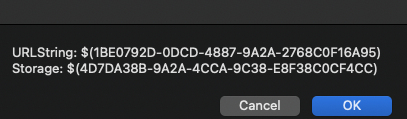


The AppleScript that produces the above dialog:


use framework "Foundation"
use scripting additions

property NSDictionary : a reference to current application's NSDictionary
property ServicesFolder : ((path to home folder as text) & "Library:Services") as alias
# set wflowFile to "~/Library/Services/Send email with variables.workflow/Contents/document.wflow"
set wflowFile to (choose file default location ServicesFolder)
set wflowFile to (wflowFile & "Contents:document.wflow") as text

set UUIDList to {}
set NameList to {}
set varRec to {}

tell application "System Events"
	tell property list file wflowFile
		set varList to (value of property list item "variables") as list
	end tell
end tell
repeat with aRec in varList
	copy aRec's |name| to the end of NameList
	copy aRec's UUID to the end of UUIDList
end repeat
set varRec to my make_record(NameList, UUIDList)
set fmt1 to ("URLString: $(" & (URLString of varRec) as text) & ")"
set fmt2 to ("Storage: $(" & (Storage of varRec) as text) & ")"
display dialog fmt1 & return & fmt2
return

on make_record(k, v)
	return (NSDictionary's dictionaryWithObjects:v forKeys:k) as record
end make_record


Due to the hosting software being restrictive about the size of a post, I will continue this on the immediate reply to this thread.

Apr 8, 2021 6:15 PM in response to AllStarMe

I don't believe the AppleScript saved as a Script or Application to the Desktop, and then dragged onto the Dock is going to work for you. I have switched gears and decided what does work is an Automator application saved to the Desktop, and then dragged onto the Dock. Uses the last code I think you posted, and pops open a Mail compose window with the DropBox folder name in the Subject line, and the folder name as the anchorTxt in the Mail body.


  1. Launch Automator from your /Applications folder
  2. New Document on your Desktop. Application and click Choose
    1. Drag/Drop Run AppleScript action from the. Utility Library into the Workflow window
    2. Remove everything between the on run {input, parameters} and the end run
    3. Make the contents of this Run AppleScript look like the following which you can attain with selective copy/paste of what is already in your AppleScript solution.
  3. Save with a meaningful name to your Desktop, and then drag/drop that onto your Dock.
  4. Double-click to run with the same criterion as the existing AppleScript solution.
  5. Apple Mail should launch with the familiar compose window with the appropriate content. Tested 11.2.3.


There is some new code in here to allow for http and https URI which I did not properly test in the previous code. I also got rid of the GUI scripting and now just tell Mail to send to bring up the completed compose window.


Automator Application Solution:


use framework "Foundation"
use framework "AppKit"
use AppleScript version "2.4" -- Yosemite or later
use scripting additions

# autoSend doesn't really automatically send the constructed email
# it just ensures that Mail will pop the constructed email up as a compose window
property AutoSend : true
property NSString : a reference to current application's NSString
property NSAttributedString : a reference to current application's NSAttributedString
property NSUTF8StringEncoding : a reference to current application's NSUTF8StringEncoding
property NSSharingService : a reference to current application's NSSharingService
property NSSharingServiceNameComposeEmail : a reference to current application's NSSharingServiceNameComposeEmail
property NSCharacterSet : a reference to current application's NSCharacterSet
property URI : {"http", "https"}

on run {input, parameters}
	
	# validate inputs
	try
		set recipientAddresses to {"marketing@xxxxx.com, sales@xxxxx.com, admin@xxxxx.com"}
		
		# ensure drop box folder was selected before running the script
		# so we can actually get its name
		tell application "Finder"
			if (get selection) is {} then error number -128
			set anchorTxt to name of item 1 of (get selection)
			set messageSubject to anchorTxt
		end tell
		
		set aURL to (the clipboard)
		if not (URI contains first word of aURL) = true then error number -128
		set anchor_link to my make_anchor_link(aURL, anchorTxt) as text
	on error errmsg number errNo
		my error_handler(errNo, errmsg)
		return
	end try
	
	# mail body
	set msgHTML to "<!DOCTYPE html>
<html lang=\"en\">
<head>
    <meta charset=\"UTF-8\">
    <meta name=\"viewport\" content=\"width=device-width, initial-scale=1.0\">
    <title>Document</title>
</head>
<body>
  <!-- sadly one cannot use style block in the HTML head section -->
    <p style=\"font-family:sans-serif;font-size:1em;\">Hey!</p>
	<p style=\"font-family:sans-serif;font-size:1em;\">Here's your pictures from   " & anchor_link & " </p>
    <p>
    <p style=\"font-family:sans-serif;font-size:1em;\">And here's your Zillow 3D Tour Link:</p>
</body>
</html>"
	
	set theSource to NSString's stringWithString:msgHTML
	set theData to theSource's dataUsingEncoding:NSUTF8StringEncoding
	set anAttributedString to NSAttributedString's alloc()'s initWithHTML:theData documentAttributes:{}
	
	-- USE THE MAIL SHARING SERVICE TO CREATE A NEW MAIL MESSAGE
	set aSharingService to NSSharingService's sharingServiceNamed:(NSSharingServiceNameComposeEmail)
	if aSharingService's canPerformWithItems:{"someone@somewhere.com"} then
		set aSharingService's subject to messageSubject
		set aSharingService's recipients to recipientAddresses
		tell aSharingService to performSelectorOnMainThread:"performWithItems:" withObject:{anAttributedString} waitUntilDone:false
	end if
	
	# get rid of GUI scripting code 
	if AutoSend then tell application "Mail" to send
	return
end run

on make_anchor_link(aURL, anchor)
	return ("&nbsp;&nbsp;<a href=\"" & aURL & "\">" & anchor & "</a>") as text
end make_anchor_link

on error_handler(nbr, msg)
	return display alert "[ " & nbr & " ] " & msg as critical giving up after 10
end error_handler


Mar 26, 2021 12:45 PM in response to Camelot

Camelot,


Agreed. AppleScript without Automator is a better approach. Here is an AppleScript-only approach that does what my Automator solution did. It too will open a Mail compose window with everything filled in except the Anchor text link that is pasted into the body text.


# Applescript that assumes that a valid URL is copied to the clipboard,
# and a folder, or file is preselected in the Finder before running
# the script to enter the anchor text string that replaces the original
# URL link in the Mail message body.

use scripting additions

set anchorTxt to ""

# validate inputs
try
	repeat until (not anchorTxt is "")
		set anchorTxt to text returned of (display dialog "Enter anchor text to replace URL in Mail message: " default answer "")
	end repeat
	
	tell application "Finder"
		if (get selection) is {} then error number -128
		set theName to name of item 1 of (get selection)
	end tell
	
	if (get the clipboard) does not start with "http" then error number -128
	set theURI to (the clipboard)
on error errmsg number errNo
	my error_handler(errNo, errmsg)
	return
end try

if exists theURI then
	my make_new_Link(theURI, anchorTxt)
else
	return
end if

tell application "Mail"
	# When the Mail compose window appears, paste the anchor text from the clipboard into the message body
	# where it is needed. This will be an active URL.
	try
		set newMessage to make new outgoing message with properties {subject:"File: " & theName, content:"Here are your images for  <remove me, paste from clipboard>" & return & return & "Best," & return & "Jake N."}
		
		tell newMessage
			set visible to true
			make new to recipient at end of to recipients with properties {address:"recipient@email.com"}
		end tell
		# activate
	on error errmsg number errNo
		my error_handler(errNo, errmsg)
		return
	end try
end tell

return

on make_new_Link(aURI, anchor)
	# place an active URL on the clipboard with anchor text replacing the HTTP/HTTPS URI
	set newlink to "<a href=\"" & aURI & "\">" & anchor & "</a>"
	set theHEX to do shell script "hexdump -ve '1/1 \"%.2x\"' <<<" & newlink's quoted form
	run script "set the clipboard to «data HTML" & (theHEX as «class utf8») & "»"
	return
end make_new_Link

on error_handler(nbr, msg)
	return display alert "[ " & nbr & " ] " & msg as critical giving up after 10
end error_handler


Apr 2, 2021 6:36 AM in response to AllStarMe

The variable recipientAddresses is being referenced later in the code, but this variable is unset because you shortened it to recipients. Also, you need the Dropbox folder link copied to the clipboard, and the actual Dropbox folder selected in the Finder before running the script.


You might (for self-documenting purposes) change the DEBUG variable to AutoSend, and retain the false default setting.

Apr 2, 2021 8:45 AM in response to VikingOSX

I really appreciate your patience Viking.


I tried to set recipients to the addresses and then assign that to recipientAddresses like you did in the first set of code you posted but I'm still unable to figure it out. I'm in over my head I think. I'm just starting to learn coding and I think this is a more complex project than I should be taking on right now.


-- NSSharingService_HMTL_Mail.applescript

(*
  Construct HTML email within Apple Mail by using NSSharingService
  
  Assumptions for this script previous to running it:
  1) Dropbox folder is selected in the Finder
  2) Hyperlink to the Drop Box folder is previously copied to the clipboard
  
  This script was adapted from and made possible by Sal Soghoian from the the following
  link:
  
  https://forum.latenightsw.com/t/create-mac-mail-msg-with-rich-text-content-that-also-has-cc-address-filled-in/2037
  
 Tested: macOS 11.2.3
 VikingOSX, 2021-03-28, Apple Support Communities, no warranties expressed or implied
*)

use framework "Foundation"
use framework "AppKit"
use AppleScript version "2.4" -- Yosemite or later
use scripting additions

# set DEBUG to true if you want to automatically send the email
property AutoSend : false
property NSString : a reference to current application's NSString
property NSAttributedString : a reference to current application's NSAttributedString
property NSUTF8StringEncoding : a reference to current application's NSUTF8StringEncoding
property NSSharingService : a reference to current application's NSSharingService
property NSSharingServiceNameComposeEmail : a reference to current application's NSSharingServiceNameComposeEmail
property NSCharacterSet : a reference to current application's NSCharacterSet

# validate inputs
try
	set anchorTxt to name of item 1 of (get selection)
	
	set recipients to ("marketing@xxxx.com, hanna@xxxx.com, marty@xxxx.com")
	set recipientAddresses to ((NSString's stringWithString:recipients)'s componentsSeparatedByCharactersInSet:splitSet) as list
	
	
	# ensure drop box folder was selected before we proceed
	tell application "Finder"
		if (get selection) is {} then error number -128
		set anchorTxt to name of item 1 of (get selection)
		set messageSubject to anchorTxt
	end tell
	set aURL to (the clipboard)
	if (aURL does not start with "http") then error number -128
	set anchor_link to my make_anchor_link(aURL, anchorTxt) as text
on error errmsg number errNo
	my error_handler(errNo, errmsg)
	return
end try

# mail body
set msgHTML to "<!DOCTYPE html>
<html lang=\"en\">
<head>
    <meta charset=\"UTF-8\">
    <meta name=\"viewport\" content=\"width=device-width, initial-scale=1.0\">
    <title>Document</title>
</head>
<body>
  <!-- sadly one cannot use style block in the HTML head section -->
    <p style=\"font-family:sans-serif;font-size:1em;\">Hey!</p>
	<p style=\"font-family:sans-serif;font-size:1em;\">Here's your pictures from   " & anchor_link & " </p>
    <p>
    <p style=\"font-family:sans-serif;font-size:1em;\">And here's your Zillow 3D Tour Link:</p>
</body>
</html>"

set theSource to NSString's stringWithString:msgHTML
set theData to theSource's dataUsingEncoding:NSUTF8StringEncoding
set anAttributedString to NSAttributedString's alloc()'s initWithHTML:theData documentAttributes:{}

-- USE THE MAIL SHARING SERVICE TO CREATE A NEW MAIL MESSAGE
set aSharingService to NSSharingService's sharingServiceNamed:(NSSharingServiceNameComposeEmail)
if aSharingService's canPerformWithItems:{"someone@somewhere.com"} then
	set aSharingService's subject to messageSubject
	set aSharingService's recipients to recipientAddresses
	tell aSharingService to performSelectorOnMainThread:"performWithItems:" withObject:{anAttributedString} waitUntilDone:false
end if

if AutoSend then
	# click the send button on the open compose window
	tell application "System Events"
		tell process "Mail"
			set frontmost to true
			keystroke "D" using {shift down, command down}
		end tell
	end tell
end if
return

on make_anchor_link(aURL, anchor)
	return ("&nbsp;&nbsp;<a href=\"" & aURL & "\">" & anchor & "</a>") as text
end make_anchor_link

on error_handler(nbr, msg)
	return display alert "[ " & nbr & " ] " & msg as critical giving up after 10
end error_handler

Apr 25, 2021 3:03 AM in response to AllStarMe

Make this code change.


From:

	if AutoSend then tell application "Mail" to send
	return


To:


	if AutoSend then
		tell application "Mail"
			launch
			send
		end tell
	end if
	return


Click the hammer (compile) icon in the Run AppleScript action before you save the changes. I have tested this with Apple Mail open and now also opens the constructed email composition window. No need to quit Mail beforehand.

Mar 25, 2021 9:43 AM in response to AllStarMe

> So I actually do want the input to be pasted into the body of the message, but at a very specific place. Is this possible?


By. default, the Automator Action will simply append the input to the end of the message.


If you want it at a specific place then you need to craft the message separately and pass the entire message into New Mail Message (off hand I have no idea of how you'd do this since I gave up on using Automator to manipulate text in this way a long time ago, but presumably some combination of 'Get Specified Text' and "Get Value of Variable').


As for the Dropbox Link, that looks like it's implemented as a service, so it may be possible to call the script directly, passing in the file in question. A quick search doesn't show any obvious clues, though, and most people have implemented a shell-based approach that reaches out to Dropbox's servers via a JSON call to get the data. If that's the only way then this project just escalated way up there in terms of complexity.


Mar 25, 2021 11:55 AM in response to VikingOSX

Part II


So now, I have access to my Automator variables by their UUID string reference, I can actually update the Automator workflow. The Get Contents of Clipboard action ignores its input.


And because activate is commented out, it does not automatically send the email, and pops open the Mail compose window with the To, Subject, and From fields populated. Your initial text is in the body of the email, and all you need to do is press ⌘+V to paste in the active anchor text URL, and then click send.


Apr 1, 2021 3:08 PM in response to AllStarMe

You already have the name of the Dropbox folder in AnchorText, so you can also set your messageSubject right away:


	# ensure drop box folder was selected before we proceed
	tell application "Finder"
		if (get selection) is {} then error number -128
		set anchorTxt to name of item 1 of (get selection)
		set messageSubject to anchorTxt
	end tell


Now, the Subject field, and the link in the mail body are both the folder name as you wanted.


Next, the email addresses are not one comma punctuated string, but rather must be an AppleScript list:


set recipientAddresses to {"marketing@xxxxx.com", "sales@xxxxx.com", "admin@xxxxx.com"}


This now places each of these in order, within the To: address field.


You see how the anchor_link is made. Same drill with different arguments to make your Zillow tour link which you would embed in the HTML as:


<p style=\"font-family:sans-serif;font-size:1em;\">And here's your Zillow 3D Tour Link: " & zillow_tour_link & " </p>


Apr 28, 2021 9:42 AM in response to AllStarMe

Well, I don't know. I tested the last change I posted on Apr 25 by double-clicking on the application icon on the Desktop, and it launched the Mail compose window correctly while Mail was open.


Did you copy/paste the link to the clipboard, and have the dropbox folder selected — before double-clicked the application icon on the Desktop? Is AutoSend set to true?

Mar 24, 2021 2:02 PM in response to AllStarMe

Thanks for the reply Camelot. So I actually do want the input to be pasted into the body of the message, but at a very specific place. Is this possible? I'm guessing I'll need to turn on "ignore this action's input" and go about it a different way.


I've included screenshots of the "copy dropbox link" action (screenshot 1), you do it by right clicking on the folder and then selecting "copy dropbox link". I've also included screenshots of the way I usually add the link to the text (screenshot 2) and a screenshot of how I want it to look when its done (screenshot 3).


Thanks so much for your help!


Screenshot 1:


Screenshot 2:


Screenshot 3:

This thread has been closed by the system or the community team. You may vote for any posts you find helpful, or search the Community for additional answers.

Automator to copy the file name and apply DropBox link.

Welcome to Apple Support Community
A forum where Apple customers help each other with their products. Get started with your Apple Account.