
macmini
Is there a way to ‘hard reset’ a mini? Mine will not operate as normal after applying all key combinations as advised by ‘Support’
Mac mini, macOS 11.2
Is there a way to ‘hard reset’ a mini? Mine will not operate as normal after applying all key combinations as advised by ‘Support’
Mac mini, macOS 11.2
If by "Hard Reset" you mean "Hard Restart", then try this:
Press and hold the power button of your Mac Mini for about 5 seconds until it shuts off.
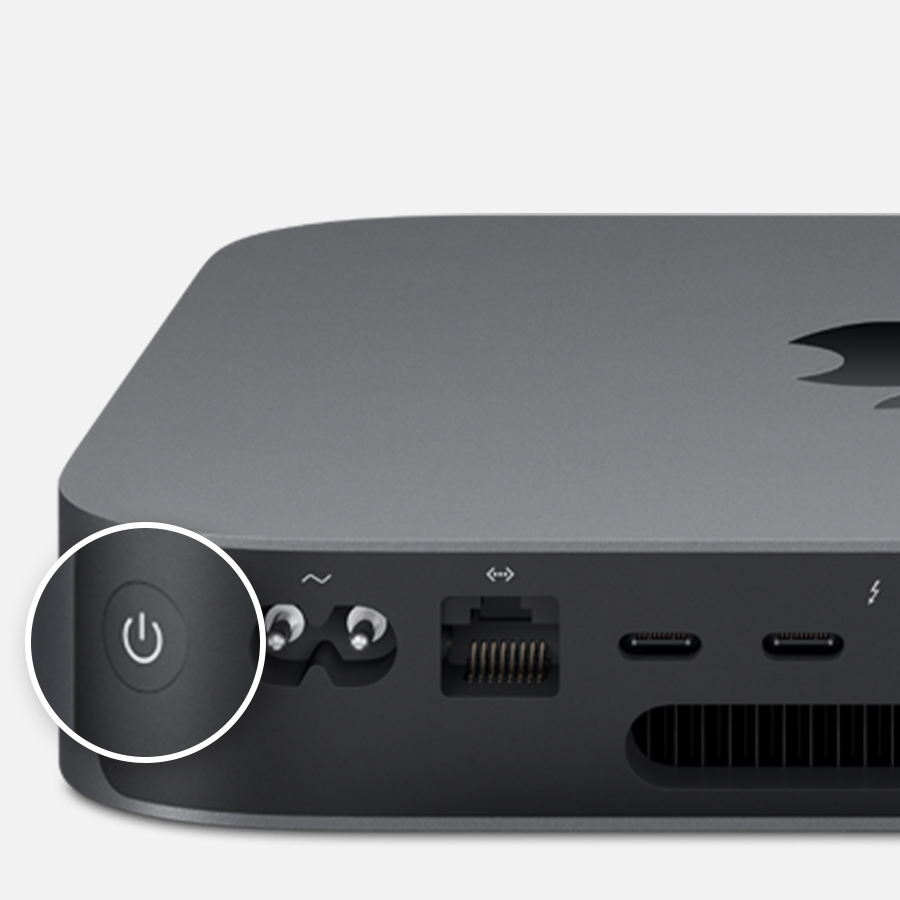
If you want to erase it and start over, then you can enter recovery mode and wipe the disk from there.
Turn on your Mac and immediately press and hold these two keys: Command (⌘) and R. Release the keys when you see an Apple logo, spinning globe, or other startup screen.
This will take you to recovery mode, where you can click "Reinstall macOS" to wipe the disk. This will erase all data on your Mac. This applies to Intel Macs only.
If you want to reset the PRAM or the NVRAM,
Shut down your Mac, then turn it on and immediately press and hold these four keys together: Option, Command, P, and R. You can release the keys after about 20 seconds, during which your Mac might appear to restart.
I hope this helped.
Support Documents from Apple are available here:
Reset NVRAM or PRAM: https://support.apple.com/en-us/HT204063
Mac startup key combinations: https://support.apple.com/en-in/HT201255
About macOS recovery: https://support.apple.com/en-us/HT201314
Please note:
You will need an external display.
You will need a functioning external keyboard that is preferably plugged in with USB.
You will need an external mouse.
You will lose all data if you completely Factory Reset your Mac
All links provided here are for Intel Macs only.
If by "Hard Reset" you mean "Hard Restart", then try this:
Press and hold the power button of your Mac Mini for about 5 seconds until it shuts off.
If you want to erase it and start over, then you can enter recovery mode and wipe the disk from there.
Turn on your Mac and immediately press and hold these two keys: Command (⌘) and R. Release the keys when you see an Apple logo, spinning globe, or other startup screen.
This will take you to recovery mode, where you can click "Reinstall macOS" to wipe the disk. This will erase all data on your Mac. This applies to Intel Macs only.
If you want to reset the PRAM or the NVRAM,
Shut down your Mac, then turn it on and immediately press and hold these four keys together: Option, Command, P, and R. You can release the keys after about 20 seconds, during which your Mac might appear to restart.
I hope this helped.
Support Documents from Apple are available here:
Reset NVRAM or PRAM: https://support.apple.com/en-us/HT204063
Mac startup key combinations: https://support.apple.com/en-in/HT201255
About macOS recovery: https://support.apple.com/en-us/HT201314
Please note:
You will need an external display.
You will need a functioning external keyboard that is preferably plugged in with USB.
You will need an external mouse.
You will lose all data if you completely Factory Reset your Mac
All links provided here are for Intel Macs only.
All is well!
VPN app removed, by AppZap.
MacMini back to its best and has risen from a long sleep. (Packed in removal box for a month or 3!)
Thanks for advice.
Gordon
Things have moved on! I managed to delete the app that I suspected of causing the problem. It was going thru a software update and the mini then became extremely unresponsive. The app is gone for now (vpn) and mini is responding much better but may need further tweaking.
many thanks for advice!
macmini
