Dual Boot Big Sur and Mojave

Can someone help, I have an iMac 2017 with Big Sur installed, but I want to dual boot it so I can also run the older OS Mojave. The Mac came installed with whatever came before Mojave so it should be able to run Mojave, but when I tried to create an additional AFPS volume in Disk Utility and then clicked on the Mojave installer, it said the OS was too old for this machine. I then thought about doing it all the other way round, so start with Mojave and then create a partition for Big Sur, so I erased the disk to start over, with the idea of reinstalling Mojave, but all it would offer me was to reinstall Big Sur.


Any ideas?

iMac 27″ 5K, macOS 11.3

Posted on May 1, 2021 2:31 PM

Reply
Question marked as Top-ranking reply

Posted on May 1, 2021 4:39 PM

Build a Mohave installer to boot off of for the Install...


Download macOS

  • Download: macOS Big SurmacOS CatalinamacOS Mojave, or macOS High Sierra 
  • These download to your Applications folder as an app named Install macOS [version name]. If the installer opens after downloading, quit it without continuing installation. To get the correct installer, download from a Mac that is using macOS Sierra 10.12.5 or later, or El Capitan 10.11.6. Enterprise administrators, please download from Apple, not a locally hosted software-update server. 
  • Download: OS X El Capitan
  • This downloads as a disk image named InstallMacOSX.dmg. On a Mac that is compatible with El Capitan, open the disk image and run the installer within, named InstallMacOSX.pkg. It installs an app named Install OS X El Capitan into your Applications folder. You will create the bootable installer from this app, not from the disk image or .pkg installer.

Use the 'createinstallmedia' command in Terminal

  1. Connect the USB flash drive or other volume that you're using for the bootable installer. 
  2. Open Terminal, which is in the Utilities folder of your Applications folder.
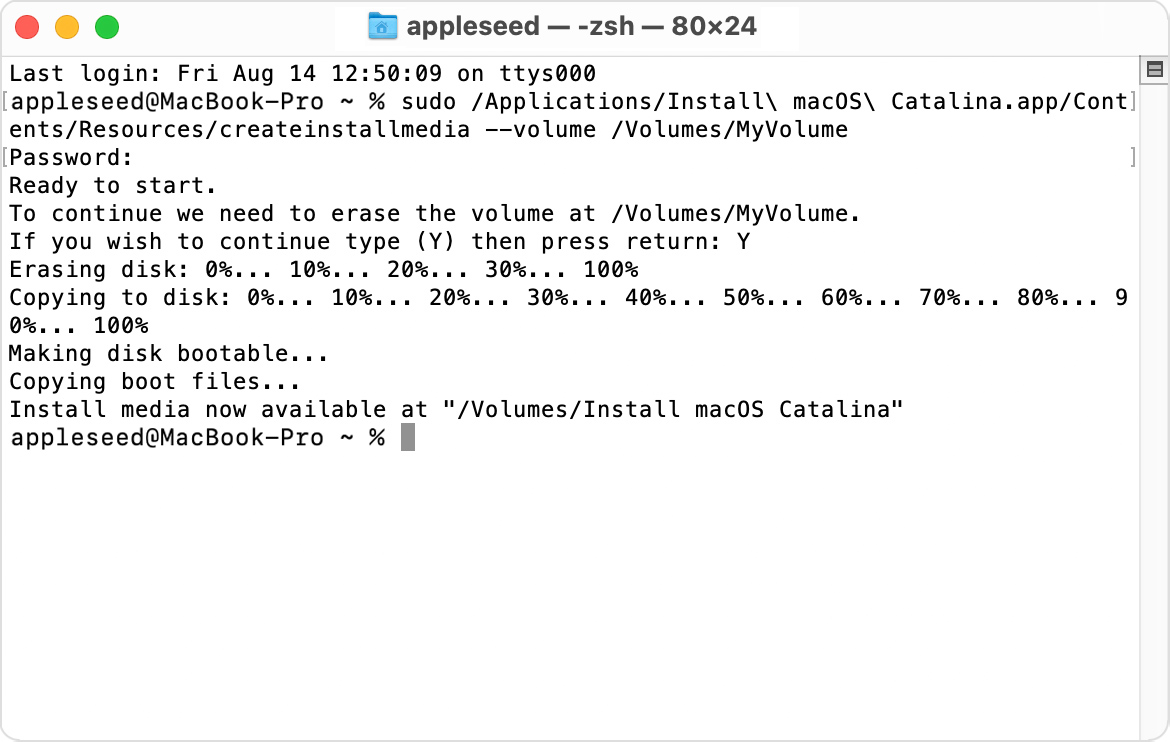
  3. Type or paste one of the following commands in Terminal. These assume that the installer is in your Applications folder, and MyVolume is the name of the USB flash drive or other volume you're using. If it has a different name, replace MyVolume in these commands with the name of your volume.

Big Sur:*

sudo /Applications/Install\ macOS\ Big\ Sur.app/Contents/Resources/createinstallmedia --volume /Volumes/MyVolume

Catalina:*

sudo /Applications/Install\ macOS\ Catalina.app/Contents/Resources/createinstallmedia --volume /Volumes/MyVolume

Mojave:*

sudo /Applications/Install\ macOS\ Mojave.app/Contents/Resources/createinstallmedia --volume /Volumes/MyVolume

High Sierra:*

sudo /Applications/Install\ macOS\ High\ Sierra.app/Contents/Resources/createinstallmedia --volume /Volumes/MyVolume

El Capitan:

sudo /Applications/Install\ OS\ X\ El\ Capitan.app/Contents/Resources/createinstallmedia --volume /Volumes/MyVolume --applicationpath /Applications/Install\ OS\ X\ El\ Capitan.app

* If your Mac is using macOS Sierra or earlier, include the --applicationpath argument and installer path, similar to the way this is done in the command for El Capitan.


After typing the command:

  1. Press Return to enter the command.
  2. When prompted, type your administrator password and press Return again. Terminal doesn't show any characters as you type your password.
  3. When prompted, type Y to confirm that you want to erase the volume, then press Return. Terminal shows the progress as the volume is erased.
  4. After the volume is erased, you may see an alert that Terminal would like to access files on a removable volume. Click OK to allow the copy to proceed. 
  5. When Terminal says that it's done, the volume will have the same name as the installer you downloaded, such as Install macOS Big Sur. You can now quit Terminal and eject the volume.


Use the bootable installer

Determine whether you're using a Mac with Apple silicon, then follow the appropriate steps:

Apple silicon

  1. Plug the bootable installer into a Mac that is connected to the internet and compatible with the version of macOS you're installing.
  2. Turn on your Mac and continue to hold the power button until you see the startup options window, which shows your bootable volumes.
  3. Select the volume containing the bootable installer, then click Continue.
  4. When the macOS installer opens, follow the onscreen instructions.

Intel processor

  1. Plug the bootable installer into a Mac that is connected to the internet and compatible with the version of macOS you're installing.
  2. Press and hold the Option (Alt) ⌥ key immediately after turning on or restarting your Mac.
  3. Release the Option key when you see a dark screen showing your bootable volumes.
  4. Select the volume containing the bootable installer. Then click the up arrow or press Return. 
  5. If you can't start up from the bootable installer, make sure that the External Boot setting in Startup Security Utility is set to allow booting from external media.
  6. Choose your language, if prompted.
  7. Select Install macOS (or Install OS X) from the Utilities window, then click Continue and follow the onscreen instructions.


Similar questions

5 replies
Question marked as Top-ranking reply

May 1, 2021 4:39 PM in response to TJPhil101

Build a Mohave installer to boot off of for the Install...


Download macOS

  • Download: macOS Big SurmacOS CatalinamacOS Mojave, or macOS High Sierra 
  • These download to your Applications folder as an app named Install macOS [version name]. If the installer opens after downloading, quit it without continuing installation. To get the correct installer, download from a Mac that is using macOS Sierra 10.12.5 or later, or El Capitan 10.11.6. Enterprise administrators, please download from Apple, not a locally hosted software-update server. 
  • Download: OS X El Capitan
  • This downloads as a disk image named InstallMacOSX.dmg. On a Mac that is compatible with El Capitan, open the disk image and run the installer within, named InstallMacOSX.pkg. It installs an app named Install OS X El Capitan into your Applications folder. You will create the bootable installer from this app, not from the disk image or .pkg installer.

Use the 'createinstallmedia' command in Terminal

  1. Connect the USB flash drive or other volume that you're using for the bootable installer. 
  2. Open Terminal, which is in the Utilities folder of your Applications folder.
  3. Type or paste one of the following commands in Terminal. These assume that the installer is in your Applications folder, and MyVolume is the name of the USB flash drive or other volume you're using. If it has a different name, replace MyVolume in these commands with the name of your volume.

Big Sur:*

sudo /Applications/Install\ macOS\ Big\ Sur.app/Contents/Resources/createinstallmedia --volume /Volumes/MyVolume

Catalina:*

sudo /Applications/Install\ macOS\ Catalina.app/Contents/Resources/createinstallmedia --volume /Volumes/MyVolume

Mojave:*

sudo /Applications/Install\ macOS\ Mojave.app/Contents/Resources/createinstallmedia --volume /Volumes/MyVolume

High Sierra:*

sudo /Applications/Install\ macOS\ High\ Sierra.app/Contents/Resources/createinstallmedia --volume /Volumes/MyVolume

El Capitan:

sudo /Applications/Install\ OS\ X\ El\ Capitan.app/Contents/Resources/createinstallmedia --volume /Volumes/MyVolume --applicationpath /Applications/Install\ OS\ X\ El\ Capitan.app

* If your Mac is using macOS Sierra or earlier, include the --applicationpath argument and installer path, similar to the way this is done in the command for El Capitan.


After typing the command:

  1. Press Return to enter the command.
  2. When prompted, type your administrator password and press Return again. Terminal doesn't show any characters as you type your password.
  3. When prompted, type Y to confirm that you want to erase the volume, then press Return. Terminal shows the progress as the volume is erased.
  4. After the volume is erased, you may see an alert that Terminal would like to access files on a removable volume. Click OK to allow the copy to proceed. 
  5. When Terminal says that it's done, the volume will have the same name as the installer you downloaded, such as Install macOS Big Sur. You can now quit Terminal and eject the volume.


Use the bootable installer

Determine whether you're using a Mac with Apple silicon, then follow the appropriate steps:

Apple silicon

  1. Plug the bootable installer into a Mac that is connected to the internet and compatible with the version of macOS you're installing.
  2. Turn on your Mac and continue to hold the power button until you see the startup options window, which shows your bootable volumes.
  3. Select the volume containing the bootable installer, then click Continue.
  4. When the macOS installer opens, follow the onscreen instructions.

Intel processor

  1. Plug the bootable installer into a Mac that is connected to the internet and compatible with the version of macOS you're installing.
  2. Press and hold the Option (Alt) ⌥ key immediately after turning on or restarting your Mac.
  3. Release the Option key when you see a dark screen showing your bootable volumes.
  4. Select the volume containing the bootable installer. Then click the up arrow or press Return. 
  5. If you can't start up from the bootable installer, make sure that the External Boot setting in Startup Security Utility is set to allow booting from external media.
  6. Choose your language, if prompted.
  7. Select Install macOS (or Install OS X) from the Utilities window, then click Continue and follow the onscreen instructions.


May 10, 2021 4:43 AM in response to BDAqua

Thanks again, it worked. Not without problems, I got 'incompatible disk' error message. In the end I did an internet recovery, which gave me High Sierra, then did an upgrade to Mojave. So all seems good. Now all I need to do is install Big Sur but I'm a bit worried. I have read a thread on reddit that dual booting Mojave and Big Sur on an APFS volume gives the incompatible disk error message and will stop you being able to receive any more updates to Mojave. So perhaps I should just use the partition

method.


Tom

May 10, 2021 8:01 AM in response to TJPhil101

Good work Tom, I was able to do a Security Update to Mojave with BS on another partition, both on an external drive.


On restart I would get 'incompatible disk' error message, but never interfered with anything as far as I know... unless that is why BS never showed up in Startup Disk Pref Pane & had to use Option key at startup to get to BS.

This thread has been closed by the system or the community team. You may vote for any posts you find helpful, or search the Community for additional answers.

Dual Boot Big Sur and Mojave

Welcome to Apple Support Community
A forum where Apple customers help each other with their products. Get started with your Apple Account.