How do I rip audio from videos?

I have been using an online process to rip audio from youtube videos. That link now says it's not safe(?). So I looked for an app in the AppStore to download video and audio but nothing seems to offer what I think I need. I then googled and found MacX Pro which also comes up with a warning about downloading that app. One online source suggested QuickTime Player but I cannot seem to open a youtube video in QTP. So are there any Mac prefered apps to:


  1. just rip out the audio
  2. download the video and then use an app to rip the audio.


I use the audio files and transcribe them for teaching notes (with permissions from the youtube creator).

MacBook Air 11″, macOS 10.15

Posted on Jul 15, 2021 2:02 PM

Reply
Question marked as Top-ranking reply

Posted on Jul 15, 2021 2:47 PM

you don't open youtube within QuickTime. you use your browser as usual for youtube. then to record the audio you choose "new audio recording" in the QuickTime>File menu after opening QuickTime.
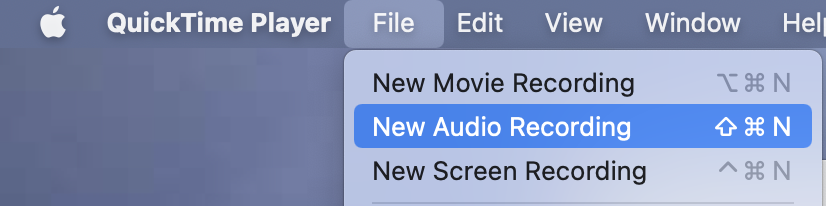

then when i want to record music from youtube, i use QuickTime quite successfully. however, to get high quality audio you need additional software. i use the free BlackHole Virtual Audio Driver. then you can choose BlackHole as the microphone in the options.


you will also need to set up a multi-output device in your audio MIDI setup utility to be able to both hear and record the internal audio at the same time.

to set up a multi-output device:

Open Audio MIDI Setup: (found in /Applications/Utilities)

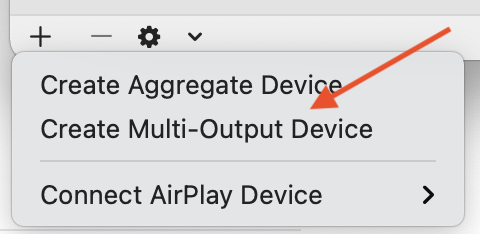
hit the '+' button in the bottom left corner and select "Create Multi Output Device"

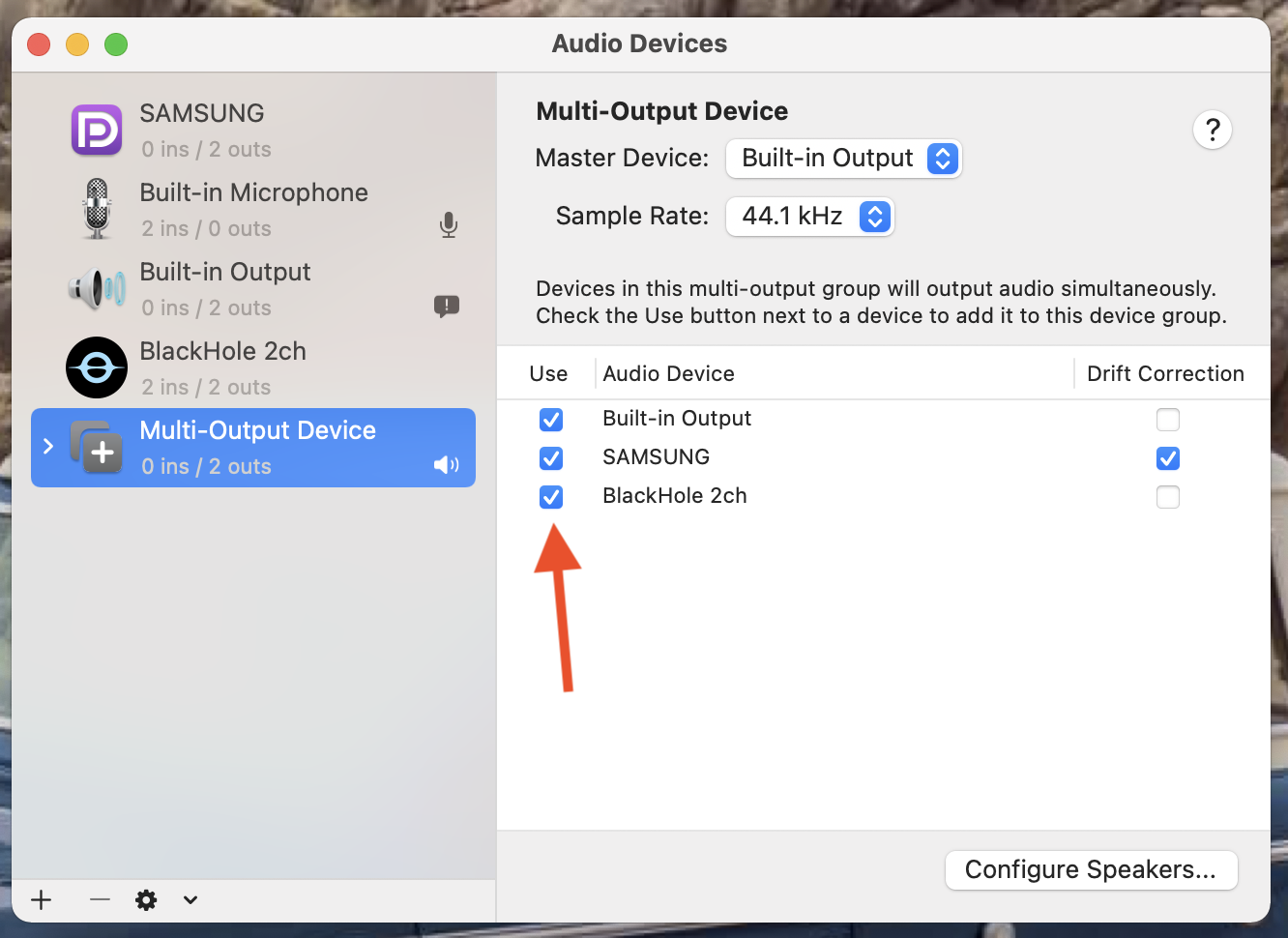
then in the panel that appears on the right, in the Multi-Output Device tab, select "Built-in Output" AND "BlackHole 2ch". (and, if you want, any of your other connected devices.)

once you do that, (and BEFORE recording) you can choose "BlackHole 2ch" or "Multi-Output Device" in your menubar "sound options"
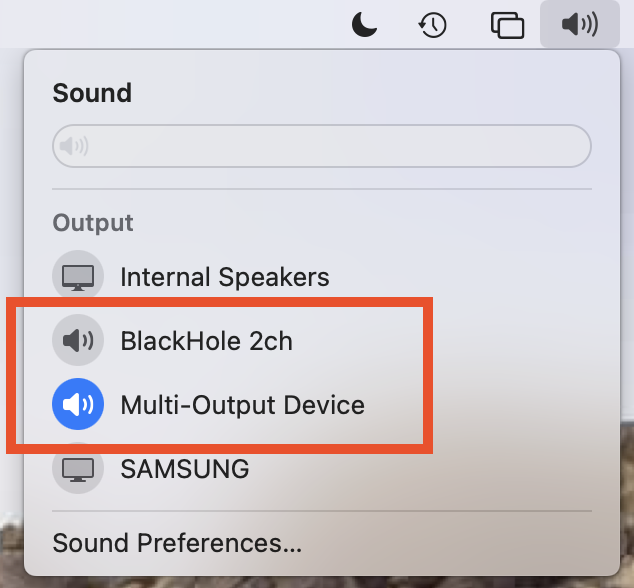

to both hear the speakers and record the audio at the same time, choose "Multi-Output Device". before choosing multi-out, set the internal speakers' volume to a comfortable level first. you cannot control the volume once you are in multi-out mode.


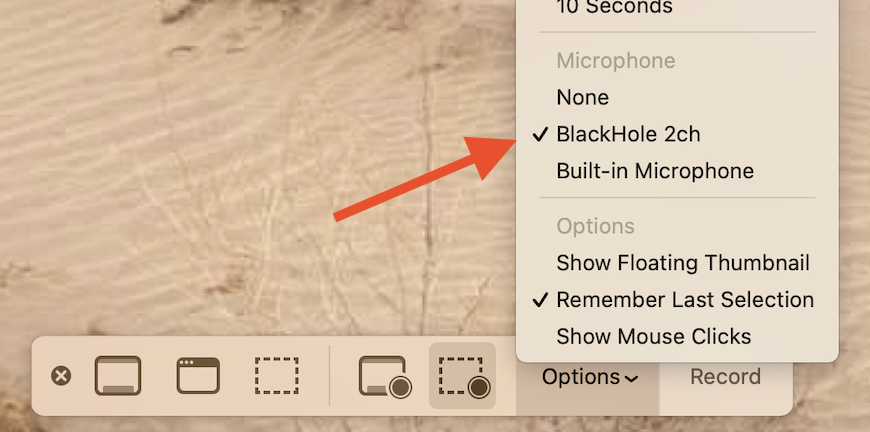
and BlackHole allows you to record the internal audio along with screen recordings of videos by choosing "new screen recording" from the QuickTime>File menu.


you can then choose "BlackHole 2ch" in the recording options instead of "Built-in Microphone."

and finally, the developers of BlackHole ask for your e-mail address where they can send the download link. but note that they haven't sent me even one spam-mail afterwards.


11 replies
Question marked as Top-ranking reply

Jul 15, 2021 2:47 PM in response to Staynavytom

you don't open youtube within QuickTime. you use your browser as usual for youtube. then to record the audio you choose "new audio recording" in the QuickTime>File menu after opening QuickTime.


then when i want to record music from youtube, i use QuickTime quite successfully. however, to get high quality audio you need additional software. i use the free BlackHole Virtual Audio Driver. then you can choose BlackHole as the microphone in the options.


you will also need to set up a multi-output device in your audio MIDI setup utility to be able to both hear and record the internal audio at the same time.

to set up a multi-output device:

Open Audio MIDI Setup: (found in /Applications/Utilities)

hit the '+' button in the bottom left corner and select "Create Multi Output Device"


then in the panel that appears on the right, in the Multi-Output Device tab, select "Built-in Output" AND "BlackHole 2ch". (and, if you want, any of your other connected devices.)


once you do that, (and BEFORE recording) you can choose "BlackHole 2ch" or "Multi-Output Device" in your menubar "sound options"


to both hear the speakers and record the audio at the same time, choose "Multi-Output Device". before choosing multi-out, set the internal speakers' volume to a comfortable level first. you cannot control the volume once you are in multi-out mode.


and BlackHole allows you to record the internal audio along with screen recordings of videos by choosing "new screen recording" from the QuickTime>File menu.


you can then choose "BlackHole 2ch" in the recording options instead of "Built-in Microphone."


and finally, the developers of BlackHole ask for your e-mail address where they can send the download link. but note that they haven't sent me even one spam-mail afterwards.

Jul 17, 2021 1:35 PM in response to Roger Wilmut1

Roger Wilmut1 wrote:

As you've found QT player won't do this.

if you use blackhole with quicktime you CAN record the mac's internal audio for both audio or video with audio. if you don't believe me, follow the instructions i gave to the OP. if it didn't work, i wouldn't have recommended it. and there's no need to pay $60 USD for Audio Hijack when QT and BlackHole are both FREE.

Jul 17, 2021 1:15 PM in response to jeffreythefrog

I tried the audio recording from QT and discovered it just records the audio as it is being played from my laptop speakers. So I get other external conversations or knocks or noise in the recording. PLUS, there doesn't seem to be a way to save the recording. Is that why you suggested the Blackhole options? Does it record the pure audio from the video source?

This thread has been closed by the system or the community team. You may vote for any posts you find helpful, or search the Community for additional answers.

How do I rip audio from videos?

Welcome to Apple Support Community
A forum where Apple customers help each other with their products. Get started with your Apple Account.