I have written a script that will take a Finder selection of the file to copy, and the selected destination folders (in that order), all of which are in the same folder. I have tested this script in Automator on macOS 10.13.6, 10.14.6, and 11.5.1 and it works as expected. On High Sierra, it will be an Automator Service, and on Mojave and later it will be a Quick Action.
One launches Automator, clicks New Document at Desktop, selects either Service, or Quick Action depending on the operating system, and then clicks Choose. This will present a workflow whose heading should be configured as:

Next, you visit the Utilities Library in the left panel, and drag and drop the Run Shell Script action onto the large workflow window. It should be configured to look like this:

Select the contents and remove them, as they will be replaced with the following code that you copy/paste into that action:
#!/bin/zsh

: <<'COMMENT'

Reference: https://discussions.apple.com/thread/253031808

Script to receive a Finder selected filename as a first argument followed by one
or more folders where the file is to be copied. Displays an AppleScript dialog
showing the copied filename, and the sorted list of recipient folders.

Usage[1] file2nfolder.zsh ./filename ./folder1 ./folder2 ./foldern
Usage[2] An Automator Service or Quick Action with a Zsh shell and arguments
         In the Finder, select the filename first, followed by one or more folders

Assumption: file to copy and folders are in the same directory
Tested: macOS 11.5.1; zsh v5.8; macOS 10.13.6, zsh v5.3; macOS 10.14.6, zsh v5.3
VikingOSX, 2021-08-09, Apple Support Communities

COMMENT
# initialize two arrays
typeset -a ARGS=() DIRS=()

function show_results () {
    osascript <<-AS
    use scripting additions

    set afile to "${1}"
    set afolders to "${2}"
    set {TID, AppleScript's text item delimiters} to {AppleScript's text item delimiters, return}
    set adirs to (words of afolders) as text
    set AppleScript's text item delimiters to TID

    set aformat to "Copied:  " & afile & return & return & "To Folders:" & return & return & adirs
    display dialog aformat with title "Copy of single file to multiple folders"
AS
    return
}

# first argument is a file and there must be at least one folder
[[ $# -ge 2 ]] && [[ -e "${1}" ]] || { osascript -e 'display dialog "You must select a file to copy and at least one folder."';exit 1 }


OS_VERS=$(/usr/bin/sw_vers -productVersion | cut -d. -f1-2)

ARGS=( "$@" )

if [[ $OS_VERS -lt "10.14" ]]; then
    # High Sierra Finder/Automator reverses selection order. A file selected first is last.
    FILE="${@[-1]}"
    # all but the last argument which is a filename
    DIRS=( "${ARGS[@]:0:$((${#ARGS} - 1))}" )
else
    # Mojave and later maintain Finder/Automator selection order. A file appears first in arguments.
    FILE="${@[1]}"
    DIRS=( "${ARGS[@]:1:${#ARGS}}" )
fi

# two variations on how to copy one file into n-tuple folders
# find "${DIRS}" -maxdepth 0 -exec cp -a "${FILE}" {} \;
/usr/bin/xargs -n 1 cp -a "${FILE:a}" <<<"${DIRS}"

# uses the -o print option to sort the array elements ascending
show_results "${FILE:t}" "$(print -o "${DIRS[@]:t}")"
unset ARGS DIRS
exit 0
Save the Automator Service or Quick Action and give it a meaningful, but short name (e.g. File to n-tuple Folders). Automator will save Service and Quick Actions in the same location, your /Users/username/Library/Services folder. Quit Automator.
Open a FInder window to the folder containing the file and the folders it is to be copied too. Select the filename first, and then the folders by holding down the shift or command key so that you have the file and all folders selected.
On High Sierra, where there are no Quick Actions, you want to right-click on the selected filename, and from the contextual menu, choose Service > File to n-tuple Folders. This will run the Automator Service and when done, you should have a copy of your file in each of the selected folders. On Mojave and later, where Quick Actions have been implemented in the operating system, your also right-click on the selected file, and from the contextual menu, select Quick Actions > File to n-tuple Folders. Same result.
The script will produce a dialog:
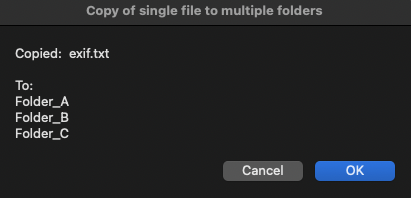
that reflects the following result:
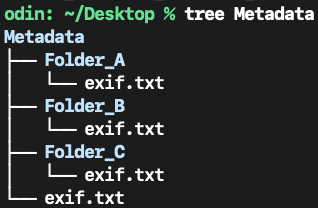
The tree utility is a free third-party tool that must be compiled and is not part of the macOS operating system.


