Numbers Conditional Row formatting

I would like to easily highlight a whole row of a table based on the TRUE or FALSE value of a checkbox column within that row...


Super simple case... Take a Todo list that has a number of columns like: Description, Assigned To, Notes and a checkbox to indicate completion.


Once the checkbox is complete (TRUE) I would like the whole row to turn a specific color to easily visualize completed items. Would also be great to have the text in each cell of the row also format sas strikethrough.


I know I probably need to set each cell in the row to a conditional formula based on the checkbox status, but I am having a hard time figuring out how to do this easily...


Note that I've been able to complete this easily in Google Docs, but I want to use Numbers


MacBook Pro (2020 and later)

Posted on Oct 7, 2021 7:07 PM

Reply

Similar questions

4 replies

Oct 7, 2021 7:51 PM in response to JohnGross

In Numbers, conditional formatting is based on comparing the value in the cell to something. That something may be a number or text or it could be the value in another cell. Unfortunately you cannot create a rule that highlights based solely on the value in another cell, it has to be a comparison. There is a trick, though, that lets you work around this limitation to highlight a full row relatively easily. It requires one extra column that you can hide after it is all set up.


The formula in column E (i.e., the entire column except the header) is =IF(D,"",CHAR(10000))

I use CHAR(10000) because it is a character that is unlikely to be used for anything else.


The highlighting rule is


What you do to create the rule for all of the table is

  1. Select all cells in all data rows of columns A-D
  2. Start making a highlighting rule like that shown above
  3. The field that has the "$E2" starts out blank with a green oval in it. Click the oval and type in the $E2.
  4. Choose the format style you want
  5. Click done


The $E2 in the rule will adjust for each row to $E3, $E4, etc.


Oct 7, 2021 10:30 PM in response to JohnGross

Conditional Highlighting rules in Numbers compare the current value in the cell to be formatted with a fixed value, written into the rule, or to the value in another cell. Since the trigger value is the true or false state of a specific cell, and neither of those values are likely to be in the cell(s) to be highlighted, yu will need to provide a set of cells paired with each of the cells to be highlighted, and manipulate the values in these cells depending on the value in the trigger cell.


Here's an example. "My Tasks" is the table whose rows are to be highlighted when the checkbox cell in column A of that row is checked, indicating the task(s) have been completed.
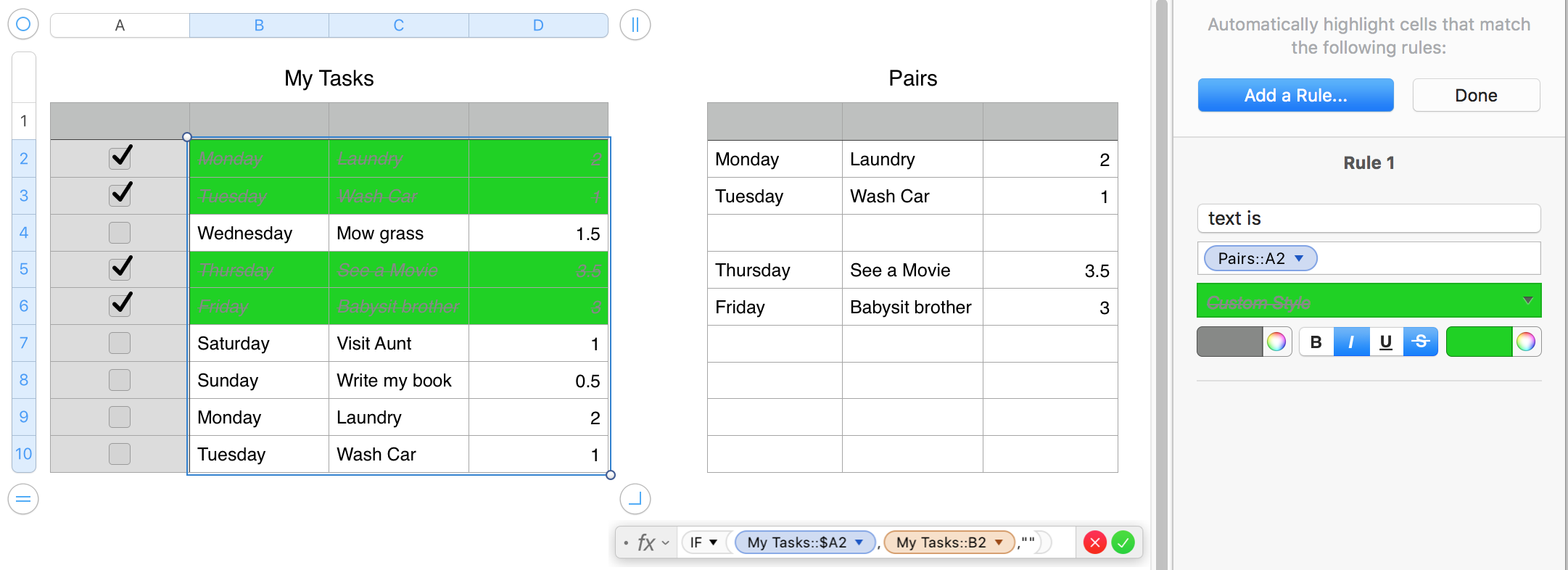
The formula shown below the "Pairs" table is placed in cell A2 to Pairs, and filled down to the bottom of column A, and right to column C.


Checkboxes contain 'true' if they are checked, and 'false' if the box is not checked.

Each copy of the formula gets the value from the checkbox cell in the same row of My Tasks. If that value is 'true' the formula the formula copies the value of its 'paired' cell of My Taske, and pastes it into its own cell. If the checkbox is unchecked, the formula inserts a null string into its cell.


The conditional highlight rule, shown in the right sidebar is set to compare the 'text' displayed in the paired cell for each of the data cells in My Tasks. IF both cells display the same text the rule applies the custom highlighting shown in the rule (strike-through style and a grey colour value is applied to the text, and the cell style is set to green fill in the shade shown.


Where the cell has not been checked, the conditional highlighting is not applied, and the cell and text retain their original style.


Regards,

Barry

This thread has been closed by the system or the community team. You may vote for any posts you find helpful, or search the Community for additional answers.

Numbers Conditional Row formatting

Welcome to Apple Support Community
A forum where Apple customers help each other with their products. Get started with your Apple Account.

