iPad mini 4 - reset - reactivating issue

I have tried many times to take my iPad mini into use after cleaning it. It’s trying to connect to server to activate but it does not work. Tried also to connect to MacBook but iTunes does not recognize it. What to do…? Please help! 😊

iPad mini 4 Wi-Fi, Cellular

Posted on Nov 5, 2021 4:03 AM

Reply
Question marked as Top-ranking reply

Posted on Nov 6, 2021 11:51 AM

If you are experiencing difficulties with (re)activation of your iPad, you may have more success if you connect your iPad to a PC (with iTunes installed) or a Mac (with iTunes or Finder - as appropriate for the installed version of macOS). Once connected to your computer, your iPad will be detected - and you should be able to activate using iTunes.


  1. Make sure that you have the latest version of macOS or the latest version of iTunes.
  2. Check that your computer has an Internet connection.
  3. With the cable that came with your iPad, connect your iPad to your computer. Locate your device on your computer.
  4. Wait while your computer detects and activates your iPad:
  • If you see an alert that shows "Set up as New" or "Restore from Backup", it means your iPad is activated.
  • If you get an error message that says the "activation information was invalid" or "activation information could not be obtained from the device", use recovery mode to restore your iPhone.


A restart of your WiFi Router and/or a change of DNS settings may also be helpful.


To restart you home router, disconnect power - then wait at least 30 seconds before restarting. When you router has rebooted (which may take several minutes), force-restart your iPad:


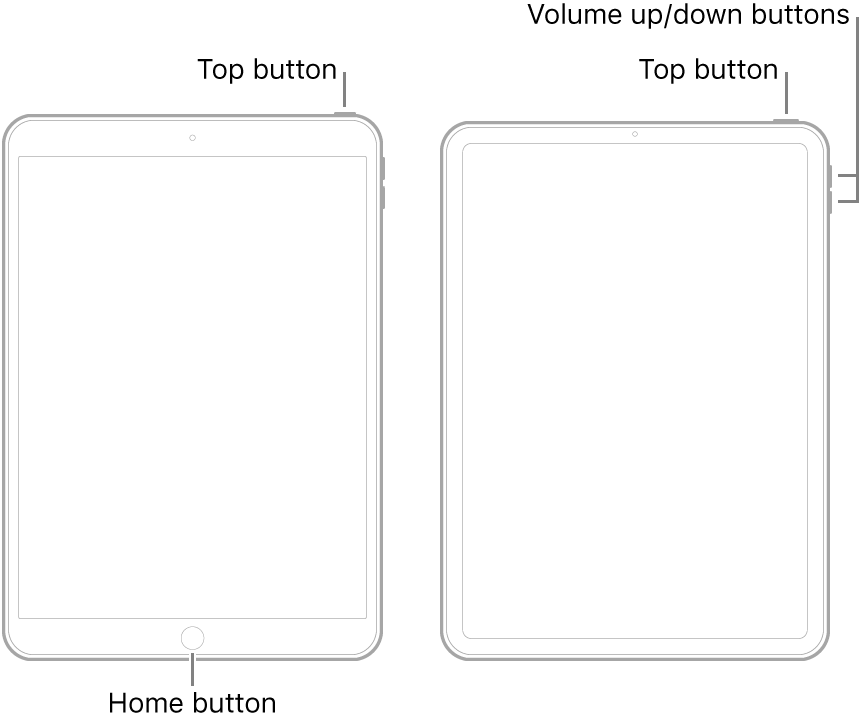
  • On an iPad with a Home button: Press and hold the top button and the Home button at the same time. When the Apple logo appears, release both buttons.
  • On an iPad with Face ID: Press and quickly release the volume up button, press and quickly release the volume down button, then press and hold the top button. When the Apple logo appears, release the button.


For recommended DNS servers (configured at your home router and/or your iPad), you might choose one of the following Recursive DNS Providers (IPv4 and IPv6 addresses included below):


Quad9

9.9.9.9

149.112.112.112

2620:fe::fe

2620:fe::9


OpenDNS

208.67.222.222

208.67.220.220

2620:0:ccc::2

2620:0:ccd::2


Cloudflare+APNIC

1.1.1.1

1.0.0.1

2606:4700:4700::1111

2606:4700:4700::1001


Should it be necessary to escalate your issue to Apple Support, the quickest route to engaging with Apple Support will be via the  Get Support link at top-right of this page.


Similar questions

7 replies
Question marked as Top-ranking reply

Nov 6, 2021 11:51 AM in response to vesa19

If you are experiencing difficulties with (re)activation of your iPad, you may have more success if you connect your iPad to a PC (with iTunes installed) or a Mac (with iTunes or Finder - as appropriate for the installed version of macOS). Once connected to your computer, your iPad will be detected - and you should be able to activate using iTunes.


  1. Make sure that you have the latest version of macOS or the latest version of iTunes.
  2. Check that your computer has an Internet connection.
  3. With the cable that came with your iPad, connect your iPad to your computer. Locate your device on your computer.
  4. Wait while your computer detects and activates your iPad:
  • If you see an alert that shows "Set up as New" or "Restore from Backup", it means your iPad is activated.
  • If you get an error message that says the "activation information was invalid" or "activation information could not be obtained from the device", use recovery mode to restore your iPhone.


A restart of your WiFi Router and/or a change of DNS settings may also be helpful.


To restart you home router, disconnect power - then wait at least 30 seconds before restarting. When you router has rebooted (which may take several minutes), force-restart your iPad:


  • On an iPad with a Home button: Press and hold the top button and the Home button at the same time. When the Apple logo appears, release both buttons.
  • On an iPad with Face ID: Press and quickly release the volume up button, press and quickly release the volume down button, then press and hold the top button. When the Apple logo appears, release the button.


For recommended DNS servers (configured at your home router and/or your iPad), you might choose one of the following Recursive DNS Providers (IPv4 and IPv6 addresses included below):


Quad9

9.9.9.9

149.112.112.112

2620:fe::fe

2620:fe::9


OpenDNS

208.67.222.222

208.67.220.220

2620:0:ccc::2

2620:0:ccd::2


Cloudflare+APNIC

1.1.1.1

1.0.0.1

2606:4700:4700::1111

2606:4700:4700::1001


Should it be necessary to escalate your issue to Apple Support, the quickest route to engaging with Apple Support will be via the  Get Support link at top-right of this page.



Nov 6, 2021 7:53 AM in response to vesa19

Hello vesa19,


Thanks for that info and for choosing the Apple Support Communities. If we understand correctly, you are unable to activate your iPad mini. To help with that situation, please follow the relevant steps in this Apple resource on activating devices:


If you can't activate your iPhone


As far as your computer not recognizing your iPad, please see the steps in this Apple resource:


If your computer doesn't recognize your iPhone, iPad, or iPod


Cheers!

Nov 6, 2021 11:47 AM in response to jdo_apple

I tried several times again. Also tried recovering using other iPhone.


Then I updated MacBook Air to Montorey. Now I can connect iPad to MacBook but I get the same error now on MacBook. “Cannot sync… time out…”


I can see iPads serial number and UDID on MacBook.


iPad does not have SIM card in. And actually it is iPad mini 5.

This thread has been closed by the system or the community team. You may vote for any posts you find helpful, or search the Community for additional answers.

iPad mini 4 - reset - reactivating issue

Welcome to Apple Support Community
A forum where Apple customers help each other with their products. Get started with your Apple Account.