Thick Black line / dark area on screen

My iPad Air 3 has developed a thick dark band on the screen. It was purchased in Aug 2019 so out of warranty. It hasn’t been dropped or banged. It came on after I had been using it for a Teams session. The line doesn’t have the coloured lines that others seem to have and it is transparent so I can still use it. It’s just a darker section. It is hardware as the line doesn’t show up on a screenshot.


Has anyone seen this or got a fix?

iPad Air 3 Wi-Fi

Posted on Nov 23, 2021 9:04 AM

Reply
Question marked as Top-ranking reply

Posted on Nov 23, 2021 9:07 AM

Begin with a forced-restart of your iPad - as this will often resolve an isolated issue:


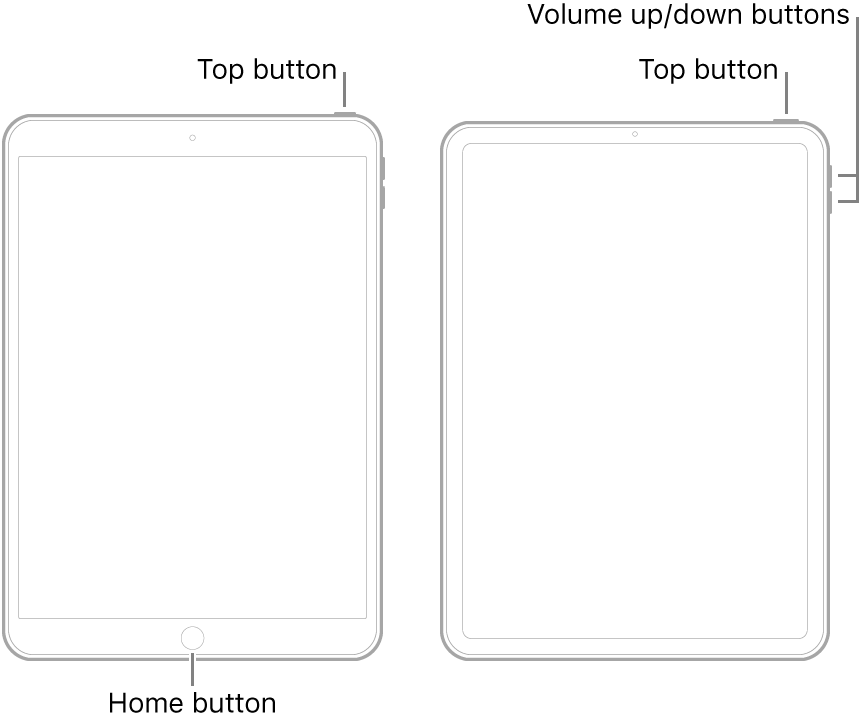
  • On an iPad with a Home button: Press and hold the top button and the Home button at the same time. When the Apple logo appears, release both buttons.
  • On other iPad models: Press and quickly release the volume up button, press and quickly release the volume down button, then press and hold the top button. When the Apple logo appears, release the button.


If the problem remains unresolved, you’ll need to determine if you have a hardware or software issue. A reliable method to confirm a screen or other hardware fault is to take a screenshot when the fault is evident - and then review the captured screenshot image...


When reviewed, if the lines are not present in the screenshot image, then you have demonstrated that you have a hardware fault that, sooner or later, may become sufficiently severe that repair or replacement of the iPad are the only options. If the lines are visible in the screenshot, the something other than hardware will be the cause.


Note: When reviewing the image, rotating the iPad screen orientation by 90°, from Portrait to Landscape, will ensure that the image does not coincide with screen defects if present.


Take a screenshot on your iPad – Apple Support


If you continue to experience difficulties, you might be best advised to seek assistance directly from from Apple Support. You can contact the Support Team using the Get Support link at top-right of this page. Alternatively, you can initiate and manage your support cases using the excellent Apple Support App. If not already installed on your iPad, the App can be downloaded from the App Store:

https://apps.apple.com/gb/app/apple-support/id1130498044


You might also visit the Genius Bar at your local Apple Store or Apple Authorised Service Provider (AASP) - where the technicians will be able to test and assess your iPad:

Genius Bar Reservation and Apple Support Options - Apple


2 replies
Question marked as Top-ranking reply

Nov 23, 2021 9:07 AM in response to ScruffymonkeyDM

Begin with a forced-restart of your iPad - as this will often resolve an isolated issue:


  • On an iPad with a Home button: Press and hold the top button and the Home button at the same time. When the Apple logo appears, release both buttons.
  • On other iPad models: Press and quickly release the volume up button, press and quickly release the volume down button, then press and hold the top button. When the Apple logo appears, release the button.


If the problem remains unresolved, you’ll need to determine if you have a hardware or software issue. A reliable method to confirm a screen or other hardware fault is to take a screenshot when the fault is evident - and then review the captured screenshot image...


When reviewed, if the lines are not present in the screenshot image, then you have demonstrated that you have a hardware fault that, sooner or later, may become sufficiently severe that repair or replacement of the iPad are the only options. If the lines are visible in the screenshot, the something other than hardware will be the cause.


Note: When reviewing the image, rotating the iPad screen orientation by 90°, from Portrait to Landscape, will ensure that the image does not coincide with screen defects if present.


Take a screenshot on your iPad – Apple Support


If you continue to experience difficulties, you might be best advised to seek assistance directly from from Apple Support. You can contact the Support Team using the Get Support link at top-right of this page. Alternatively, you can initiate and manage your support cases using the excellent Apple Support App. If not already installed on your iPad, the App can be downloaded from the App Store:

https://apps.apple.com/gb/app/apple-support/id1130498044


You might also visit the Genius Bar at your local Apple Store or Apple Authorised Service Provider (AASP) - where the technicians will be able to test and assess your iPad:

Genius Bar Reservation and Apple Support Options - Apple


This thread has been closed by the system or the community team. You may vote for any posts you find helpful, or search the Community for additional answers.

Thick Black line / dark area on screen

Welcome to Apple Support Community
A forum where Apple customers help each other with their products. Get started with your Apple Account.