UPGRADING SSD ON IMAC 2020 WITH EXTERNAL 2TB SSD + PHOTO BACKUP

Does anyone know what type of 2TB External SSD I can purchase for my 2020 iMac 27" 5K Retina Intel i7 and how I go about linking my photos to the 2TB External SSD (instead of the original 500GB Internal SSD) so that the photos backup to the 2TB Apple iCloud Account? I can then use the Internal SSD for everything else.


Many thanks,


Kevi


Ireland

Posted on Jan 12, 2022 8:52 AM

Reply
Question marked as Top-ranking reply

Posted on Jan 12, 2022 9:04 AM

  1. Pretty much any external drive will work. You will have to format it to HFS+ or APFS to use with Photos.
  2. Once it's connected to the Mac and formatted, make sure the Photos App is completely closed and you can move the Photos Liibrary.photoslibrary file from the Pictures folder in your user account onto the external drive.
  3. Then hold the option key when opening the Photos App, and point it to the new location of the PhotosLibrary file on the external drive. Once it opens, go to the Photos Menu->Preferences->Use as System Library. This will let it sync with iCloud Photos. Link-> Designate a System Photo Library in Photos - Apple Support
10 replies
Question marked as Top-ranking reply

Jan 12, 2022 9:04 AM in response to SuperKev1969

  1. Pretty much any external drive will work. You will have to format it to HFS+ or APFS to use with Photos.
  2. Once it's connected to the Mac and formatted, make sure the Photos App is completely closed and you can move the Photos Liibrary.photoslibrary file from the Pictures folder in your user account onto the external drive.
  3. Then hold the option key when opening the Photos App, and point it to the new location of the PhotosLibrary file on the external drive. Once it opens, go to the Photos Menu->Preferences->Use as System Library. This will let it sync with iCloud Photos. Link-> Designate a System Photo Library in Photos - Apple Support

Jan 12, 2022 11:28 AM in response to SuperKev1969

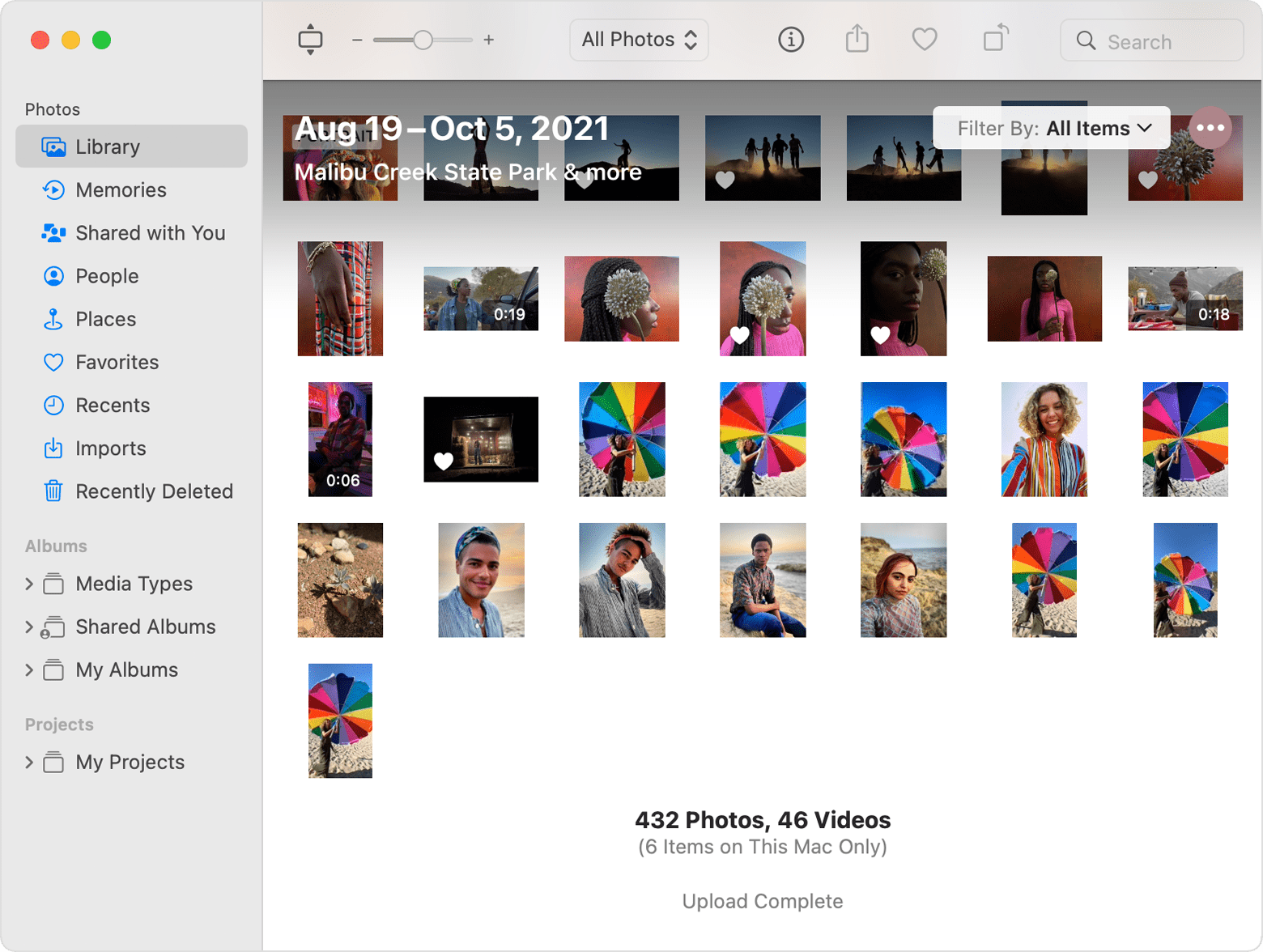
You can verify the Photos have been uploaded by logging in to iCloud.com website and checking the Photos App there, or by scrolling all the way to the bottom of the Library section in the Photos app and checking the "On This Mac Only" parenthesized section there. If it's more than 0 some photos may not have uploaded yet. It will also say "Upload Complete" below that or the progress of the upload if it has not finished.

Link-> Check the status of your library in Photos for macOS - Apple Support


If you followed the steps above and pointed the Photos App to the new location of the Photos Library.photoslibrary file on the external drive, then you can delete the photos library file in your Pictures folder on the internal drive safely.


Jan 12, 2022 10:28 AM in response to Phil0124

Thanks again.


I have bought an External Drive to give this a go. I have followed your brilliant instructions and all is seemingly well. When I 'moved' the Photos Library from the Internal iMac SSD to the new 2TB External SSD, I think it 'copied' the entire library over. I then synced the new 2TB External SSD with my iCloud Account. 2 more questions, if you don't mind.


1 - How do I know if the External SSD has completely synced with my iCloud Account - Can I determine if it has completely uploaded?


2 - When that is done, the photos will be on my new External 2TB SSD and then backed up on my iCloud Account - Would it then be safe to remove the photos from my Internal iMac SSD so as to save space and ultimately upgrade to macOS Monterey?


Many many thanks in advance - Kevi


Ireland

This thread has been closed by the system or the community team. You may vote for any posts you find helpful, or search the Community for additional answers.

UPGRADING SSD ON IMAC 2020 WITH EXTERNAL 2TB SSD + PHOTO BACKUP

Welcome to Apple Support Community
A forum where Apple customers help each other with their products. Get started with your Apple Account.