How to screen record

Me cause I don’t know how

iPhone 6s, iOS 14

Posted on Mar 3, 2022 11:03 AM

Reply
Question marked as Top-ranking reply

Posted on Mar 3, 2022 11:04 AM

Glad to help!

See:


How to record your screen

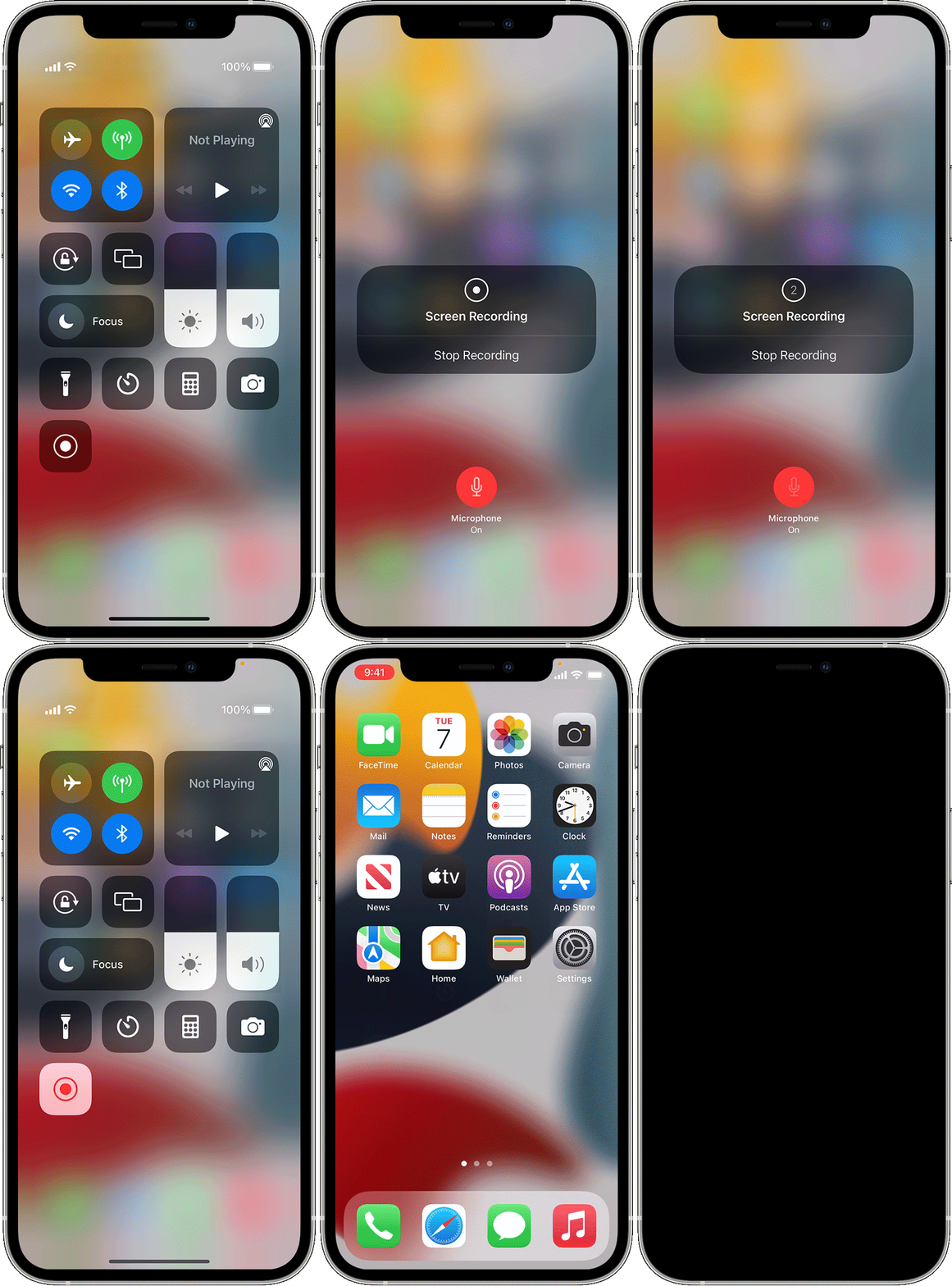
  1. With iOS 14 or later, go to Settings > Control Center, then tap the Add button  next to Screen Recording.
  2. Open Control Center on your iPhone or iPod touch, or on your iPad.
  3. Touch and hold the gray Record button , then tap Microphone.
  4. Tap Start Recording, then wait for the three-second countdown. 
  5. To stop recording, open Control Center, then tap the red Record button . Or tap the red status bar at the top of your screen and tap Stop.

Go to the Photos app and select your screen recording.


1 reply
Question marked as Top-ranking reply

Mar 3, 2022 11:04 AM in response to dariyanna114

Glad to help!

See:


How to record your screen

  1. With iOS 14 or later, go to Settings > Control Center, then tap the Add button  next to Screen Recording.
  2. Open Control Center on your iPhone or iPod touch, or on your iPad.
  3. Touch and hold the gray Record button , then tap Microphone.
  4. Tap Start Recording, then wait for the three-second countdown. 
  5. To stop recording, open Control Center, then tap the red Record button . Or tap the red status bar at the top of your screen and tap Stop.

Go to the Photos app and select your screen recording.


This thread has been closed by the system or the community team. You may vote for any posts you find helpful, or search the Community for additional answers.

How to screen record

Welcome to Apple Support Community
A forum where Apple customers help each other with their products. Get started with your Apple Account.