HomePod won’t ‘Intercom’ to custom room names!

I can ask Siri to play music on a HomePod in a room with a custom name. However it will allow me to intercom a room with a custom name, which is frustrating. Anyone had this and solved it? Or is that just the way it is? 😒

Posted on Apr 13, 2022 3:22 AM

Reply
Question marked as Top-ranking reply

Posted on Apr 14, 2022 6:45 AM

Hello dan_darkknight,


Thanks for choosing the Apple Support Communities. Let's see if these steps will help you get set up and using your HomePods as intercoms.


Use HomePod mini or HomePod as an intercom - Apple Support


"Set up Intercom

To use Intercom, update your HomePod mini or HomePod speakers to the latest software. Then check that every device that you want to send and receive Intercom messages from—your iPhone, iPad, iPod touch, or Apple Watch—is up to date. After you update, Intercom will be turned on automatically. 
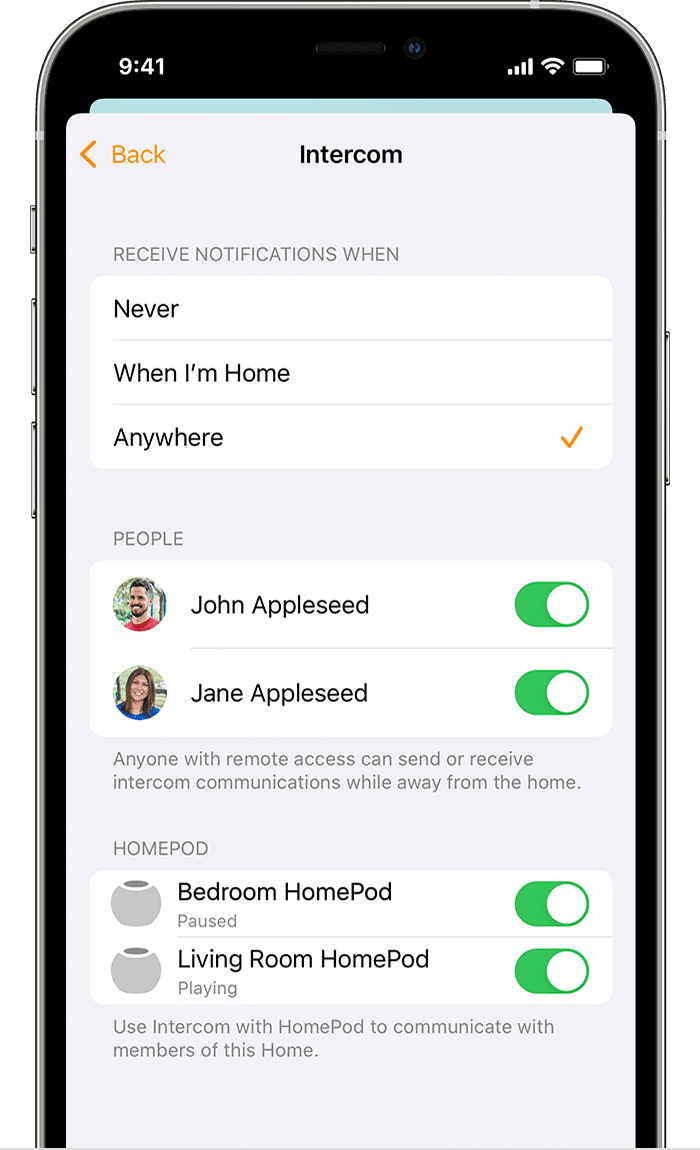
iOS screenshot shows Intercom settings. 

Manage your settings

To choose when your device receives Intercom notifications, select which members of your Home have access to Intercom, and choose which HomePod speakers use Intercom:

  1. Open the Home app on your iPhone, iPad, or iPod touch. 
  2. Tap Home  in the upper-left corner > Home Settings. 
  3. Tap Intercom. Choose your Intercom settings. 
  4. Tap Back, then tap Done.


Send an Intercom message

You can ask Siri or use the Home app to send an Intercom message. You can even send and receive Intercom messages with your AirPods or compatible Beats headphones that are connected to an iOS, iPadOS, or watchOS device. The message will be sent to every HomePod speaker in the Home and every device with Intercom notifications turned on. 

Ask Siri

Ask Siri on your HomePod mini, HomePod, iPhone, iPad, iPod touch, Apple Watch, AirPods, or CarPlay to send an Intercom message. Say something like: 

  • "Hey Siri, intercom 'It's time to wake up.'"
  • "Hey Siri, ask everyone 'Has the dog been fed?'"

To send a message to a HomePod in a specific room or zone, say something like:

  • "Hey Siri, announce upstairs 'The movie is starting.'"
  • "Hey Siri, ask the kitchen 'What's for breakfast?'"
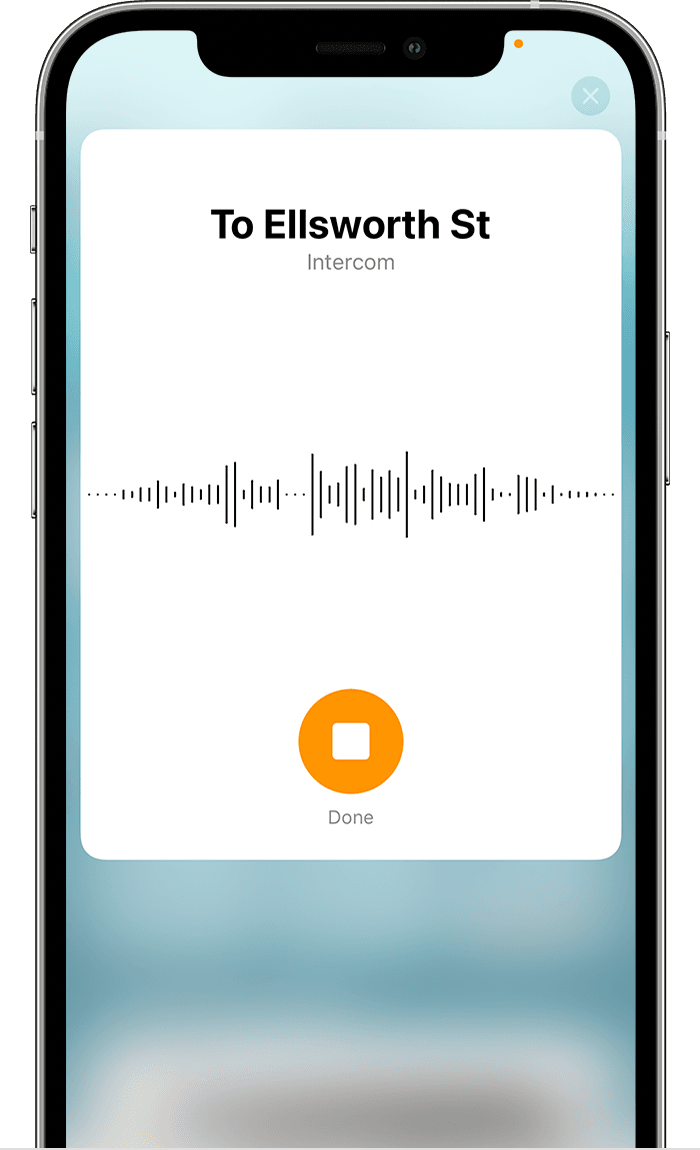
iOS screenshot shows Intercom message recording screen. 

Use the Home app

  1. Open the Home app on your iPhone, iPad, or iPod touch.
  2. In the Home tab, tap the Intercom button  in the upper-right corner of the screen.
  3. Say your Intercom message. Try something like, "Tell everyone that our neighbors are coming over." To send a message to a HomePod in a specific room or zone, say something like, "Ask downstairs 'Has anyone seen my keys?'"
  4. When you're done recording, tap Done 


Reply to an Intercom message

After your HomePod or device receives an Intercom message, you can reply. If the message was shared with everyone in your Home, your reply is sent to every HomePod and device in your Home with notifications turned on. If the message was sent to your specific room, your reply is sent only to the HomePod or device that sent the original message.

You can reply with something like:

  • "Hey Siri, reply 'I'll be right there.'"
  • "Hey Siri, reply 'I fed the dog this morning.'"

If you want your reply sent only to certain HomePod speakers, you can name them in your reply. Try something like:

  • "Hey Siri, reply to the living room 'Which movie are you watching?'"
  • "Hey Siri, reply downstairs 'I'll be there in 5 minutes."


Cheers!


1 reply
Question marked as Top-ranking reply

Apr 14, 2022 6:45 AM in response to dan_darkknight

Hello dan_darkknight,


Thanks for choosing the Apple Support Communities. Let's see if these steps will help you get set up and using your HomePods as intercoms.


Use HomePod mini or HomePod as an intercom - Apple Support


"Set up Intercom

To use Intercom, update your HomePod mini or HomePod speakers to the latest software. Then check that every device that you want to send and receive Intercom messages from—your iPhone, iPad, iPod touch, or Apple Watch—is up to date. After you update, Intercom will be turned on automatically. 

iOS screenshot shows Intercom settings. 

Manage your settings

To choose when your device receives Intercom notifications, select which members of your Home have access to Intercom, and choose which HomePod speakers use Intercom:

  1. Open the Home app on your iPhone, iPad, or iPod touch. 
  2. Tap Home  in the upper-left corner > Home Settings. 
  3. Tap Intercom. Choose your Intercom settings. 
  4. Tap Back, then tap Done.


Send an Intercom message

You can ask Siri or use the Home app to send an Intercom message. You can even send and receive Intercom messages with your AirPods or compatible Beats headphones that are connected to an iOS, iPadOS, or watchOS device. The message will be sent to every HomePod speaker in the Home and every device with Intercom notifications turned on. 

Ask Siri

Ask Siri on your HomePod mini, HomePod, iPhone, iPad, iPod touch, Apple Watch, AirPods, or CarPlay to send an Intercom message. Say something like: 

  • "Hey Siri, intercom 'It's time to wake up.'"
  • "Hey Siri, ask everyone 'Has the dog been fed?'"

To send a message to a HomePod in a specific room or zone, say something like:

  • "Hey Siri, announce upstairs 'The movie is starting.'"
  • "Hey Siri, ask the kitchen 'What's for breakfast?'"

iOS screenshot shows Intercom message recording screen. 

Use the Home app

  1. Open the Home app on your iPhone, iPad, or iPod touch.
  2. In the Home tab, tap the Intercom button  in the upper-right corner of the screen.
  3. Say your Intercom message. Try something like, "Tell everyone that our neighbors are coming over." To send a message to a HomePod in a specific room or zone, say something like, "Ask downstairs 'Has anyone seen my keys?'"
  4. When you're done recording, tap Done 


Reply to an Intercom message

After your HomePod or device receives an Intercom message, you can reply. If the message was shared with everyone in your Home, your reply is sent to every HomePod and device in your Home with notifications turned on. If the message was sent to your specific room, your reply is sent only to the HomePod or device that sent the original message.

You can reply with something like:

  • "Hey Siri, reply 'I'll be right there.'"
  • "Hey Siri, reply 'I fed the dog this morning.'"

If you want your reply sent only to certain HomePod speakers, you can name them in your reply. Try something like:

  • "Hey Siri, reply to the living room 'Which movie are you watching?'"
  • "Hey Siri, reply downstairs 'I'll be there in 5 minutes."


Cheers!


This thread has been closed by the system or the community team. You may vote for any posts you find helpful, or search the Community for additional answers.

HomePod won’t ‘Intercom’ to custom room names!

Welcome to Apple Support Community
A forum where Apple customers help each other with their products. Get started with your Apple Account.
