Network connection

Hi. I have the latest update OS 15.4.1 on my iPad Pro 4gen. I have connection with my network so I can go to internet and mail but some apps are complaining “no network connection “ I have checked the connection several times but the proble are still there. I have no problem at all with my android phone on same network. What can I do?

// ollila58

iPad Pro, iPadOS 15

Posted on Apr 26, 2022 7:24 AM

Reply
Question marked as Top-ranking reply

Posted on Apr 26, 2022 7:28 AM

Internet connection difficulties are usually an indication that your device does not have a routable IP Address - your IP Address usually being assigned by DHCP. When this occurs, your iPad may only have a self-assigned link-local IP address that begins 169.254.x.x.


If you have a VPN App or profiles installed, or a security App such as Norton, these may be interfering with DHCP and preventing your device from obtaining a valid IP Address for your iPhone hotspot - or the WiFi network to which you are attempting to connect. The resolution is usually simple; if installed, you may only need to temporarily disable or remove the Security App and/or VPN.


DHCP is frequently used to automatically obtain an IP Address. Until your iPad has a valid IP Address to connect to your network, you will not have an internet connection. Disabling or removing VPN and/or the offending security App should allow DHCP to operate normally - allowing connection to your network and the internet.


If this resolves your issue, the VPN and/or security App can be reinstated after the connectivity problem has been resolved.


If some Apps are working as expected, while others are not, you may find that a restart of your WiFi Router - followed by a restart if your iPad - may help.


To restart your router, disconnect power from the router for at least 30 seconds - then reconnect power to restart. After your router reboots (which may take several minutes), force restart your iPad:


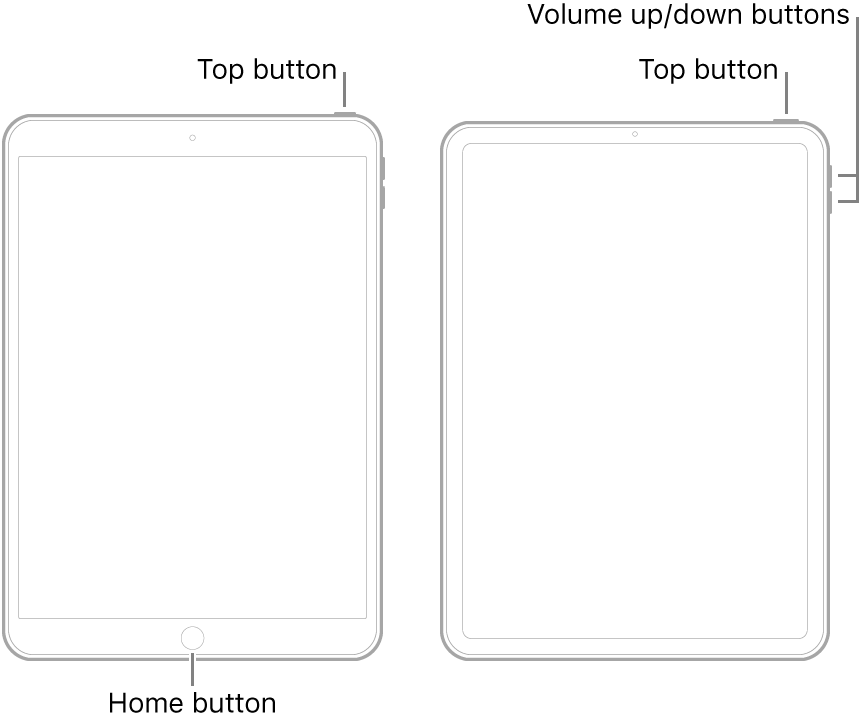
  • On an iPad with a Home button: Press and hold the top button and the Home button at the same time. When the Apple logo appears, release both buttons.
  • On an iPad with Face ID: Press and quickly release the volume up button, press and quickly release the volume down button, then press and hold the top button. When the Apple logo appears, release the button.


1 reply
Question marked as Top-ranking reply

Apr 26, 2022 7:28 AM in response to Ollila58

Internet connection difficulties are usually an indication that your device does not have a routable IP Address - your IP Address usually being assigned by DHCP. When this occurs, your iPad may only have a self-assigned link-local IP address that begins 169.254.x.x.


If you have a VPN App or profiles installed, or a security App such as Norton, these may be interfering with DHCP and preventing your device from obtaining a valid IP Address for your iPhone hotspot - or the WiFi network to which you are attempting to connect. The resolution is usually simple; if installed, you may only need to temporarily disable or remove the Security App and/or VPN.


DHCP is frequently used to automatically obtain an IP Address. Until your iPad has a valid IP Address to connect to your network, you will not have an internet connection. Disabling or removing VPN and/or the offending security App should allow DHCP to operate normally - allowing connection to your network and the internet.


If this resolves your issue, the VPN and/or security App can be reinstated after the connectivity problem has been resolved.


If some Apps are working as expected, while others are not, you may find that a restart of your WiFi Router - followed by a restart if your iPad - may help.


To restart your router, disconnect power from the router for at least 30 seconds - then reconnect power to restart. After your router reboots (which may take several minutes), force restart your iPad:


  • On an iPad with a Home button: Press and hold the top button and the Home button at the same time. When the Apple logo appears, release both buttons.
  • On an iPad with Face ID: Press and quickly release the volume up button, press and quickly release the volume down button, then press and hold the top button. When the Apple logo appears, release the button.


This thread has been closed by the system or the community team. You may vote for any posts you find helpful, or search the Community for additional answers.

Network connection

Welcome to Apple Support Community
A forum where Apple customers help each other with their products. Get started with your Apple Account.