Email issues after installing IOS 15.5 on my iPAD

Ever since I installed IOS 15.5 on my iPad when I open the mail app, I get a screen that shows Inbox with a bunch of minimized mail windows on the bottom. It then takes up to 5 minutes to actually show the emails in my Inbox. If I go to another screen from my email, when I return to email I get the blank Inbox screen again and have to wait again for it to show my emails. Very frustrating! I’ve rebooted, reloaded, downloaded IOS again and still the same problem. Help!


iPad, iPadOS 15

Posted on May 16, 2022 7:07 PM

Reply
Question marked as Top-ranking reply

Posted on May 20, 2022 4:07 AM

Given that you have already reinstalled iPadOS - and restarted your iPad - the issue may perhaps be due to your WiFi Network/Router settings, or your iPad settings having unexpected difficulties with your Router setup or ISP.

Recommended settings for Wi-Fi routers and access points - Apple Support


As an initial step to localise the cause, try joining a completely different WiFi/Internet connection. If the iPad performs as it should when connected elsewhere, the list of possible causes becomes much shorter. By contrast, of the problem persists with other networks, then we need to look closer at your iPad setup.


Have you tried connecting to your iPhone hotspot - this being an alternative internet connection to which you have immediate access? Perhaps a friendly neighbour will allow you to “borrow” a WiFi network connection?


A simple restart of your WiFi Router may also be worthwhile - as the Router can often impact performance of one device while other devices may appear to offer expected performance. To restart you home router, disconnect power - then wait at least 30 seconds before restarting. When you router has rebooted (which may take several minutes), force-restart your iPad:


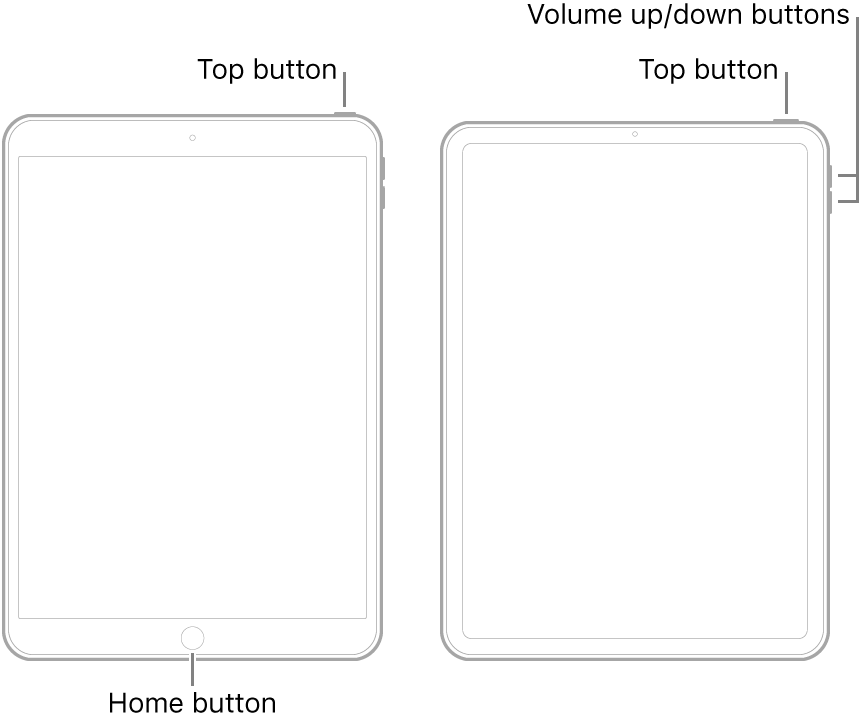
  • On an iPad with a Home button: Press and hold the top button and the Home button at the same time. When the Apple logo appears, release both buttons.
  • On an iPad with Face ID: Press and quickly release the volume up button, press and quickly release the volume down button, then press and hold the top button. When the Apple logo appears, release the button.


Are you using the new WiFi Private Address feature of your iPad? This feature is intended to provide additional privacy and security when using “public” (untrusted) WiFi networks.

Settings > WiFi > [Your WiFi Network / SSID] - tap the “i” icon - Private Address


The Private Address feature is largely unnecessary for your home WiFi network; if enabled, Private Addressing can have unanticipated consequences and/or interfere with operation of some services. If only as a diagnostic test, you may need to disable this feature. Private Addressing can be enabled or disabled for each individual network.


Use private Wi-Fi addresses in iOS 14, iPadOS 14, and watchOS 7 - Apple Support



Similar questions

36 replies
Question marked as Top-ranking reply

May 20, 2022 4:07 AM in response to emorten

Given that you have already reinstalled iPadOS - and restarted your iPad - the issue may perhaps be due to your WiFi Network/Router settings, or your iPad settings having unexpected difficulties with your Router setup or ISP.

Recommended settings for Wi-Fi routers and access points - Apple Support


As an initial step to localise the cause, try joining a completely different WiFi/Internet connection. If the iPad performs as it should when connected elsewhere, the list of possible causes becomes much shorter. By contrast, of the problem persists with other networks, then we need to look closer at your iPad setup.


Have you tried connecting to your iPhone hotspot - this being an alternative internet connection to which you have immediate access? Perhaps a friendly neighbour will allow you to “borrow” a WiFi network connection?


A simple restart of your WiFi Router may also be worthwhile - as the Router can often impact performance of one device while other devices may appear to offer expected performance. To restart you home router, disconnect power - then wait at least 30 seconds before restarting. When you router has rebooted (which may take several minutes), force-restart your iPad:


  • On an iPad with a Home button: Press and hold the top button and the Home button at the same time. When the Apple logo appears, release both buttons.
  • On an iPad with Face ID: Press and quickly release the volume up button, press and quickly release the volume down button, then press and hold the top button. When the Apple logo appears, release the button.


Are you using the new WiFi Private Address feature of your iPad? This feature is intended to provide additional privacy and security when using “public” (untrusted) WiFi networks.

Settings > WiFi > [Your WiFi Network / SSID] - tap the “i” icon - Private Address


The Private Address feature is largely unnecessary for your home WiFi network; if enabled, Private Addressing can have unanticipated consequences and/or interfere with operation of some services. If only as a diagnostic test, you may need to disable this feature. Private Addressing can be enabled or disabled for each individual network.


Use private Wi-Fi addresses in iOS 14, iPadOS 14, and watchOS 7 - Apple Support



Jul 25, 2022 3:14 PM in response to emorten

I was on Chat with Apple Support - the following fixed my email issue.


There is IOS 15.6. First, make sure your iPad is backed up to iTunes. You will need to hold down the power and upper volume button until the iPad screen goes dark and a computer icon shows up on your screen. Release then connect your iPad to your computer. Open iTunes on your computer. Under the devices tab, select your ipad. Follow the prompts to restore and download IOS 15.6

Aug 12, 2022 3:12 PM in response to Peterles

My customer's iPad was on 15.6 with this issue. The first thing I always check is for updates and the IOS version. I am not talking about removing it in settings, this did not work for me either. I deleted the mail app entirely and when I re-downloaded it from the app store the issue was gone. I think he had a bunch of drafts opened and it caused some kind of crash, at least it looked that way. I am guessing a restore would have fixed it as well but I did not want to do that unless I had no other option.

May 17, 2022 8:20 AM in response to emorten

Having updated to iPadOS15, you have now encountered the “Shelf” - this being a new feature of the now revised iPadOS multitasking environment. 


The iPadOS multitasking environment permits you to run multiple “instances” of the same App, such as Mail - with each instance, perhaps having a different open inbox. Each open instance/folder/message is represented by a thumbnail image - visible in the associated App Shelf.


For example, if you have three running instances of Mail, tapping the icon you describe will open the shelf with three thumbnails - each corresponding to each running instance of Mail. Simply tapping a thumbnail will switch directly to that running instance of the Mail App.  Swiping a thumbnail off the top of the screen will close the associated view/instance.


This article from Appleinsider has a useful explanation of this new feature along with many of the updates to multitasking:

https://appleinsider.com/articles/21/08/12/how-to-master-multitasking-on-ipad-and-ipad-pro-in-ipados-15


The iPad User Guide is also a rich source of frequently overlooked information. The Guide is available both online using a web browser (such as Safari), or as an Apple Books download:

iPad User Guide - Apple Support

https://books.apple.com/book/id1567104892


If you are experiencing difficulties, begin by closing all of the open Mail windows - one by one - and then exit the Mail App altogether.

Aug 12, 2022 2:38 PM in response to emorten

I had a customer with this issue on an iPad Air 2. It looked like a bunch of email drafts were opened, I am not sure if that was not the case as I have done this myself without realizing they were still open but minimized. Anyhow, I tried everything and nothing worked until I deleted the mail app and re-downloaded it. I tried hard resets, resetting all settings, turning mail off, removing the account and re-adding but none of it worked. I did not realize you could delete the mail app, but you can. I downloaded it and the issue was gone. I hope this helps someone else.

Jul 2, 2022 1:50 AM in response to Wanda K

Having exactly same issue on my IPhone 13 pro max since updating to 15.5. Email app has now become completely unusable. Tried reboots, reinstalling etc. Now deleted the app and installed Outlook instead which works no issue at all. Completely unacceptable that a key app should have issues like this and no acknowledgment from Apple.

Jun 14, 2022 7:01 AM in response to emorten

I am having the same issues with my iPad Pro. I have IOS 15.5 on my iPhone 12 Pro Max and the email works fine. The problem is only affecting the IPad and we definitely need a fix. Please do some testing on the apple end as it is not a network issue or other issue. I have been on various networks in Tennessee and currently on a different network in Florida and still have the same issues. Thank you, Linda


Jun 16, 2022 8:08 PM in response to emorten

I did notice on my iPhone 12 Pro Max if I go to settings, mail, accounts, click on the iCloud email, icloud, icloud mail then there is an option to toggle on or off to send and receive email using your @icloud email address; I have it toggled off and email works fine. However, on my IPad Pro 12.9 3rd generation when I click on icloud mail it takes me back to the Home Screen so there is not an option to toggle off and on whether you want to send and receive mail from you icloud mail. (Just wondering if we had an option to toggle off would that solve our problem,; just a thought.)

May 19, 2022 6:29 PM in response to LotusPilot

It still takes up to 5 minutes to show the emails in my Inbox. I get a screen with an empty Inbox anytime I open the mail app. I did not have this issue before IOS 15.5.. If I go to another app from my email, when I return to the same instance of mail I get the blank Inbox screen again and have to wait again for it to show my emails. I have only the one instance of my email app open. I am not multitasking or running multiple instances of the mail app. I’m not the only one having this issue - there are multiple threads referring to this issue.

This thread has been closed by the system or the community team. You may vote for any posts you find helpful, or search the Community for additional answers.

Email issues after installing IOS 15.5 on my iPAD

Welcome to Apple Support Community
A forum where Apple customers help each other with their products. Get started with your Apple Account.