Index and Match with arrays

Hi all,


I would like replicate this simple Index - Match approach as a simple filter.


When I open the excel file with numbers, the formula appears to be incompatible with Numbers.


Is there another way to do this in Numbers?


Thank you in advance.


Perry


MacBook Pro 13″, macOS 10.15

Posted on Jun 13, 2022 8:11 AM

Reply
Question marked as Top-ranking reply

Posted on Jun 13, 2022 8:59 AM

That doesn't look like Number for Mac.


In any case, as you have discovered, Numbers does not support most "array formulas."


The easiest way is to use the built-in filtering functionality, something like this:


The formula in C2, of the extra column is:


A2=Search::$A$2


Then set a filter like this:


Then hide the filter column if you want:


Another quick approach is to use a Pivot Table.


Click in the data table and from the menu choose Organize > Create Pivot Table > On Current Sheet.


Then in the Pivot Option pane at the right drag fields from the 'Fields' box down into the 'Rows' and 'Values' boxes as shown, giving you something like this:


Control-click the amount for the Text value of interest and choose Create Table for Source Data.


Giving you this:


Either way should be quick and easy, faster than reading this explanation.


SG

7 replies
Question marked as Top-ranking reply

Jun 13, 2022 8:59 AM in response to PASEL

That doesn't look like Number for Mac.


In any case, as you have discovered, Numbers does not support most "array formulas."


The easiest way is to use the built-in filtering functionality, something like this:


The formula in C2, of the extra column is:


A2=Search::$A$2


Then set a filter like this:


Then hide the filter column if you want:


Another quick approach is to use a Pivot Table.


Click in the data table and from the menu choose Organize > Create Pivot Table > On Current Sheet.


Then in the Pivot Option pane at the right drag fields from the 'Fields' box down into the 'Rows' and 'Values' boxes as shown, giving you something like this:


Control-click the amount for the Text value of interest and choose Create Table for Source Data.
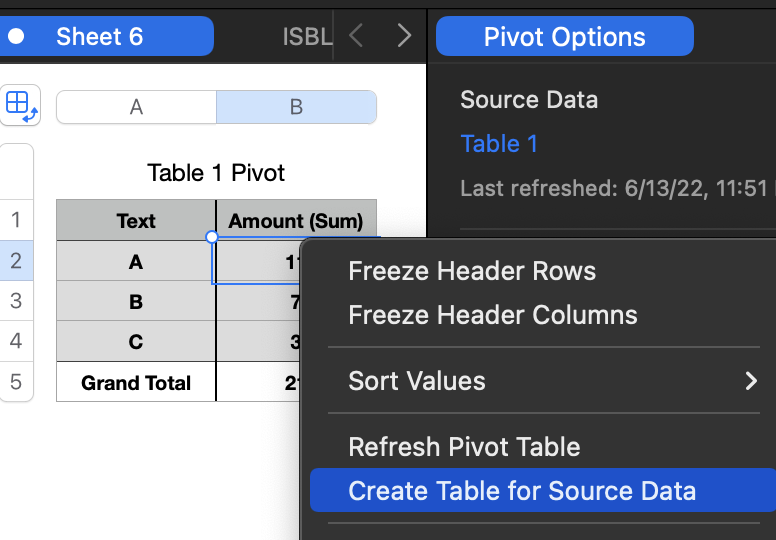


Giving you this:


Either way should be quick and easy, faster than reading this explanation.


SG

Jun 13, 2022 9:51 AM in response to PASEL

Hi Perry,

Here an alternative to Filter and Pivot Table


You would need an additional column for the counter in Table 1

You check if the search text was found and the count the number of matches up to this row.

Formula for cell C2: =IF(A2=Table 2::A$2,COUNTIF(A$2:A2,"="&Table 2::A$2),"")


In the result table you perform an XLOOKUP based on the current row number and counter.

Formula for cell A2: =XLOOKUP(ROW()−1,Table 1::C,Table 1::B,"",0,-1)

You can hide the column C after you tested everything.


Based on your region the , or the ; will be used to separate the different sections of a formula.


Hope this will solve your question, please let me know if something in unclear.


Ralf

Jun 13, 2022 9:05 PM in response to SGIII

Maybe something simple that is automatic (no need to refresh a pivot table) and keeps the same idea as the original with the results in a separate table:


Table 3 is as long as or longer than Table 1. My Table 3 is longer, causing error triangles for invalid references.

Formula in Table 3 cell A2 =IF(Table 1::B=Table 2::$A$2,Table 1::C,"")

Fill down to complete the column

The filter for the table is shown but is not turned on in the screenshot above

Below is the result with the filter on


The results cannot be sorted, they are in the order of appearance in Table 1 and will remain that way no matter how you try to sort it. I think that is how the Excel formula would work, too.


Jun 14, 2022 12:26 AM in response to SGIII

Hi SG,


No, this is something a found in excel forum while searching for something else. It gave me an idea of how to use it to look chunks and related data while filling in forms. The sources tables are very big and I was getting tired of scrolling through thousands of rows looking for one line or keyword.


I will try the first example, but I haven't got pivot tables yet - My Mac needs a tidy up so that I can update my operating system - Cannot believe how big these files are - It feels like that old windows updating forever de ja vu moment.


Thank you. Much appreciated.


Perry


Jun 14, 2022 6:56 AM in response to PASEL

PASEL wrote:

The sources tables are very big and I was getting tired of scrolling through thousands of rows looking for one line or keyword.

I will try the first example, but I haven't got pivot tables yet -


Ah, I see. Large tables can get a little cumbersome in Numbers. If your version supports Filters then that first approach may save you some work.


SG

This thread has been closed by the system or the community team. You may vote for any posts you find helpful, or search the Community for additional answers.

Index and Match with arrays

Welcome to Apple Support Community
A forum where Apple customers help each other with their products. Get started with your Apple Account.
