my ipad is glitching

every time i turn on my ipad it glitches. the screen turns on off constantly and then i have to reenter the passcode


Posted on Jun 20, 2022 5:07 PM

Reply
Question marked as Top-ranking reply

Posted on Jun 21, 2022 12:15 PM

Hello chealsey11,


With your iPad not starting up properly and restarting, we would recommend the following steps from If your iPad won't turn on or is frozen - Apple Support:


If you see the Apple logo or a red or blue screen during startup, try these steps:
  1. Connect your iPad to a computer. On a Mac with macOS Catalina, open the Finder. On a Mac with macOS Mojave or earlier, or on a PC, open iTunes. Find out which macOS your Mac is using.
  2. Locate your device on your computer.
  3. While your device is connected, follow the steps for your device:On your iPad without a Home button: Press and quickly release the volume button closest to the top button. Press and quickly release the volume button farthest from the top button. Press and hold the top button until your device begins to restart. Keep holding the top button.On your iPad with a Home button: Press and hold both the Home button and the top button.
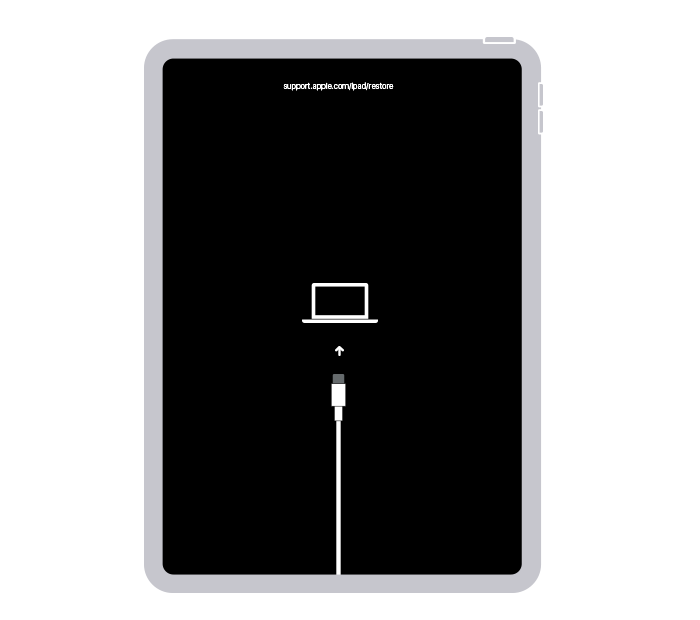
  4. Keep holding the button (or buttons) until you see the recovery mode screen.
  5. An iPad showing the restore screen.
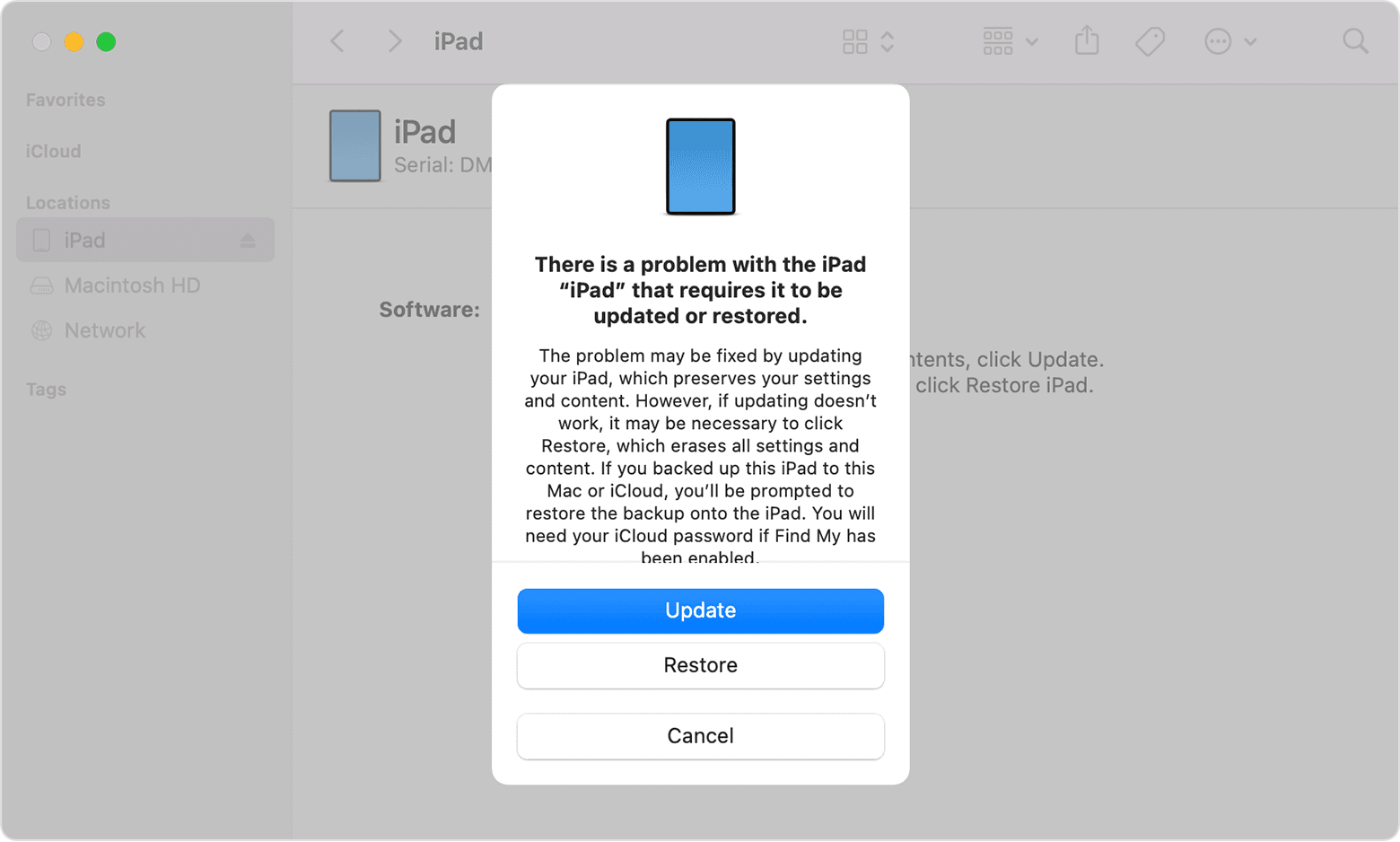
  6. When you get the option to restore or update, choose Update.
  7. A Finder window showing a prompt with the choice to update or restore your iPad. Update is selected.
  8. Your computer will download the software for your device. If it takes more than 15 minutes, your iPad will exit recovery mode, and you'll need to repeat steps 2-4.


Thanks!


1 reply
Question marked as Top-ranking reply

Jun 21, 2022 12:15 PM in response to chealsey11

Hello chealsey11,


With your iPad not starting up properly and restarting, we would recommend the following steps from If your iPad won't turn on or is frozen - Apple Support:


If you see the Apple logo or a red or blue screen during startup, try these steps:
  1. Connect your iPad to a computer. On a Mac with macOS Catalina, open the Finder. On a Mac with macOS Mojave or earlier, or on a PC, open iTunes. Find out which macOS your Mac is using.
  2. Locate your device on your computer.
  3. While your device is connected, follow the steps for your device:On your iPad without a Home button: Press and quickly release the volume button closest to the top button. Press and quickly release the volume button farthest from the top button. Press and hold the top button until your device begins to restart. Keep holding the top button.On your iPad with a Home button: Press and hold both the Home button and the top button.
  4. Keep holding the button (or buttons) until you see the recovery mode screen.
  5. An iPad showing the restore screen.
  6. When you get the option to restore or update, choose Update.
  7. A Finder window showing a prompt with the choice to update or restore your iPad. Update is selected.
  8. Your computer will download the software for your device. If it takes more than 15 minutes, your iPad will exit recovery mode, and you'll need to repeat steps 2-4.


Thanks!


This thread has been closed by the system or the community team. You may vote for any posts you find helpful, or search the Community for additional answers.

my ipad is glitching

Welcome to Apple Support Community
A forum where Apple customers help each other with their products. Get started with your Apple Account.