
airprint
epson printer not recognised on ios / No aair printers found
iPad, iPadOS 15
epson printer not recognised on ios / No aair printers found
iPad, iPadOS 15
Hi,
The printer and the iPhone must be connected to the same network (Wi-Fi router, infrastructure mode). Do not use a network (wireless direct, Wi-Fi direct) provided by the printer itself. If the setup is OK, you may want to try the following complete procedure (in the exact order):
Power off the Wi-Fi router, the printer, the iPhone, and all other devices/computers. Wait two to three minutes. Power on the router. Wait two to three minutes. Power on the printer. Wait a minute or two. Power on the iPhone. Finally, power on all other devices/computers.
Use AirPrint to print from your iPhone, iPad, or iPod touch - Apple Support
Hi,
The printer and the iPhone must be connected to the same network (Wi-Fi router, infrastructure mode). Do not use a network (wireless direct, Wi-Fi direct) provided by the printer itself. If the setup is OK, you may want to try the following complete procedure (in the exact order):
Power off the Wi-Fi router, the printer, the iPhone, and all other devices/computers. Wait two to three minutes. Power on the router. Wait two to three minutes. Power on the printer. Wait a minute or two. Power on the iPhone. Finally, power on all other devices/computers.
Use AirPrint to print from your iPhone, iPad, or iPod touch - Apple Support
If your Printer is correctly set-up for AirPrint, should you continue to experience difficulties, your WiFi Router may be unexpectedly failing to pass Apple Bonjour traffic on you local network - or your WiFi Router or Network Switch may be blocking this device discovery protocol.
The Apple Bonjour protocol uses mDNS (Multicast DNS) UDP port 5353.
You may find that restart of your network components will resolve the problem. You’ll need to restart your network devices in the correct order. Assuming that you WiFi Router provides DNS services for your network, restart devices in this order - allowing time for devices to fully boot/restart prior to restarting other devices:
Restarting your iPad, after restarting other devices in the correct sequence, is most simply achieved by a forced-restart of the iPad:
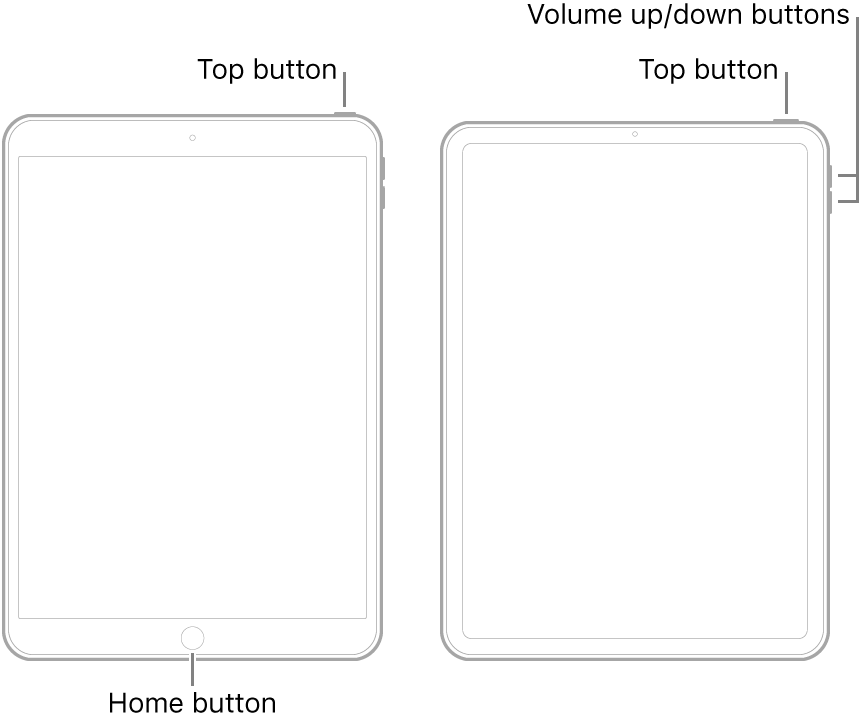
If you continue to have difficulties, check to see if your iPad is using the new WiFi Private Address feature. This feature is intended to provide additional privacy and security when using “public” (untrusted) WiFi networks.
Settings > WiFi > [Your WiFi Network / SSID] - tap the “i” icon - Private Address
The Private Address feature is largely unnecessary for your home WiFi network; if enabled, Private Addressing can interfere with anticipated operation of other devices, such as AirPrint. In such circumstances, you may need to disable this feature - and can be enabled or disabled for each individual network.
Use private Wi-Fi addresses in iOS 14, iPadOS 14, and watchOS 7 - Apple Support
Pmj4873 Said:
"airprint: epson printer not recognised on ios / No aair printers found"
-------
Troubleshooting AirPrint:
Verify Compatibility:
What is the model number? Not all devices are compatible with AirPrint. So, find the model number, and provide it, or look it up on Epson's site. See if it is listed here: About AirPrint - Apple Support
Pmj4873 Said:
"AirPrint: yes it is listed"
-------
Troubleshooting AirPrint:
Power off the printer, and then power it back on.. Also, be certain your are connected to the correct network. So, what is the model number of your Printer?
Do other Items See it?
If other devices don't see it, then it is a connectivity issue of sorts.
yes it is listed
Addendum/correction
Since this was posted in an iPad forum, iPhone in my text should read iPad.
airprint


