iPad Mail crashing

Periodically my IPad Mail app crashes whilst drafting an email. All text is lost and there is no backup in iCloud mail. The screen briefly goes blank whilst typing and reverts to the home screen. I’ve tried all the usual solutions including forced restarts, deleting the Mail app from my iPad and restoring it (from Icloud) but none of these measures has resolved the crashing. I now use GMail as my default Mail app. to avoid these unexpected crashes. I have read that one possible cause could be an incompatibility caused by another app installed on my IPad. Has anyone had a similar experience of this or can offer advice? I’m using an iPad 6th Gen (fully updated) running IOS 15.5.

Posted on Jul 14, 2022 5:16 AM

Reply
Question marked as Top-ranking reply

Posted on Jul 15, 2022 12:28 PM

You're welcome for the reply, Wbjimmy.


It sounds like you may have already isolated this and done most of the troubleshooting yourself. Which is awesome, but we wanted to make sure of a few things before moving forward.


You mentioned reinstalling the Mail app. Did you delete the app and reinstall it from the App Store or did you uncheck iCloud Mail in Settings > [Your Name] > iCloud > Mail? We were a bit confused about how it was mentioned.


Both of these steps might be good to test out, if you haven't already:


Re-enable iCloud Mail

  1. Go to Settings > [Your Name] > iCloud > Mail and uncheck it.
  2. Restart your iPad - Apple Support
  3. Go to Settings > [Your Name] > iCloud > Mail and check to enable it again.
  4. Test out the issue.


Delete the app and reinstall

  1. Delete apps on your iPhone, iPad, and iPod touch - Apple Support
  2. Download the Mail app again from the App Store app.
  3. Set up your email once more: Add an email account to your iPhone, iPad, or iPod touch - Apple Support


How to delete an app

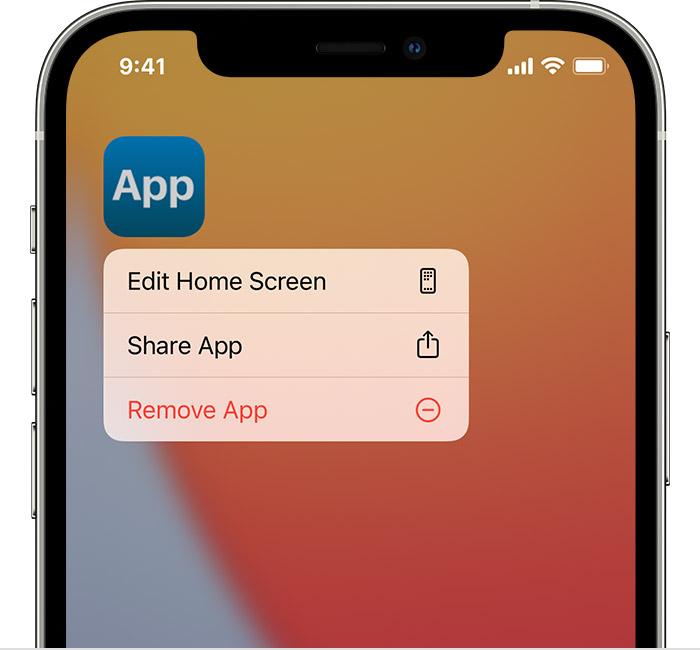
1. Touch and hold the app.
2. Tap Remove App Remove App icon.

An iPhone screen showing the menu that appears when you touch and hold an app. Remove App is the third option in the menu.

3. Tap Delete App, then tap Delete to confirm.

Keep in mind that some built-in Apple apps can't be deleted from your device, so you might not see the option to delete an app. Here’s a list of built-in Apple apps you can delete from your device. If you can't delete an app that's not made by Apple, disable parental controls, then try deleting the app again.

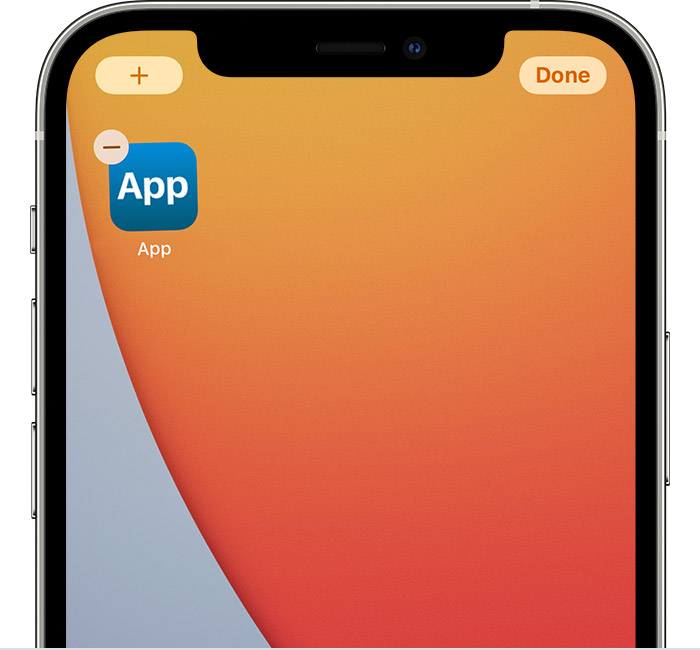
If you touch and hold an app from the Home Screen and the apps start to jiggle: 

1. Tap the Remove icon  in the upper-left corner of the app.

An iPhone screen showing an app with the Remove icon in the upper-left corner of the app. There's also an Add button in the top left corner of the screen and a Done button in the top right corner of the screen.

2. Tap Delete App, then tap Delete to confirm.
3. Tap Done.

Learn more

- With iOS 14, instead of deleting apps, you can remove apps from your Home Screen, so that they appear only in your App Library. Learn more about using the App Library.
- If you delete an app, it doesn’t cancel in-app subscriptions that you might have. While deleting an app, you might see a Cancel Subscriptions option. Learn how to cancel your subscriptions.


If that doesn't solve it, then it would be best to connect with Apple Support


We hope one of these do the trick, but if not Apple Support will take it from here.


Wishing you well, cheers.

3 replies
Question marked as Top-ranking reply

Jul 15, 2022 12:28 PM in response to wbjimmy

You're welcome for the reply, Wbjimmy.


It sounds like you may have already isolated this and done most of the troubleshooting yourself. Which is awesome, but we wanted to make sure of a few things before moving forward.


You mentioned reinstalling the Mail app. Did you delete the app and reinstall it from the App Store or did you uncheck iCloud Mail in Settings > [Your Name] > iCloud > Mail? We were a bit confused about how it was mentioned.


Both of these steps might be good to test out, if you haven't already:


Re-enable iCloud Mail

  1. Go to Settings > [Your Name] > iCloud > Mail and uncheck it.
  2. Restart your iPad - Apple Support
  3. Go to Settings > [Your Name] > iCloud > Mail and check to enable it again.
  4. Test out the issue.


Delete the app and reinstall

  1. Delete apps on your iPhone, iPad, and iPod touch - Apple Support
  2. Download the Mail app again from the App Store app.
  3. Set up your email once more: Add an email account to your iPhone, iPad, or iPod touch - Apple Support


How to delete an app

1. Touch and hold the app.
2. Tap Remove App Remove App icon.

An iPhone screen showing the menu that appears when you touch and hold an app. Remove App is the third option in the menu.

3. Tap Delete App, then tap Delete to confirm.

Keep in mind that some built-in Apple apps can't be deleted from your device, so you might not see the option to delete an app. Here’s a list of built-in Apple apps you can delete from your device. If you can't delete an app that's not made by Apple, disable parental controls, then try deleting the app again.

If you touch and hold an app from the Home Screen and the apps start to jiggle: 

1. Tap the Remove icon  in the upper-left corner of the app.

An iPhone screen showing an app with the Remove icon in the upper-left corner of the app. There's also an Add button in the top left corner of the screen and a Done button in the top right corner of the screen.

2. Tap Delete App, then tap Delete to confirm.
3. Tap Done.

Learn more

- With iOS 14, instead of deleting apps, you can remove apps from your Home Screen, so that they appear only in your App Library. Learn more about using the App Library.
- If you delete an app, it doesn’t cancel in-app subscriptions that you might have. While deleting an app, you might see a Cancel Subscriptions option. Learn how to cancel your subscriptions.


If that doesn't solve it, then it would be best to connect with Apple Support


We hope one of these do the trick, but if not Apple Support will take it from here.


Wishing you well, cheers.

Jul 15, 2022 10:01 AM in response to wbjimmy

Hello Wbjimmy,


We can help out with Apple Mail.


To start, you mentioned switching to the Gmail app. Does this happen in the Apple Mail app with multiple email accounts or when you use the Gmail account to draft an email? We ask because that might help us to narrow down what's going on.


Does this occur when you add attachments or randomly? Have you noticed any other app behaving similarly? As these answers will continue to isolate the problem.


Hoping to hear back, take care.

Jul 15, 2022 11:43 AM in response to destiny241

Thanks Destiny241

In reply to your questions, yes it happens only in the Apple Mail app installed on my IPad which has multiple (3) email accounts, it does not happen if I draft in the web based ICloud Mail. nor do any other apps crash unexpectedly. Although I have multiple email accounts ( including an @Gmail address) my @icloud address is the default one for most of my drafts. The crashes happen randomly and It seems (annoyingly) to happen when I’m drafting a lengthy email - usually in reply to one I have received. I rarely add attachments so this isn’t a factor. I hope this helps.

This thread has been closed by the system or the community team. You may vote for any posts you find helpful, or search the Community for additional answers.

iPad Mail crashing

Welcome to Apple Support Community
A forum where Apple customers help each other with their products. Get started with your Apple Account.