Welcome st3vo84,
What happens if you select Cancel or OK? If they don't respond, then we'd recommend exiting out of Switch Control using these steps: Use Switch Control to navigate your iPhone, iPad, or iPod touch - Apple Support
Turn Switch Control on or off
Go to Settings > Accessibility > Switch Control and turn the setting on or off. You can also triple-click the Home button or the Side button on certain models at any time to exit Switch Control.
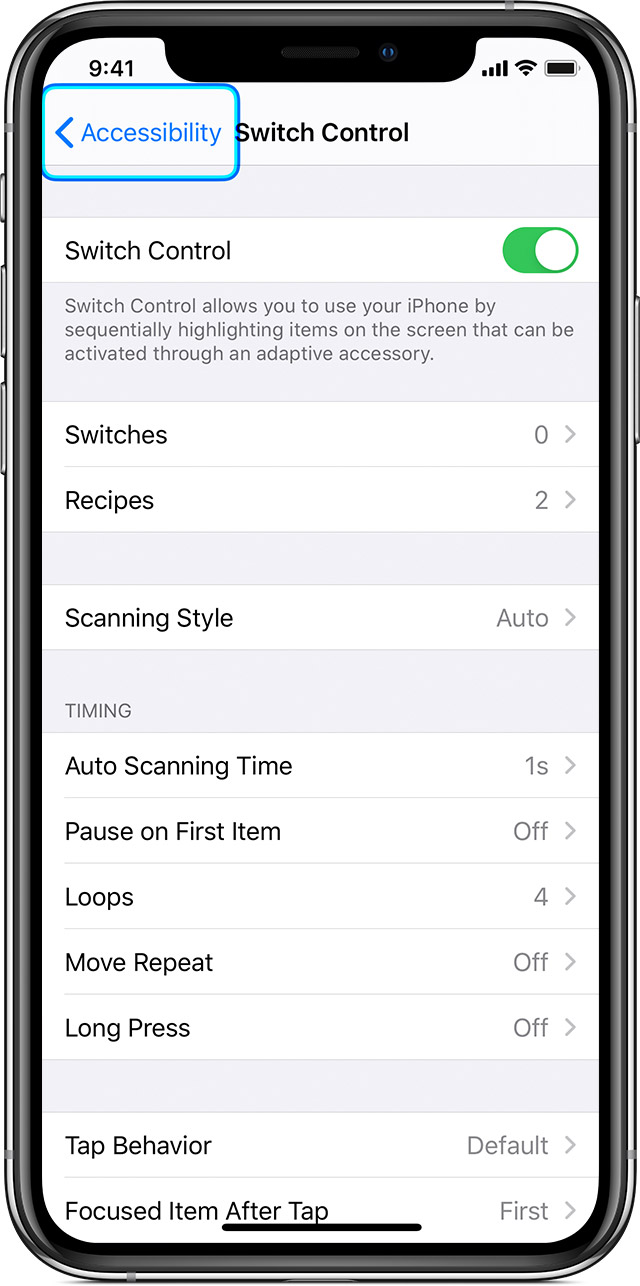
You could also, try to remove and add back the switch using these steps:
Go to Settings > Accessibility > Switch Control > Switches, tap on the switch added, then 'Forget this Device'. Then you can follow these steps to add it back again:
Add a new switch
Before you add an external switch, you need to connect it to your device before it will show in the list of switches. You can use any of these options as a switch:
- External: Choose a Bluetooth switch or Made for iPhone switch.
- Screen: Tap the screen to use a switch or press and hold.
- Camera: Move your head to use the iPhone front-facing camera as a switch. You can use the camera as two switches: One when you move your head to the left, and the other when you move your head to the right.
Add a switch and choose its action:
1. Go to Settings > Accessibility > Switch Control > Switches.
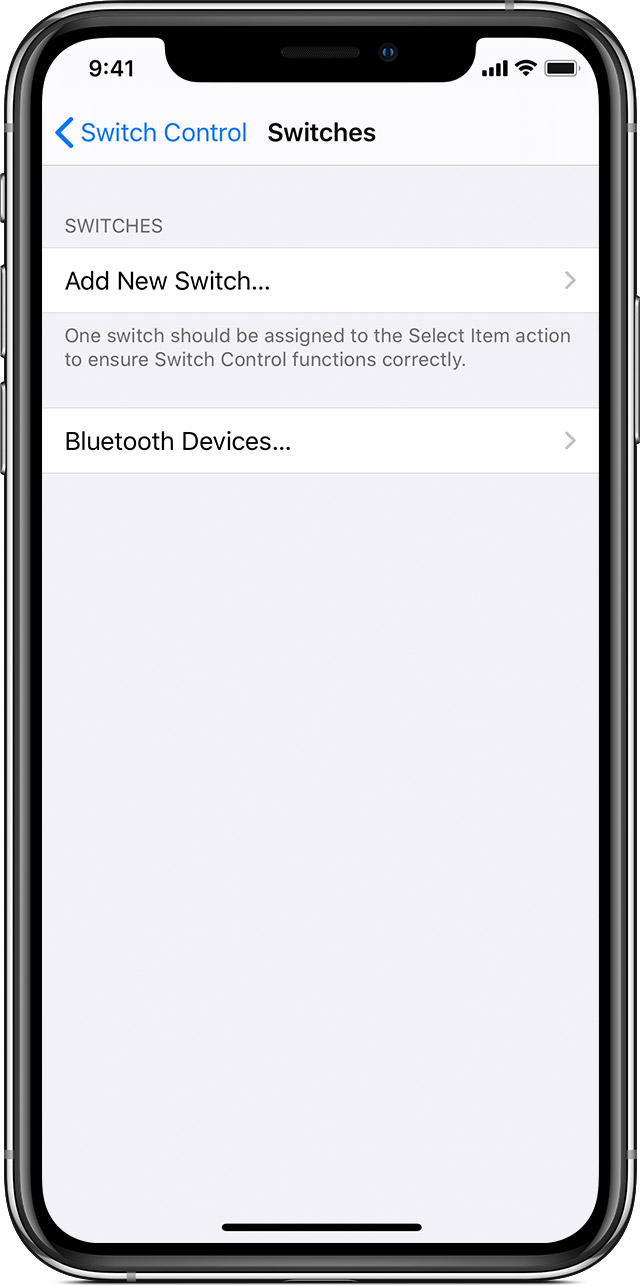
2. Tap Add New Switch and choose a source.
3. Follow the onscreen steps to choose how you want the switch to work.
4. Remember to turn on Switch Control, so you can use your new switch.
If you continue to have issues, then it would be best to connect with Apple Support
They'll need to take it from here.
Have a lovely day, take care.


