From 128 gb (Iphone7) to 64gb (Iphone8)

Hi!

Hi! I need to downgrade from a 128gb iphone7 (almost broken) to a 64gb iphone 8.

I can keep the size of the apps without issues.


The problem is with photos. Photos with reduced resolution takes up about 2 gb of space while with optimal resolution is 29 gb.


When I switch the backup from iphone 7 to iphone 8 the backup does not transfer the photos in reduced but optimal mode.

(I assume that the change to reduced resolution is done when the backup is complete)


This causes the whole memory to fill up soon and I cannot complete the transfer.


Does anyone have any advice? Thanks!


iPhone 8

Posted on Aug 23, 2022 1:52 AM

Reply
Question marked as Top-ranking reply

Posted on Aug 23, 2022 2:16 AM

Instead, try transferring data manually. One by One

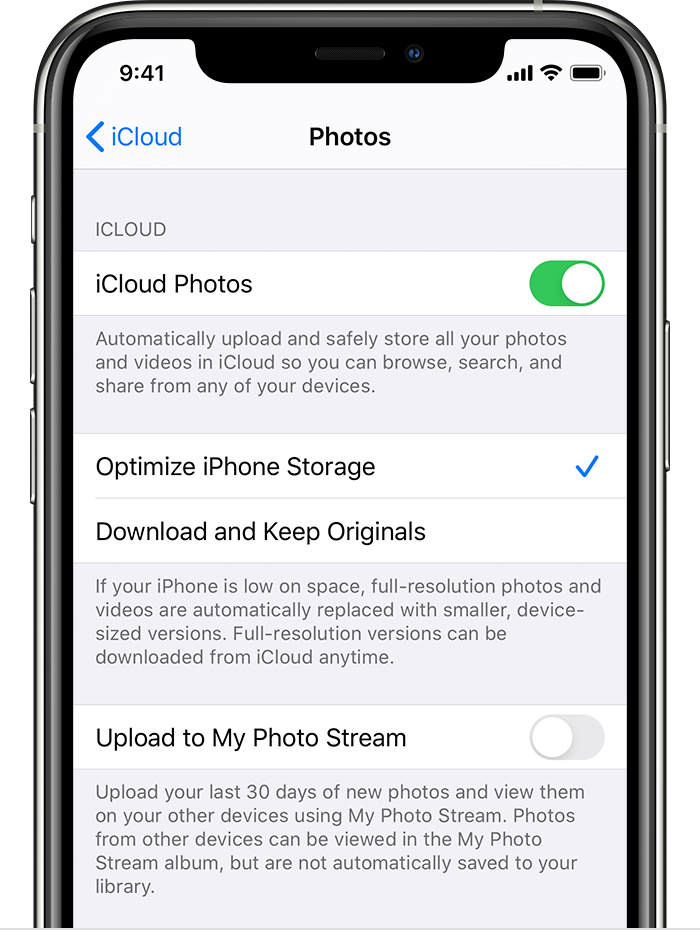
  1. If your old iPhone had iCloud enabled Optimised storage enabled then please do the same on the new device too. Check if you have enough iCloud Storage if you are using another Apple ID.
  2. Messages, Media, Voice Memo, Keychain --> Turn on Messages in iCloudiCloud Photos, Voice Memo, Keychain, and your content is automatically stored in iCloud and is available on all devices that use the same Apple ID including iCloud Drive
  3. Contacts --> Contacts are not stored on an iPhone nor on SIM, they are synced to  Google, iCloud, AOL, Exchange, Outlook, Yahoo or any Other. Use the email account that is in your old iPhone.
  4. Notes, Reminders, Calendars --> You may sync all these from any of the email accounts that you have on your old iPhone. they can be synced using  Google, iCloud, AOL, Exchange, Outlook, Yahoo or any Other.
  5. Any Specific Files --> Upload to Cloud Drives (iCloud Drive, Google Drive, OneDrive, DropBox, Flickr, box, AmazonDrive, Adobe Creative Cloud and Use Files app on your new iPhone too.
  6. Apps & Settings --> In any way they have to be redownloaded using the App Store. Even you had used any of the 3 processes mentioned earlier. Apart from the Apps following will also not get transferred.
    1. Content from the iTunes and App Stores or PDFs downloaded directly to Apple Books
    2. Content synced from iTunes, like imported MP3s or CDs, videos, books, and photos
    3. Data already stored in iCloud, like iCloud Photos, iMessages, and text (SMS) and multimedia (MMS) messages
    4. Face ID or Touch ID settings
    5. Apple Pay information and settings
    6. Apple Mail data
    7. Apple Music
  7. WhatsApp --> Take a backup of chats and media from within the WhatsApp App. Use the same Phone number as that of your earlier iPhone and activate the account in the new iPhone too. That's it.
  8. Shazam Account --> Access your Shazams on all your devices or online - Apple ...


Similar questions

3 replies
Question marked as Top-ranking reply

Aug 23, 2022 2:16 AM in response to Giancky

Instead, try transferring data manually. One by One

  1. If your old iPhone had iCloud enabled Optimised storage enabled then please do the same on the new device too. Check if you have enough iCloud Storage if you are using another Apple ID.
  2. Messages, Media, Voice Memo, Keychain --> Turn on Messages in iCloudiCloud Photos, Voice Memo, Keychain, and your content is automatically stored in iCloud and is available on all devices that use the same Apple ID including iCloud Drive
  3. Contacts --> Contacts are not stored on an iPhone nor on SIM, they are synced to  Google, iCloud, AOL, Exchange, Outlook, Yahoo or any Other. Use the email account that is in your old iPhone.
  4. Notes, Reminders, Calendars --> You may sync all these from any of the email accounts that you have on your old iPhone. they can be synced using  Google, iCloud, AOL, Exchange, Outlook, Yahoo or any Other.
  5. Any Specific Files --> Upload to Cloud Drives (iCloud Drive, Google Drive, OneDrive, DropBox, Flickr, box, AmazonDrive, Adobe Creative Cloud and Use Files app on your new iPhone too.
  6. Apps & Settings --> In any way they have to be redownloaded using the App Store. Even you had used any of the 3 processes mentioned earlier. Apart from the Apps following will also not get transferred.
    1. Content from the iTunes and App Stores or PDFs downloaded directly to Apple Books
    2. Content synced from iTunes, like imported MP3s or CDs, videos, books, and photos
    3. Data already stored in iCloud, like iCloud Photos, iMessages, and text (SMS) and multimedia (MMS) messages
    4. Face ID or Touch ID settings
    5. Apple Pay information and settings
    6. Apple Mail data
    7. Apple Music
  7. WhatsApp --> Take a backup of chats and media from within the WhatsApp App. Use the same Phone number as that of your earlier iPhone and activate the account in the new iPhone too. That's it.
  8. Shazam Account --> Access your Shazams on all your devices or online - Apple ...


Aug 23, 2022 2:15 AM in response to Giancky

you can optimize iPhone Storage by using iCloud Storage. Save space on your device

Settings > [your name] > iCloud Tap Photos > Choose Optimize [device] Storage Set up and use iCloud Photos - Apple Support

You can buy iCloud Storage. --> Buy more iCloud storage - Apple Support

You can manage your storage --> How to check the storage on your iPhone, iPad, and iPod touch

Manage your Storage --> Manage your photo and video storage - Apple Support

Your photos are always available for both iPhone and iCloud. You delete it on the iPhone it is gone from iCloud and vice-versa. To save space on your iPhone use optimized iPhone storage. Remember, if you delete in one it is deleted everywhere.

Get started with iCloud Photos:

  1. Tap Settings > [your name] > iCloud > Photos.
  1. Turn on iCloud Photos.
  1. Select Optimize iPhone Storage to save space on your device.

With Optimize Storage, smaller, space-saving photos and videos are kept on your device while all of your original, full-resolution versions are stored in iCloud. And as long as you have enough space in iCloud, you can store as many photos and videos as you want.

How to check the storage on your iPhone, iPad, and iPod touch


This thread has been closed by the system or the community team. You may vote for any posts you find helpful, or search the Community for additional answers.

From 128 gb (Iphone7) to 64gb (Iphone8)

Welcome to Apple Support Community
A forum where Apple customers help each other with their products. Get started with your Apple Account.