I erase all data and reinstall Mac OS. When I reinstall software installs previous options that I don’t want installed.

I erase all data and reinstall Mac OS. When I reinstall software it installs previous options that I don’t want installed.

MacBook Pro Apple Silicon

Posted on Aug 23, 2022 8:22 AM

Reply
Question marked as Top-ranking reply

Posted on Aug 24, 2022 10:41 AM

Hi NovellaSpringette,


Thanks for posting in Apple Support Communities! To successfully erase your Mac and reset it to factory settings, you'll need to follow these steps from the article Use Disk Utility to erase a Mac with Apple silicon:


  1. "Turn on your Mac and continue to press and hold the power button until you see the startup options window. Select Options, then click Continue.
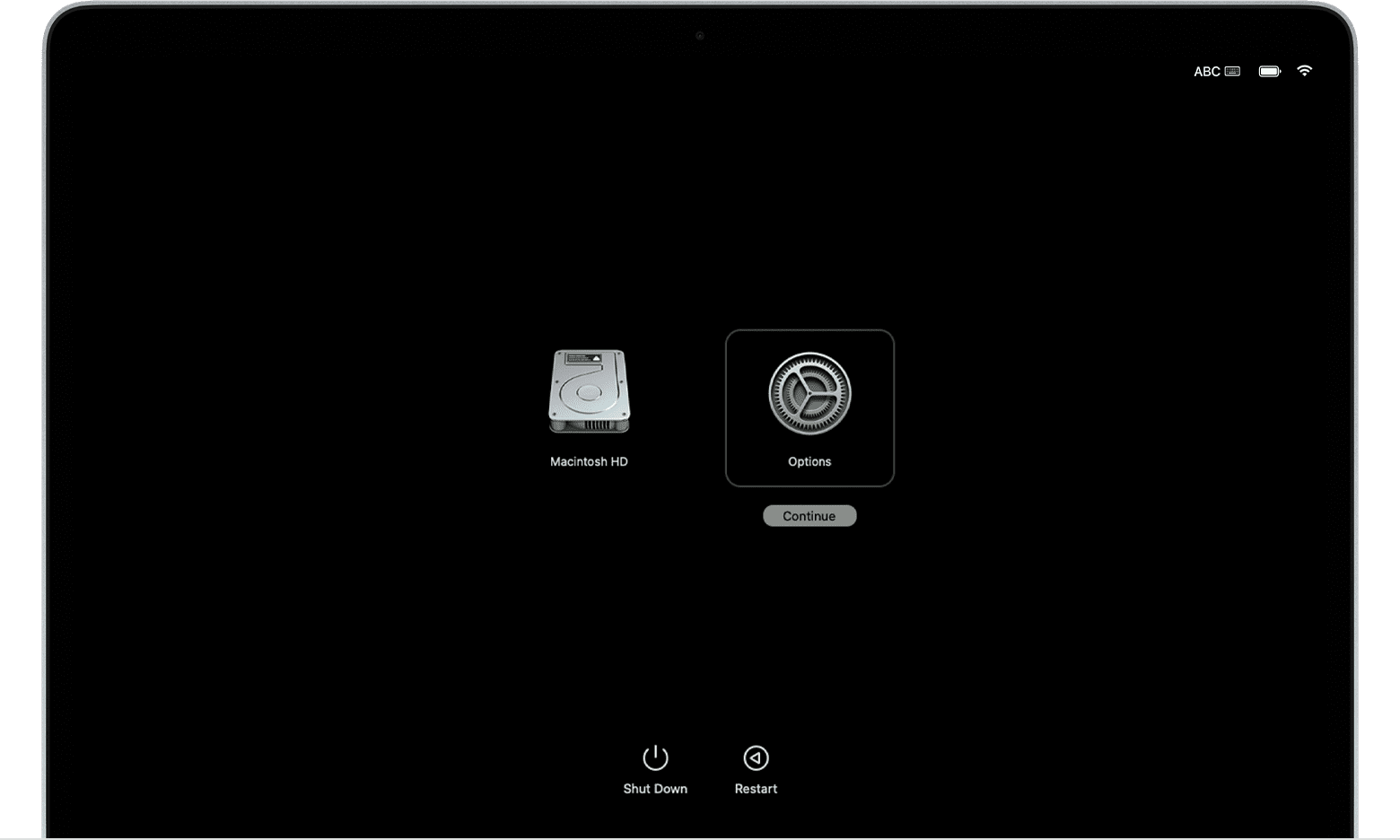
  2. Recovery mode startup screen with "Options" selected
  3. If asked, select a user you know the password for, then enter their administrator password. 
  4. If asked, enter the Apple ID and password previously used with this Mac. Forgot your Apple ID?
  5. From the utilities window, select Disk Utility and click Continue.
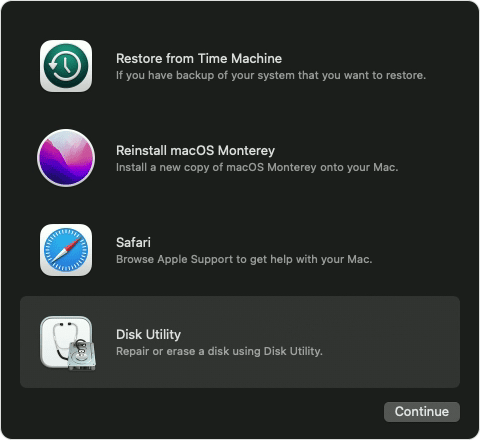
  6. macOS Recovery options with Disk Utility selected
  7. In the Internal section of the Disk Utility sidebar, make sure that you see the volume named Macintosh HD. Don't see Macintosh HD?
  8. If you previously used Disk Utility to add volumes to your startup disk, select each additional internal volume in the sidebar, then click the delete volume (–) button in the toolbar to delete that volume.
  9. During this step, disregard any internal volume named Macintosh HD or Macintosh HD - Data, as well as any volumes in the External and Disk Images sections of the sidebar.
  10. Now select Macintosh HD in the sidebar.
  11. Click the Erase button  in the toolbar, then specify a name and format:

-Name: Macintosh HD

-Format: APFS

12. Click Erase. However, if you see an Erase Volume Group button, click that button instead.
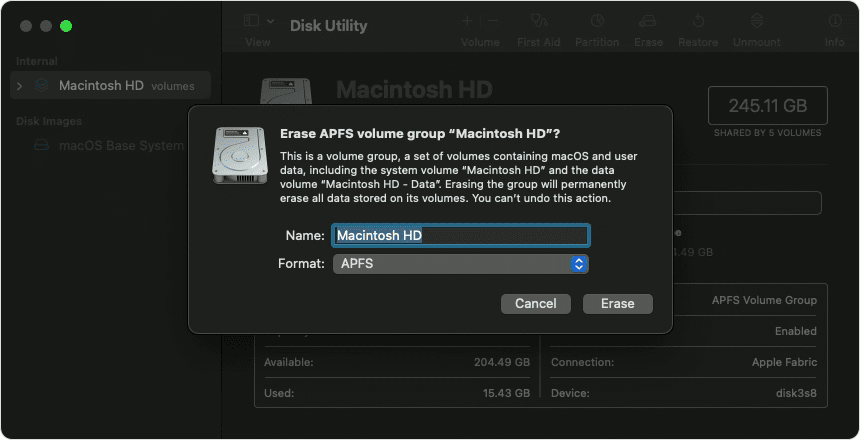
Disk Utility window Erase APFS volume group popup

13. If asked, enter your Apple ID. Forgot your Apple ID?

14. When asked whether you're sure you want to erase this Mac, click Erase Mac and Restart.

15. When your Mac restarts, follow the onscreen instructions to choose your language.

16. Your Mac now attempts to activate, which requires an internet connection. Use the Wi-Fi menu  in the menu bar to choose a Wi-Fi network, or attach a network cable.

17. After your Mac activates, click Exit to Recovery Utilities.

18. If you want to start up again from the disk you just erased, select Reinstall macOS in the utilities window, then click Continue and follow the onscreen instructions to reinstall macOS."


If these are the steps you followed, tell us more about what you mean when you say that the previous options are installed. Which options are you referring to? Did you restore from a Time Machine backup?


Cheers!


1 reply
Question marked as Top-ranking reply

Aug 24, 2022 10:41 AM in response to NovellaSpringette

Hi NovellaSpringette,


Thanks for posting in Apple Support Communities! To successfully erase your Mac and reset it to factory settings, you'll need to follow these steps from the article Use Disk Utility to erase a Mac with Apple silicon:


  1. "Turn on your Mac and continue to press and hold the power button until you see the startup options window. Select Options, then click Continue.
  2. Recovery mode startup screen with "Options" selected
  3. If asked, select a user you know the password for, then enter their administrator password. 
  4. If asked, enter the Apple ID and password previously used with this Mac. Forgot your Apple ID?
  5. From the utilities window, select Disk Utility and click Continue.
  6. macOS Recovery options with Disk Utility selected
  7. In the Internal section of the Disk Utility sidebar, make sure that you see the volume named Macintosh HD. Don't see Macintosh HD?
  8. If you previously used Disk Utility to add volumes to your startup disk, select each additional internal volume in the sidebar, then click the delete volume (–) button in the toolbar to delete that volume.
  9. During this step, disregard any internal volume named Macintosh HD or Macintosh HD - Data, as well as any volumes in the External and Disk Images sections of the sidebar.
  10. Now select Macintosh HD in the sidebar.
  11. Click the Erase button  in the toolbar, then specify a name and format:

-Name: Macintosh HD

-Format: APFS

12. Click Erase. However, if you see an Erase Volume Group button, click that button instead.

Disk Utility window Erase APFS volume group popup

13. If asked, enter your Apple ID. Forgot your Apple ID?

14. When asked whether you're sure you want to erase this Mac, click Erase Mac and Restart.

15. When your Mac restarts, follow the onscreen instructions to choose your language.

16. Your Mac now attempts to activate, which requires an internet connection. Use the Wi-Fi menu  in the menu bar to choose a Wi-Fi network, or attach a network cable.

17. After your Mac activates, click Exit to Recovery Utilities.

18. If you want to start up again from the disk you just erased, select Reinstall macOS in the utilities window, then click Continue and follow the onscreen instructions to reinstall macOS."


If these are the steps you followed, tell us more about what you mean when you say that the previous options are installed. Which options are you referring to? Did you restore from a Time Machine backup?


Cheers!


This thread has been closed by the system or the community team. You may vote for any posts you find helpful, or search the Community for additional answers.

I erase all data and reinstall Mac OS. When I reinstall software installs previous options that I don’t want installed.

Welcome to Apple Support Community
A forum where Apple customers help each other with their products. Get started with your Apple Account.