Pagination for an 80 page booklet

I am trying to insert page numbers for a booklet that has a preface. How can I start the page numbers after the title page and Table of Contents

I have tried to start a new section on the first page after the preface but it keeps inserting a blank page and then I can't delete it witout losing the entire section.

Also, if I put in a page number, the same number repeats on every page instead of being a sequence.

HELP!


MacBook Pro 13″, macOS 10.15

Posted on Aug 30, 2022 11:58 AM

Reply

Similar questions

2 replies

Aug 31, 2022 1:29 PM in response to Sandili1020

Hi Sandili1020,


We understand that you are attempting to add page numbers to a Pages document. Take a look at the steps in this article to complete the task.


Add page numbers in Pages on Mac

Add page numbers
The easiest way to add page numbers to a document is to insert them in a header or footer. The header and footer fields are invisible when they’re empty, but you can see them when you hold your pointer over them.
1. Move the pointer over the top or bottom of the page until you see the three header or footer fields, then click the field you want to use (left, center, or right).
If headers and footers are turned off for the document, turn them on first (click the Document radio button in the toolbar, click the Document tab, then select the Header and Footer checkboxes).
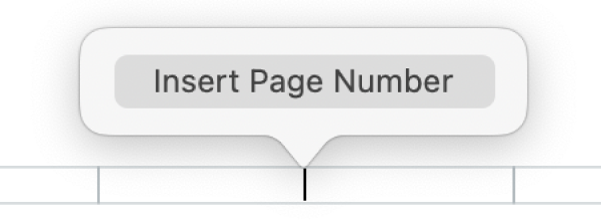
2. Click Insert Page Number, then choose a numbering style.
The Insert Page Number button below the header.
Page numbers increment automatically as you add pages. If your word-processing document has more than one section, you can use different starting numbers and formatting for each section. See Change the starting number and number style.


Have a nice day.

This thread has been closed by the system or the community team. You may vote for any posts you find helpful, or search the Community for additional answers.

Pagination for an 80 page booklet

Welcome to Apple Support Community
A forum where Apple customers help each other with their products. Get started with your Apple Account.