One Day My Login Screen Image Change To an Icon I did not choose

I woke up one morning to my login screen icon a peace sign. It normally showed my Apple Cloud Photo and the photo that is on my phone Icloud settings. I was worried I got hacked so I changed my icloud password. However, when I go to Apple > preferences > User & Groups > click on admin user (which is only me) - and edit - there is no way to change the icon/image on my mackbook Air? Nor can I change it on my phone. I would assume if I connected by iCloud account then it would show that photo? Have I been hacked? Why is the image edit option not available for admin user?

MacBook Air 13″, macOS 12.4

Posted on Aug 30, 2022 3:20 PM

Reply
Question marked as Top-ranking reply

Posted on Aug 31, 2022 1:54 PM

Hi, chadappleguy.


If you're referring to the login picture, this isn't necessarily related to iCloud. In order to change it, follow the steps here:


"Change a user’s login picture on Mac

You can change the picture that appears next to your user name or another user’s name in the login window on your Mac. You can choose a photo from your photo library, take a new photo using the camera on your Mac, choose a Memoji or emoji, use initials in a monogram, and more. Your user login picture is also displayed as your Apple ID picture and as your My Card in Contacts.
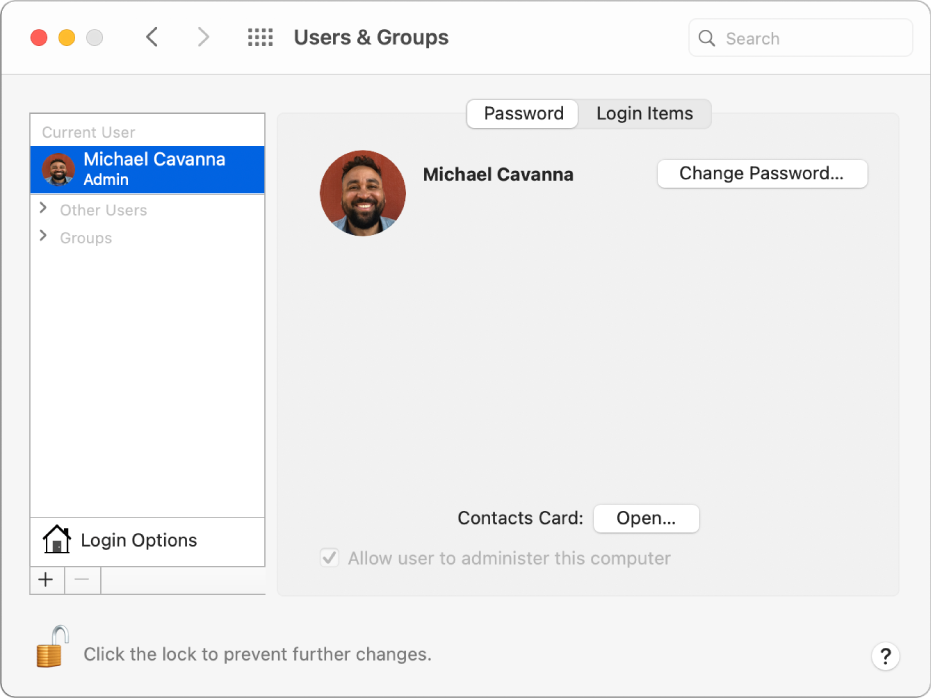
The User & Groups preference pane showing the user picture.

  1. On your Mac, choose Apple menu  > System Preferences, then click Users & Groups .
  2. If the lock at the bottom left is locked , click it to unlock the preference pane.
  3. Select the user account on the left.
  4. You can’t select an account for a user that’s currently logged in (indicated by a checkmark on the user’s picture). The user must log in and change their picture or log out so you can change it.
  5. Click the user’s picture on the right, then do any of the following:
  • Select a Memoji: Click Memoji, then click the Add button  to select and compose a facial image. Or select one of the displayed Memoji, then select a pose and style you like.
    • The Apple ID picture dialog with Memoji selected in the sidebar and various Memoji shown on the right.
  • Select an emoji: Click Emoji, then click the Add button  to select an image from the emoji library. Or select one of the displayed emoji and select a style.
    • The Apple ID picture dialog with emoji selected in the sidebar and various emoji shown on the right.
  • Select a monogram: Click Monogram, select a background color, then enter initials.
    • The Apple ID picture dialog with Monogram selected in the sidebar and monogram backgrounds shown on the right.
  • Take a picture using your Mac camera: Click Camera. Set up your shot, then click the Camera button. You can retake the photo as many times as you need to. 
    • The Apple ID picture dialog with Camera selected in the sidebar and a person posed in the viewfinder on the right.
  • Select a photo from your Photos library: Click Photos. To see photos from a specific album, click the arrow  next to Photos in the sidebar, click the album you want, then select a photo.
  • The Apple ID picture dialog with Photos selected in the sidebar and photos shown on the right.
    • Tip: To quickly replace the current Apple ID picture with an image on your desktop, just drag the image from the Finder onto the current picture.
  • Select a suggested image: Click Suggestions, then select a picture.
    • The Apple ID picture dialog with Suggestions selected in the sidebar and suggested pictures shown on the right.
  1. After you select an image, you can adjust its look. Do any of the following:
    • Adjust the image location: Drag the picture around within the circle.
    • Zoom in or out: Drag the slider left or right.
  1. Click Save.

"


Change a user's login picture on Mac


Cheers.

1 reply
Question marked as Top-ranking reply

Aug 31, 2022 1:54 PM in response to chadappleguy

Hi, chadappleguy.


If you're referring to the login picture, this isn't necessarily related to iCloud. In order to change it, follow the steps here:


"Change a user’s login picture on Mac

You can change the picture that appears next to your user name or another user’s name in the login window on your Mac. You can choose a photo from your photo library, take a new photo using the camera on your Mac, choose a Memoji or emoji, use initials in a monogram, and more. Your user login picture is also displayed as your Apple ID picture and as your My Card in Contacts.

The User & Groups preference pane showing the user picture.

  1. On your Mac, choose Apple menu  > System Preferences, then click Users & Groups .
  2. If the lock at the bottom left is locked , click it to unlock the preference pane.
  3. Select the user account on the left.
  4. You can’t select an account for a user that’s currently logged in (indicated by a checkmark on the user’s picture). The user must log in and change their picture or log out so you can change it.
  5. Click the user’s picture on the right, then do any of the following:
  • Select a Memoji: Click Memoji, then click the Add button  to select and compose a facial image. Or select one of the displayed Memoji, then select a pose and style you like.
    • The Apple ID picture dialog with Memoji selected in the sidebar and various Memoji shown on the right.
  • Select an emoji: Click Emoji, then click the Add button  to select an image from the emoji library. Or select one of the displayed emoji and select a style.
    • The Apple ID picture dialog with emoji selected in the sidebar and various emoji shown on the right.
  • Select a monogram: Click Monogram, select a background color, then enter initials.
    • The Apple ID picture dialog with Monogram selected in the sidebar and monogram backgrounds shown on the right.
  • Take a picture using your Mac camera: Click Camera. Set up your shot, then click the Camera button. You can retake the photo as many times as you need to. 
    • The Apple ID picture dialog with Camera selected in the sidebar and a person posed in the viewfinder on the right.
  • Select a photo from your Photos library: Click Photos. To see photos from a specific album, click the arrow  next to Photos in the sidebar, click the album you want, then select a photo.
  • The Apple ID picture dialog with Photos selected in the sidebar and photos shown on the right.
    • Tip: To quickly replace the current Apple ID picture with an image on your desktop, just drag the image from the Finder onto the current picture.
  • Select a suggested image: Click Suggestions, then select a picture.
    • The Apple ID picture dialog with Suggestions selected in the sidebar and suggested pictures shown on the right.
  1. After you select an image, you can adjust its look. Do any of the following:
    • Adjust the image location: Drag the picture around within the circle.
    • Zoom in or out: Drag the slider left or right.
  1. Click Save.

"


Change a user's login picture on Mac


Cheers.

This thread has been closed by the system or the community team. You may vote for any posts you find helpful, or search the Community for additional answers.

One Day My Login Screen Image Change To an Icon I did not choose

Welcome to Apple Support Community
A forum where Apple customers help each other with their products. Get started with your Apple Account.