If I reset my end to end encryption data because someone stole my phone and changed the unlock code will I be able to regain access to that data I have all my iCloud information and passwords! This happens when so called fam. Has ur code n steals phn

If I reset my end to end encryption data trusted device unlock code because someone stole my phone and changed the unlock code will I be able to regain access to that data I have all my iCloud information and passwords? This is the result of letting “Family” use my phone and they steal it and change my unlock code any tips on the easiest way of dealing with this?

iPhone XR, iOS 13

Posted on Sep 5, 2022 9:27 AM

Reply
Question marked as Top-ranking reply

Posted on Sep 6, 2022 5:20 PM

Welcome AmandaNBrodie86,


If someone stole your iPhone and changed the passcode, there isn't a way to get in to the device without the correct passcode they reset it to. You'll need to restore the device in order to regain access to it.


Follow these steps for iOS 15.2 or later: How to remove your iPhone, iPad, or iPod touch passcode without a computer - Apple Support


For iOS 15.2 or earlier, you'll be required to use a computer: If you forgot your iPhone passcode - Apple Support


If you forgot your iPhone passcode

Forgot your iPhone passcode? Learn how to get your iPhone into recovery mode so you can erase it and set it up again.

Forgot the passcode on your iPad?
Forgot the passcode on your iPod touch?

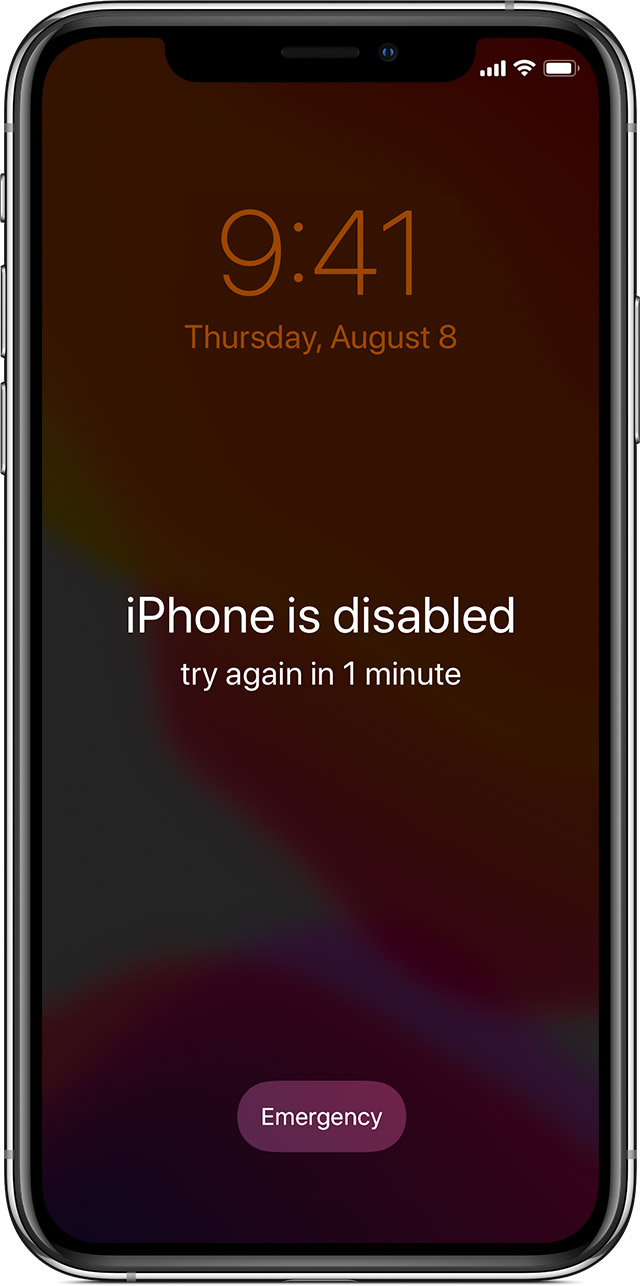
If you enter the wrong passcode on your iPhone Lock Screen too many times, an alert lets you know that your iPhone is disabled. (Learn what to do if you see "[Device] unavailable" or "Security Lockout" on your iPhone or iPad.)

If you can’t remember your passcode when you try again, use a computer to put your iPhone in recovery mode. Recovery mode allows you to erase the iPhone, giving you access to set it up again.

After you erase your iPhone, you can restore your data and settings from a backup. If you didn't back up your iPhone, you can set it up as a new device and then download any data that you have in iCloud.

 
 
Step 1: Make sure that you have a computer (Mac or PC)

This process requires a Mac or PC. If you're using a PC, make sure that it has Windows 10 or later, and that iTunes is installed. You also need the cable that came with your iPhone, or another compatible cable, to connect your iPhone to the computer.

If you don't have a computer and you can't borrow one, you need to go to an Apple Retail Store or Apple Authorized Service Provider for help.

Step 2: Turn off your iPhone

1. Unplug your iPhone from the computer if it’s connected.
2. Turn off your iPhone using the method for your iPhone model:
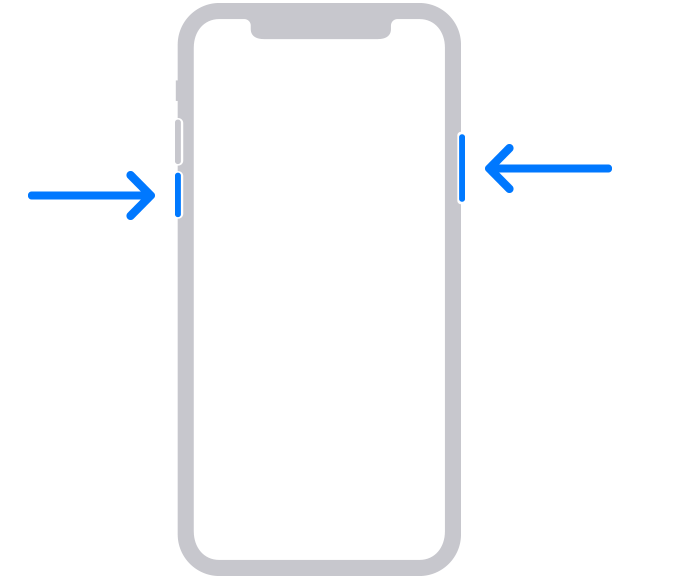
- iPhone 8, iPhone 8 Plus, iPhone X and later, including iPhone SE (2nd and 3rd generation): Press and hold both the side button and the Volume down button until the power off slider appears.

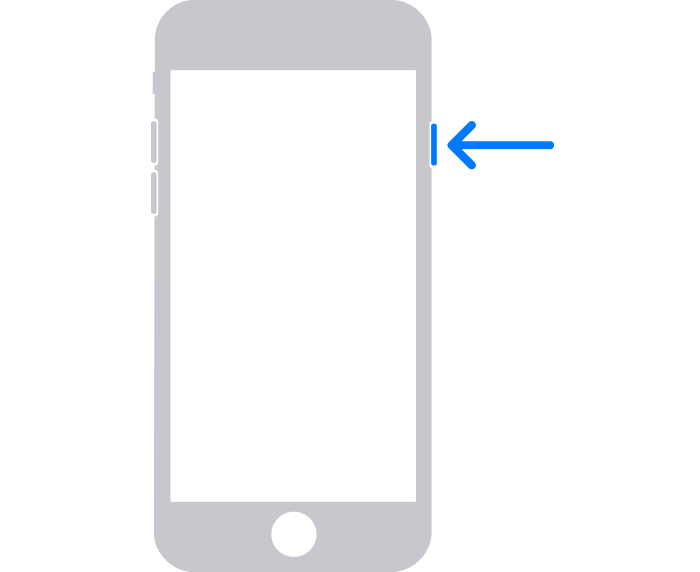
- iPhone 7, iPhone 7 Plus, iPhone 6s, and iPhone 6: Press and hold the side button until the power off slider appears.

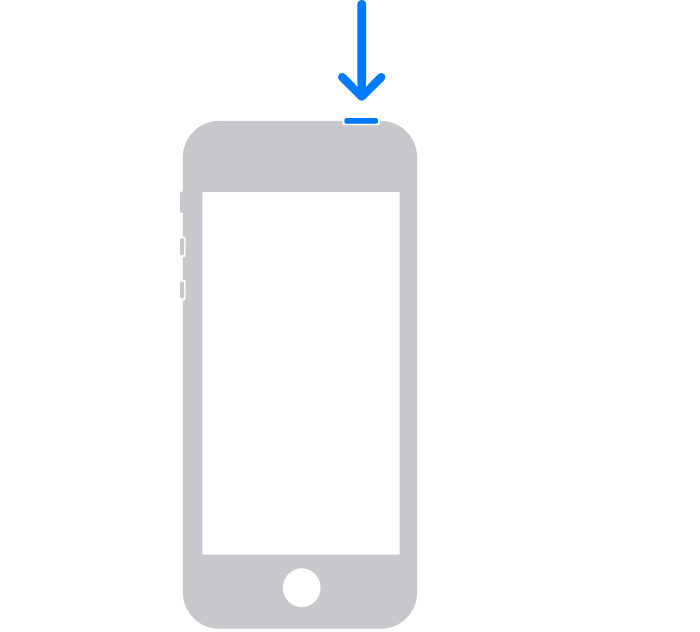
- iPhone SE (1st generation), iPhone 5s, and earlier: Press and hold the top button until the power off slider appears.

3. Drag the slider to turn off your iPhone, then wait a minute to make sure that it turns off completely.

Step 3: Put your iPhone in recovery mode

1. Get ready by finding the button on your iPhone that you'll need to hold in the next step:
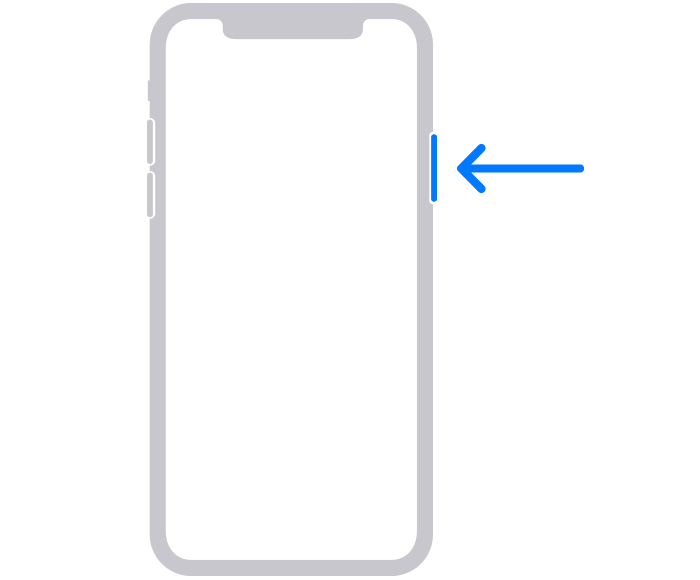
- iPhone 8, iPhone 8 Plus, iPhone X and later, including iPhone SE (2nd and 3rd generation) use the side button.

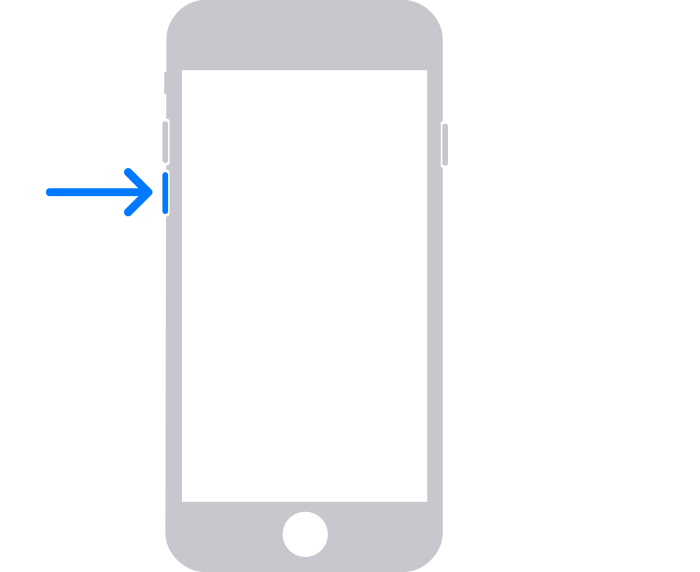
- iPhone 7 and iPhone 7 Plus use the Volume down button.

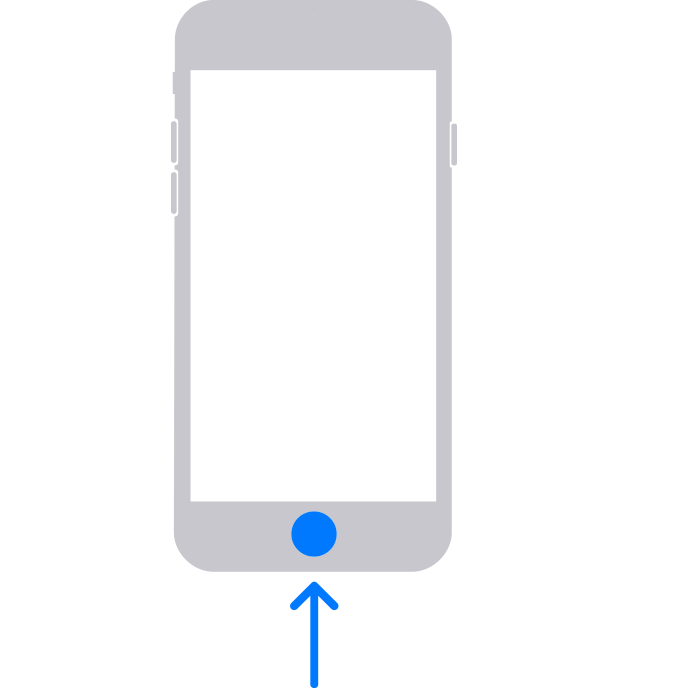
- iPhone SE (1st generation), and iPhone 6s and earlier use the Home button.
2. Press and hold the correct button for your iPhone while immediately connecting your iPhone to the computer. Don't let go of the button.
3. Keep holding the button until you see the recovery mode screen on your iPhone, then let go.
If you see the passcode screen, you need to turn off your iPhone and start again.

If you can’t get your iPhone to show the recovery mode screen and you need help, contact Apple Support.

Step 4: Restore your iPhone

1. Locate your iPhone in the Finder or in iTunes on the computer that it’s connected to. (Learn how to find your connected iPhone.)
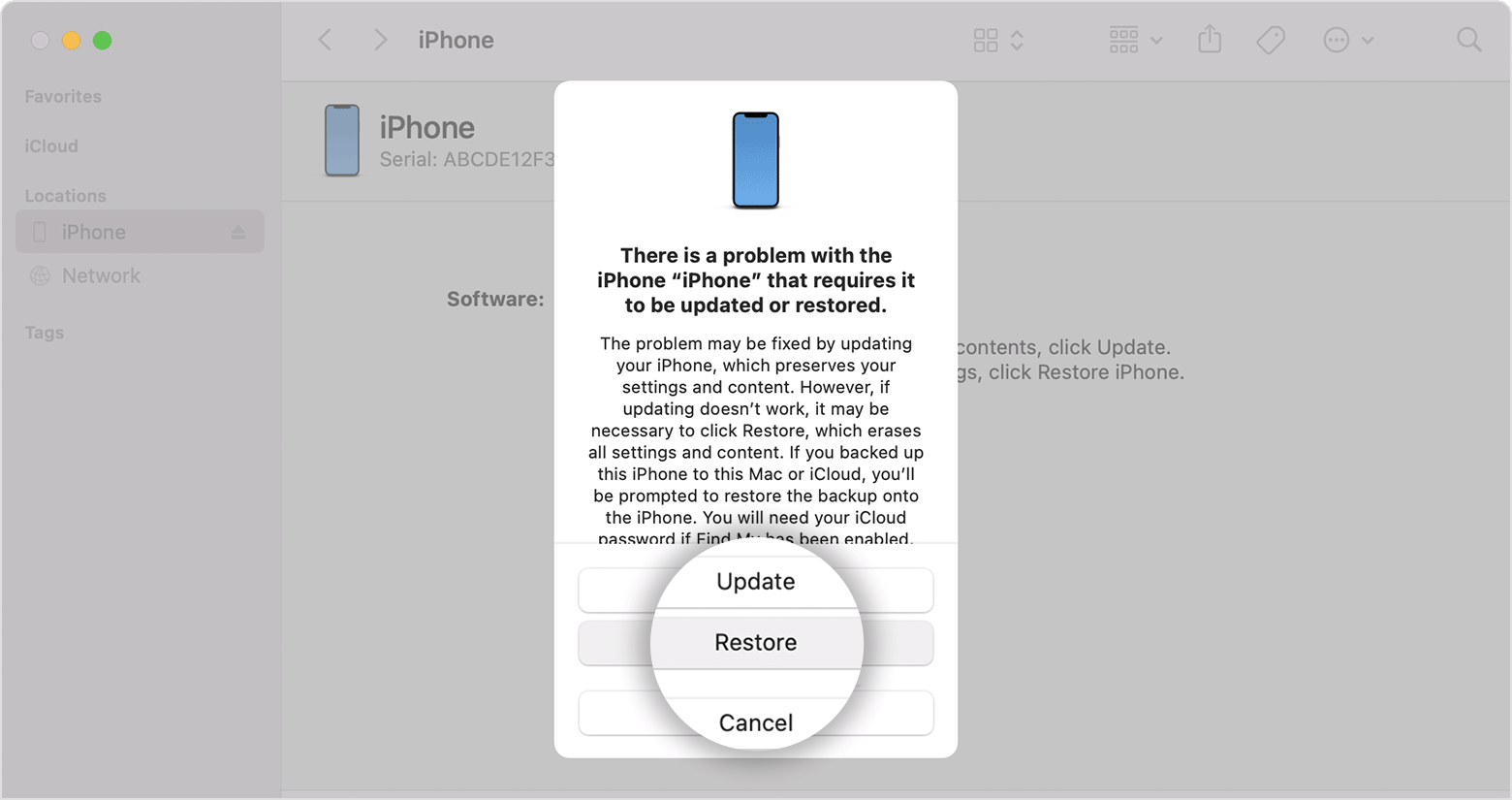
2. Choose Restore when you see the option to Restore or Update. Your computer downloads software for your iPhone and begins the restore process. If the download takes more than 15 minutes and your device exits the recovery mode screen, let the download finish, then turn off your iPhone and start again.


3. Wait for the process to finish. 
4. Disconnect your iPhone from the computer, then set up and use your iPhone

Need more help?
If you can't complete any of these steps, if you're still prompted for a passcode, or if you need any other assistance, contact Apple Support.


We hope this solves it for you, cheers.

Similar questions

1 reply
Question marked as Top-ranking reply

Sep 6, 2022 5:20 PM in response to AmandaNBrodie86

Welcome AmandaNBrodie86,


If someone stole your iPhone and changed the passcode, there isn't a way to get in to the device without the correct passcode they reset it to. You'll need to restore the device in order to regain access to it.


Follow these steps for iOS 15.2 or later: How to remove your iPhone, iPad, or iPod touch passcode without a computer - Apple Support


For iOS 15.2 or earlier, you'll be required to use a computer: If you forgot your iPhone passcode - Apple Support


If you forgot your iPhone passcode

Forgot your iPhone passcode? Learn how to get your iPhone into recovery mode so you can erase it and set it up again.

Forgot the passcode on your iPad?
Forgot the passcode on your iPod touch?

If you enter the wrong passcode on your iPhone Lock Screen too many times, an alert lets you know that your iPhone is disabled. (Learn what to do if you see "[Device] unavailable" or "Security Lockout" on your iPhone or iPad.)

If you can’t remember your passcode when you try again, use a computer to put your iPhone in recovery mode. Recovery mode allows you to erase the iPhone, giving you access to set it up again.

After you erase your iPhone, you can restore your data and settings from a backup. If you didn't back up your iPhone, you can set it up as a new device and then download any data that you have in iCloud.
 
 
Step 1: Make sure that you have a computer (Mac or PC)

This process requires a Mac or PC. If you're using a PC, make sure that it has Windows 10 or later, and that iTunes is installed. You also need the cable that came with your iPhone, or another compatible cable, to connect your iPhone to the computer.

If you don't have a computer and you can't borrow one, you need to go to an Apple Retail Store or Apple Authorized Service Provider for help.

Step 2: Turn off your iPhone

1. Unplug your iPhone from the computer if it’s connected.
2. Turn off your iPhone using the method for your iPhone model:
- iPhone 8, iPhone 8 Plus, iPhone X and later, including iPhone SE (2nd and 3rd generation): Press and hold both the side button and the Volume down button until the power off slider appears.
- iPhone 7, iPhone 7 Plus, iPhone 6s, and iPhone 6: Press and hold the side button until the power off slider appears.
- iPhone SE (1st generation), iPhone 5s, and earlier: Press and hold the top button until the power off slider appears.
3. Drag the slider to turn off your iPhone, then wait a minute to make sure that it turns off completely.

Step 3: Put your iPhone in recovery mode

1. Get ready by finding the button on your iPhone that you'll need to hold in the next step:
- iPhone 8, iPhone 8 Plus, iPhone X and later, including iPhone SE (2nd and 3rd generation) use the side button.
- iPhone 7 and iPhone 7 Plus use the Volume down button.
- iPhone SE (1st generation), and iPhone 6s and earlier use the Home button.
2. Press and hold the correct button for your iPhone while immediately connecting your iPhone to the computer. Don't let go of the button.
3. Keep holding the button until you see the recovery mode screen on your iPhone, then let go.
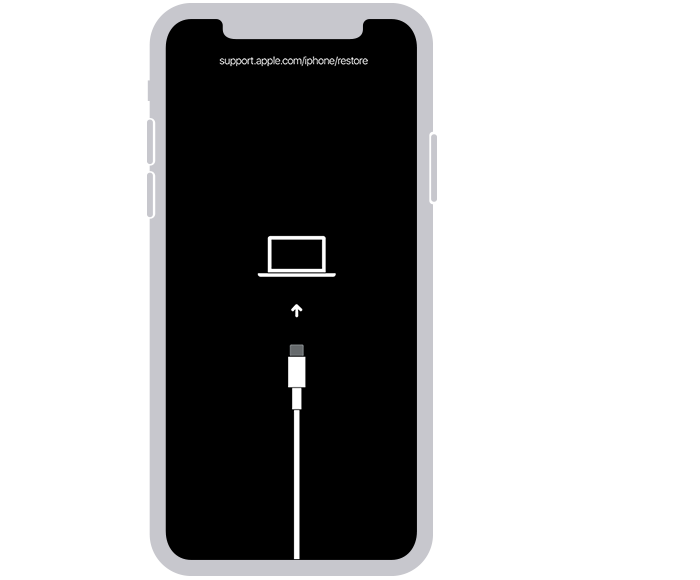
If you see the passcode screen, you need to turn off your iPhone and start again.

If you can’t get your iPhone to show the recovery mode screen and you need help, contact Apple Support.

Step 4: Restore your iPhone

1. Locate your iPhone in the Finder or in iTunes on the computer that it’s connected to. (Learn how to find your connected iPhone.)
2. Choose Restore when you see the option to Restore or Update. Your computer downloads software for your iPhone and begins the restore process. If the download takes more than 15 minutes and your device exits the recovery mode screen, let the download finish, then turn off your iPhone and start again.

3. Wait for the process to finish. 
4. Disconnect your iPhone from the computer, then set up and use your iPhone

Need more help?
If you can't complete any of these steps, if you're still prompted for a passcode, or if you need any other assistance, contact Apple Support.


We hope this solves it for you, cheers.

This thread has been closed by the system or the community team. You may vote for any posts you find helpful, or search the Community for additional answers.

If I reset my end to end encryption data because someone stole my phone and changed the unlock code will I be able to regain access to that data I have all my iCloud information and passwords! This happens when so called fam. Has ur code n steals phn

Welcome to Apple Support Community
A forum where Apple customers help each other with their products. Get started with your Apple Account.