Hi strawb3rrycak3,
Thanks for contacting Apple Support Communities!
We understand that you're unable to connect your AirPods. Do you experience the same behavior if you try and connect them to any other devices?
Also, to ensure that your AirPods firmware is up to date, we'd suggest that you update your iOS if you haven't done so yet: Update your iPhone, iPad, or iPod touch - Apple Support
Update your iPhone, iPad, or iPod touch wirelessly
1. Back up your device using iCloud or your computer.
2. Plug your device into power and connect to the internet with Wi-Fi.
3. Go to Settings > General, then tap Software Update.
4. If you see two software update options available, choose the one that you want to install.
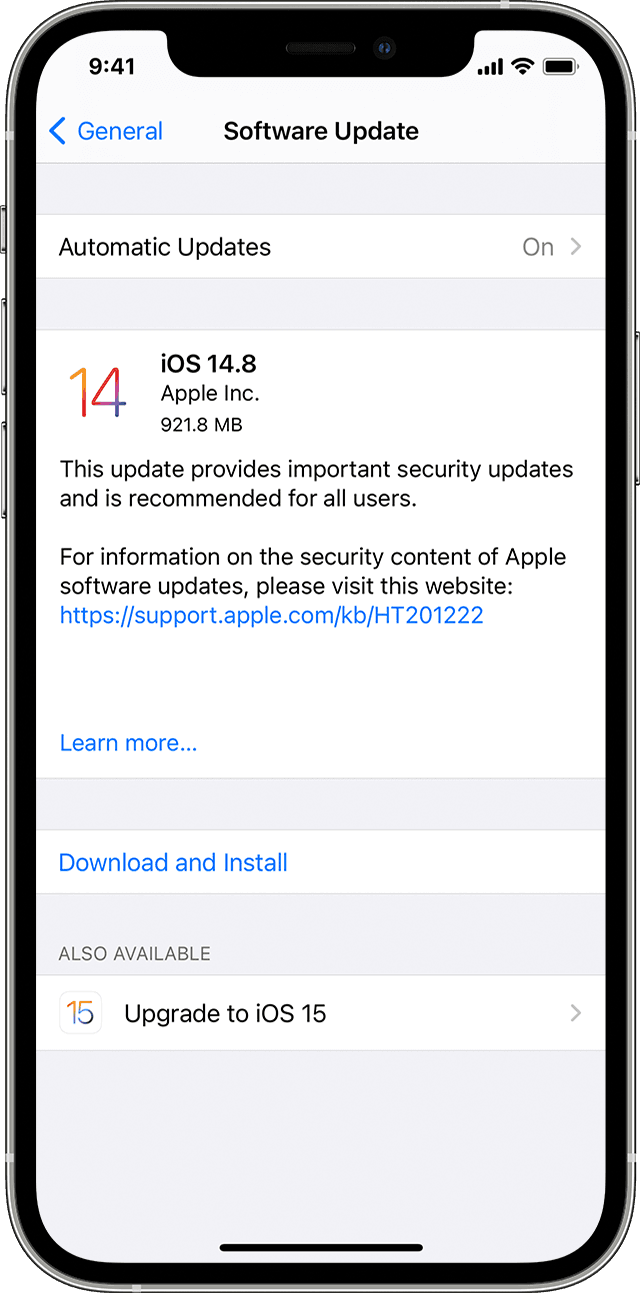
5. Tap Install Now. If you see Download and Install instead, tap it to download the update, enter your passcode, then tap Install Now. If you don't know your passcode, learn what to do.
You might see that your device is up to date and that there's an upgrade available. For example, even if your device is up to date with the latest version of iOS 14, there might be an option to upgrade to iOS 15. You might want to upgrade iOS when you pair an accessory with iPhone.
If you're unable to connect your AirPods to any device, you may consider cleaning the AirPods and their case: How to clean your AirPods, AirPods Pro, AirPods Max, and EarPods - Apple Support
Clean your AirPods and AirPods Pro
• Don’t run AirPods or AirPods Pro under water.
• Use a soft, dry, lint-free cloth.
• If your AirPods or AirPods Pro are exposed to anything that might cause stains or other damage—for example, soaps, shampoos, conditioners, lotions, perfumes, solvents, detergent, acids or acidic foods, insect repellent, sunscreen, oil, or hair dye:
• Wipe them clean with a cloth slightly dampened with fresh water and dry with a soft, dry, lint-free cloth.
• Allow them to completely dry before placing in the charging case.
• Don't attempt to use them until they're completely dry.
• Make sure not to get any liquid in the openings.
• Clean the microphone and speaker meshes with a dry cotton swab.
• Don't use sharp objects or abrasive materials to clean your AirPods or AirPods Pro.
Clean the case of your AirPods or AirPods Pro
Clean the charging case with a soft, dry, lint-free cloth. If necessary, you can slightly dampen the cloth with isopropyl alcohol. Allow the charging case to dry. Make sure not to get any liquid in the charging ports. Here are a few more guidelines:
• Remove any debris from the Lightning connector with a clean, dry, soft-bristled brush.
• Don't use abrasive materials to clean the charging case.
• To avoid damaging the metal contacts, don't put anything in the charging ports.
The additional troubleshooting steps outlined here may help as well: If your AirPods won't connect - Apple Support
If you can't connect to your iPhone, iPad, or iPod touch
1. Make sure that you have an iPhone or iPod touch with the latest version of iOS, or an iPad with the latest version of iPadOS.
2. Put both AirPods in the charging case and make sure that both AirPods are charging.
3. To make sure that Bluetooth is on, go to Settings > Bluetooth.
4. If your AirPods are connected, make sure that they're selected as your audio device. If your AirPods appear in the list of devices but they don't connect, go to the next step.
5. Close the lid, wait 15 seconds, then open the lid. Press and hold the setup button on the charging case for up to 10 seconds. The status light should flash white, which means that your AirPods are ready to connect.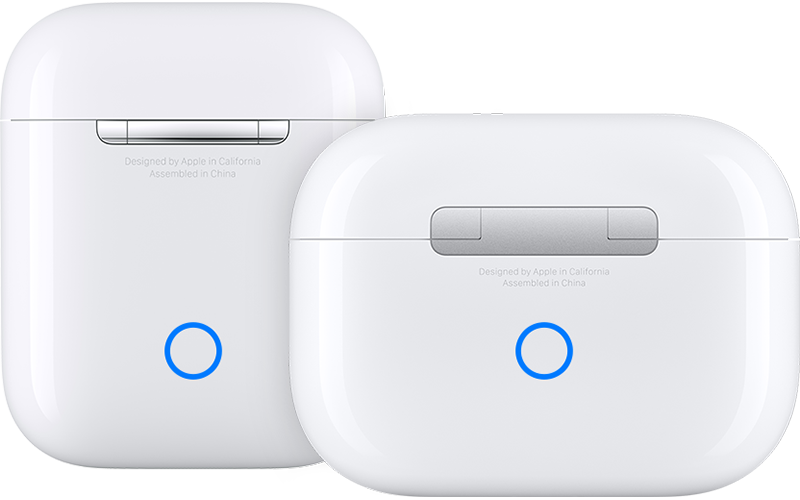
6. Hold the charging case, with your AirPods inside and the lid open, next to your iPhone, iPad, or iPod touch.
7. Follow the steps on the screen of your iPhone, iPad, or iPod touch.
8. Test your AirPods. If you still can't connect, reset your AirPods.
If you're still unable to connect your AirPods to any device after completing these troubleshooting steps, you can contact Apple directly as your AirPods may require service: Apple Support
We hope this helps.
Cheers!


