
Close captioning
How to put on close captioning
How to put on close captioning
Hello Momma45,
For help with turning on Closed Captions on your Apple TV test the steps below found in the article here: Change subtitles or languages for videos in the Apple TV app
"Subtitles on Apple TV, smart TV, or streaming device
 . Or use your smart TV, streaming device, or game console remote to navigate to the Subtitles button .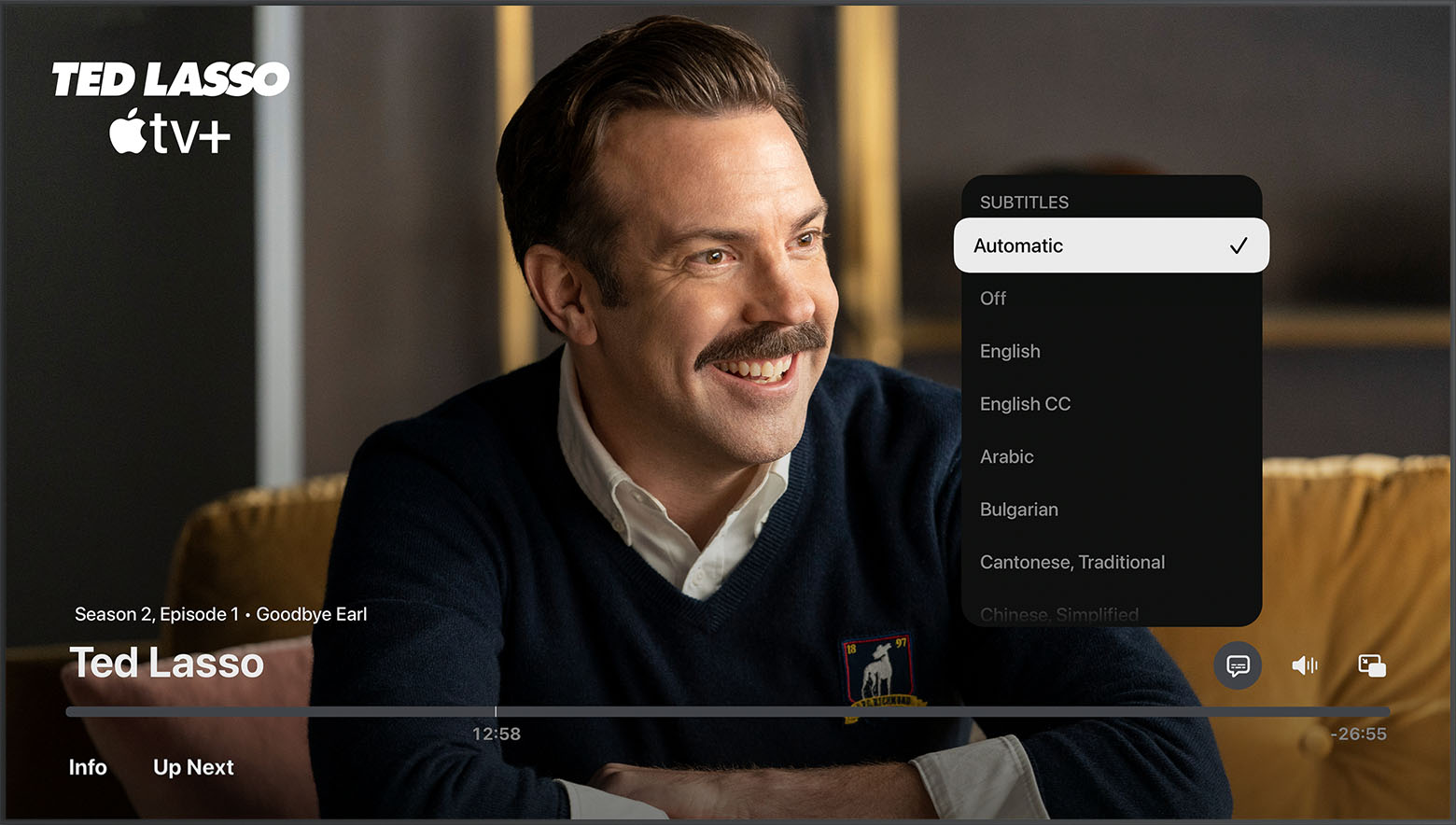
You can also change the default subtitles language in Settings. Go to Settings > Video and Audio > Audio > Subtitle Language, then choose the language that you want. If you don't want automatic subtitles and you're using an Apple TV, go to Settings > Video and Audio, then turn off Automatic Subtitles. If you're using a smart TV or streaming device, go to Settings > General, then turn off Automatic Subtitles.
Learn how to turn on CC or SDH by default."
If you're not using Apple TV hardware, view the same article shared for steps when using an iOS device, Mac, PC or compatible smart TV.
Best.
Hello Momma45,
For help with turning on Closed Captions on your Apple TV test the steps below found in the article here: Change subtitles or languages for videos in the Apple TV app
"Subtitles on Apple TV, smart TV, or streaming device
. Or use your smart TV, streaming device, or game console remote to navigate to the Subtitles button .
You can also change the default subtitles language in Settings. Go to Settings > Video and Audio > Audio > Subtitle Language, then choose the language that you want. If you don't want automatic subtitles and you're using an Apple TV, go to Settings > Video and Audio, then turn off Automatic Subtitles. If you're using a smart TV or streaming device, go to Settings > General, then turn off Automatic Subtitles.
Learn how to turn on CC or SDH by default."
If you're not using Apple TV hardware, view the same article shared for steps when using an iOS device, Mac, PC or compatible smart TV.
Best.
Close captioning

