How do I sign out of my iCloud

My phone is locked I can’t sign in

iPhone XS

Posted on Sep 24, 2022 9:27 AM

Reply
Question marked as Top-ranking reply

Posted on Sep 26, 2022 1:39 PM

Hello Gordonbovee86,


Welcome to Apple Support Communities!

If we understand your post correctly, you want to know how to sign out of iCloud and also your phone is locked so you can't sign in. We're happy to help!


To log out of iCloud follow these steps:


What happens when you sign out of iCloud on your device
You can sign out of iCloud any time you like to stop using iCloud and its related services on your device. These services are listed below. Before signing out, make sure that you’re comfortable having these services turned off. If you only want to stop using some iCloud features, you can change your iCloud settings instead of signing out of iCloud. 
Apple Pay, Apple Cash, and Apple Card*
Find My
Game Center
Home app to control your HomeKit devices
iCloud Backup
iCloud Drive
iCloud Keychain
iCloud Mail
iCloud Photos
Siri Shortcuts
Voice Memos
Shared Albums
Messages in iCloud
Reminders
Shared Notes
Shared Pages, Numbers, and Keynote documents
Updates to your contacts, calendars, reminders, bookmarks, and Safari tabs
Continuity features like Handoff, Universal Clipboard, and Auto Unlock with your Apple Watch
App data for any third-party apps that you've installed that use iCloud
When you sign out, any data stored in iCloud will be removed from your device but will remain in iCloud. Before you sign out, you’ll be asked if you want to keep a copy of any of this information on your device.
If you have iCloud+ and you sign out of iCloud on your device, you lose access to iCloud Private Relay, Hide My Email, HomeKit Secure Video support, and custom email domain** on that device. 
* Your Apple Cash and Apple Card accounts are linked to your Apple ID. They can't be transferred to a different Apple ID or accessed by a different Apple ID.
** Not all features are available in all countries or regions.
How to keep using the App Store, iMessage, and FaceTime on your device

When you sign out of iCloud, you're also automatically signed out of the App Store, iMessage, and FaceTime.
To keep using the App Store, sign in with your Apple ID.
To keep using iMessage and FaceTime, use your phone number

Sign out on your iPhone, iPad, or iPod touch
Go to Settings > [your name]. 
Scroll down to the bottom.
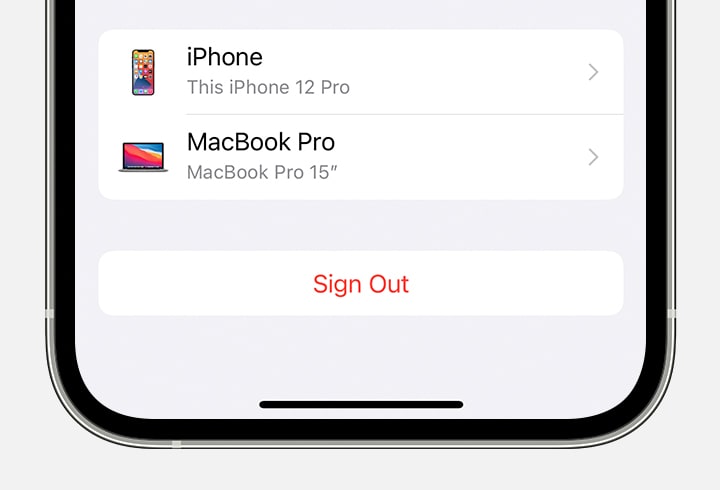
At the bottom of an iPhone screen there's a Sign Out button with red text.
Tap Sign Out.
Enter your Apple ID password and tap Turn Off. Forgot your Apple ID password
Turn on the data that you want to keep a copy of on your device.
Tap Sign Out.
Tap Sign Out again to confirm that you want to sign out of iCloud.

Sign out of iCloud on your iPhone, iPad, iPod touch, Apple TV, or Mac


If you forgotten your iPhone passcode the then follow these steps:


Step 1: Make sure that you have a computer (Mac or PC)
This process requires a Mac or PC. If you're using a PC, make sure that it has Windows 10 or later, and that iTunes is installed. You also need the cable that came with your iPhone, or another compatible cable, to connect your iPhone to the computer.
If you don't have a computer and you can't borrow one, you need to go to an Apple Retail Store or Apple Authorized Service Provider for help.
Step 2: Turn off your iPhone
Unplug your iPhone from the computer if it’s connected.
Turn off your iPhone using the method for your iPhone model:
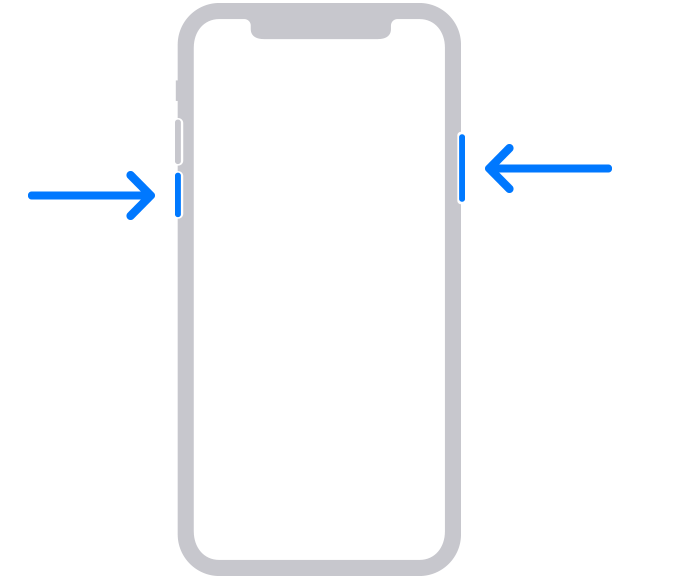
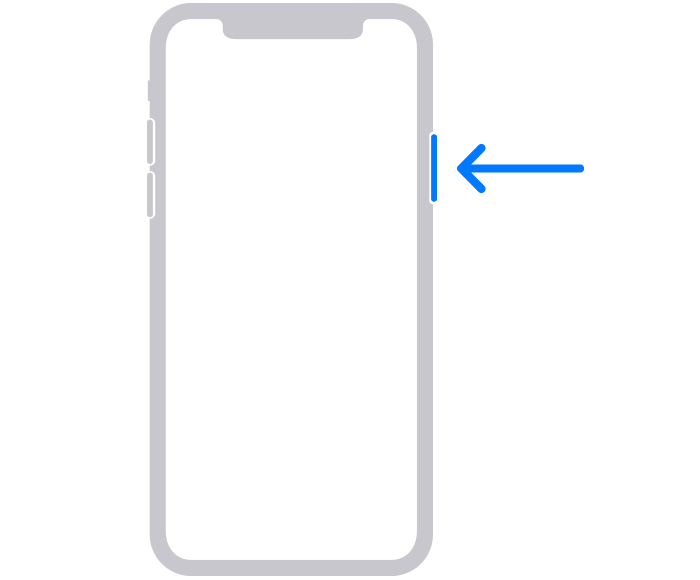
iPhone 8, iPhone 8 Plus, iPhone X and later, including iPhone SE (2nd and 3rd generation): Press and hold both the side button and the Volume down button until the power off slider appears.
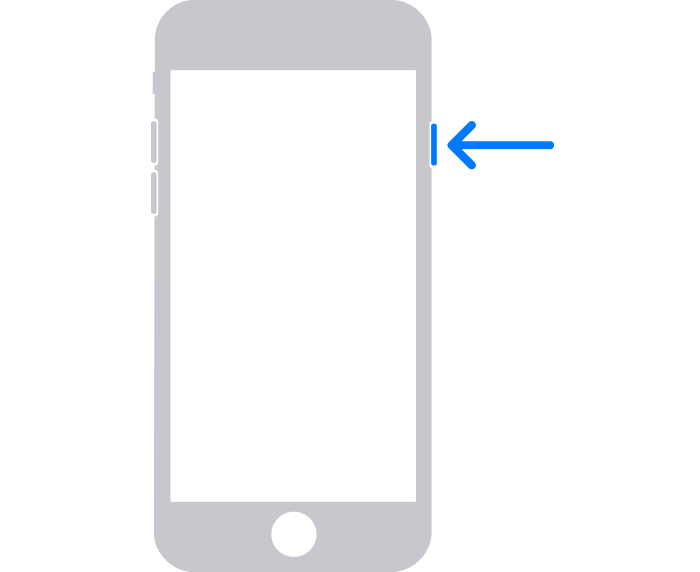
iPhone 7, iPhone 7 Plus, iPhone 6s, and iPhone 6: Press and hold the side button until the power off slider appears.
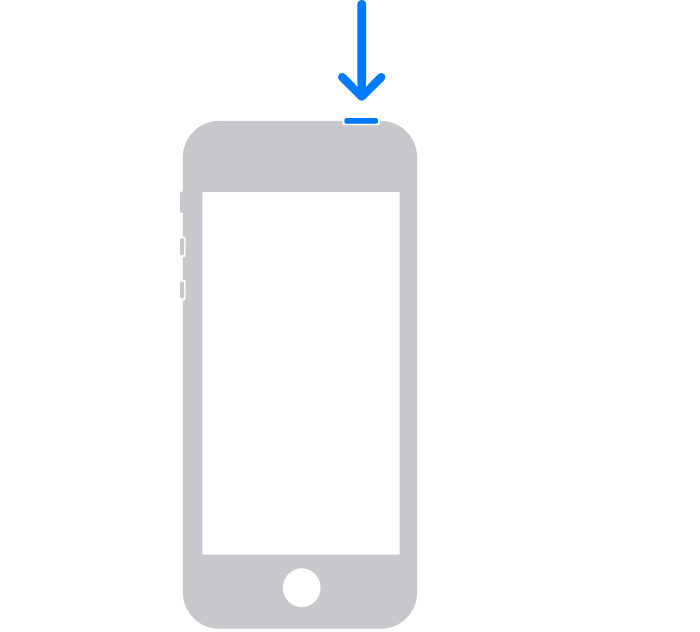
iPhone SE (1st generation), iPhone 5s, and earlier: Press and hold the top button until the power off slider appears.

Drag the slider to turn off your iPhone, then wait a minute to make sure that it turns off completely.
Step 3: Put your iPhone in recovery mode
Get ready by finding the button on your iPhone that you'll need to hold in the next step:
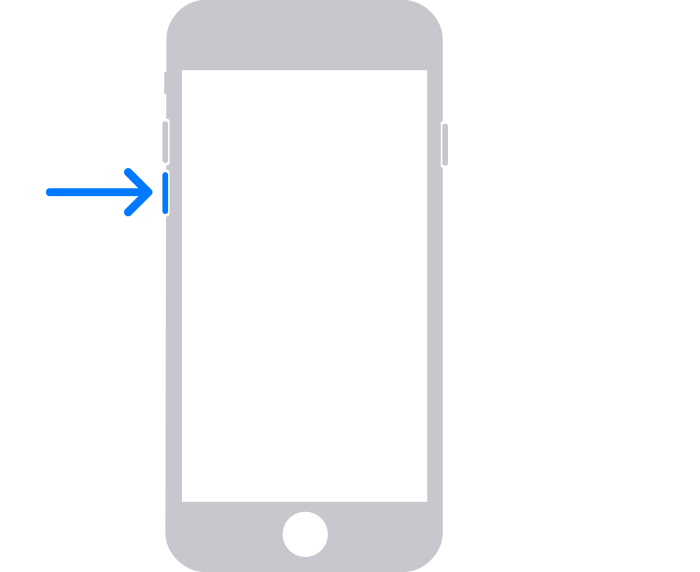
iPhone 8, iPhone 8 Plus, iPhone X and later, including iPhone SE (2nd and 3rd generation) use the side button.
iPhone 7 and iPhone 7 Plus use the Volume down button.
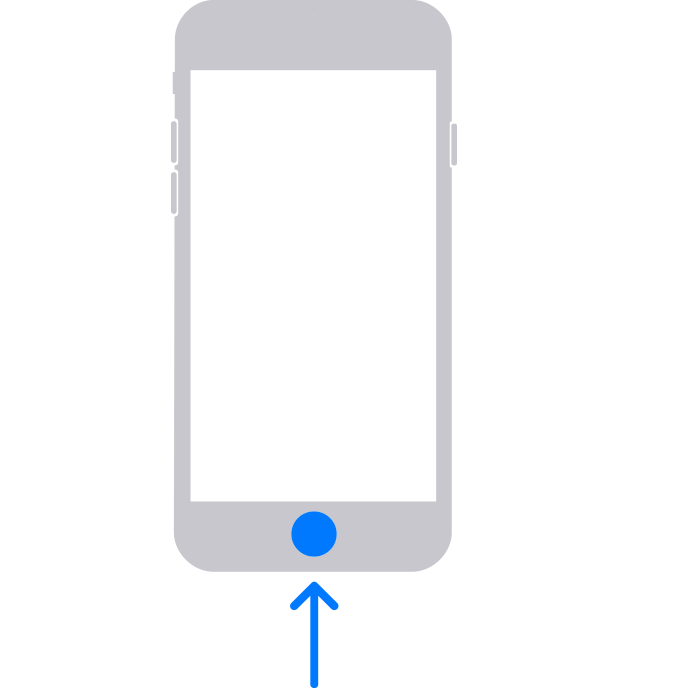
iPhone SE (1st generation), and iPhone 6s and earlier use the Home button.
Press and hold the correct button for your iPhone while immediately connecting your iPhone to the computer. Don't let go of the button.
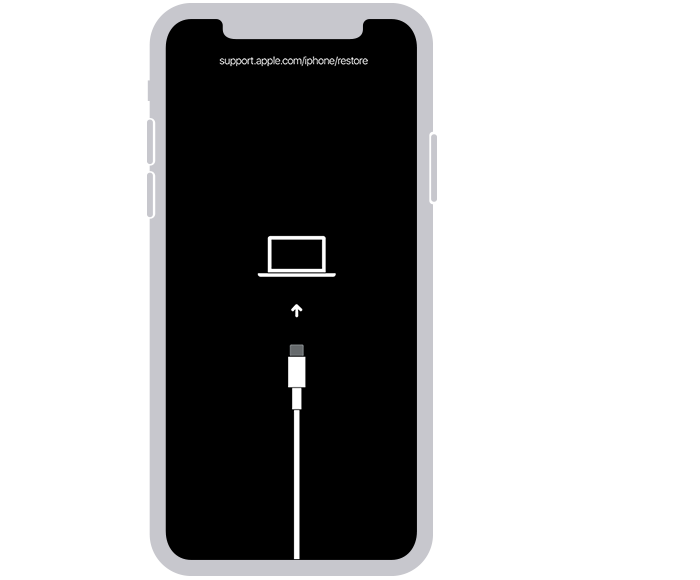
Keep holding the button until you see the recovery mode screen on your iPhone, then let go.
If you see the passcode screen, you need to turn off your iPhone and start again.
If you can’t get your iPhone to show the recovery mode screen and you need help, contact Apple Support.
Step 4: Restore your iPhone
Locate your iPhone in the Finder or in iTunes on the computer that it’s connected to. (Learn how to find your connected iPhone.)
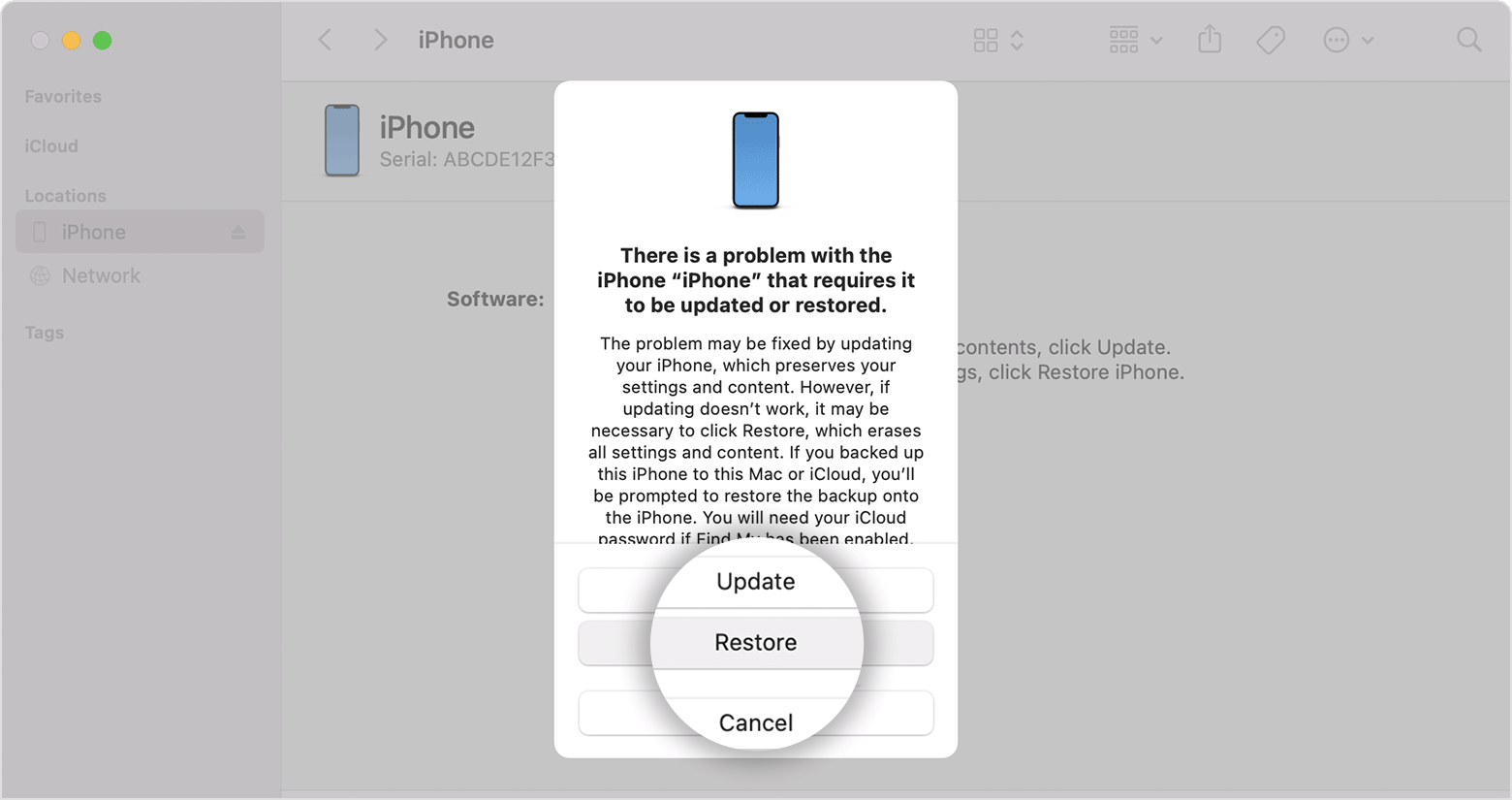
Choose Restore when you see the option to Restore or Update. Your computer downloads software for your iPhone and begins the restore process. If the download takes more than 15 minutes and your device exits the recovery mode screen, let the download finish, then turn off your iPhone and start again.
Wait for the process to finish. 
Disconnect your iPhone from the computer, then set up and use your iPhone

If you forgot your iPhone passcode


If your phone is activation locked then follow the steps in the article below.

Activation Lock for iPhone, iPad, and iPod touch


Thank you for using Apple Support Communities.

Take care!


1 reply
Question marked as Top-ranking reply

Sep 26, 2022 1:39 PM in response to Gordonbovee86

Hello Gordonbovee86,


Welcome to Apple Support Communities!

If we understand your post correctly, you want to know how to sign out of iCloud and also your phone is locked so you can't sign in. We're happy to help!


To log out of iCloud follow these steps:


What happens when you sign out of iCloud on your device
You can sign out of iCloud any time you like to stop using iCloud and its related services on your device. These services are listed below. Before signing out, make sure that you’re comfortable having these services turned off. If you only want to stop using some iCloud features, you can change your iCloud settings instead of signing out of iCloud. 
Apple Pay, Apple Cash, and Apple Card*
Find My
Game Center
Home app to control your HomeKit devices
iCloud Backup
iCloud Drive
iCloud Keychain
iCloud Mail
iCloud Photos
Siri Shortcuts
Voice Memos
Shared Albums
Messages in iCloud
Reminders
Shared Notes
Shared Pages, Numbers, and Keynote documents
Updates to your contacts, calendars, reminders, bookmarks, and Safari tabs
Continuity features like Handoff, Universal Clipboard, and Auto Unlock with your Apple Watch
App data for any third-party apps that you've installed that use iCloud
When you sign out, any data stored in iCloud will be removed from your device but will remain in iCloud. Before you sign out, you’ll be asked if you want to keep a copy of any of this information on your device.
If you have iCloud+ and you sign out of iCloud on your device, you lose access to iCloud Private Relay, Hide My Email, HomeKit Secure Video support, and custom email domain** on that device. 
* Your Apple Cash and Apple Card accounts are linked to your Apple ID. They can't be transferred to a different Apple ID or accessed by a different Apple ID.
** Not all features are available in all countries or regions.
How to keep using the App Store, iMessage, and FaceTime on your device

When you sign out of iCloud, you're also automatically signed out of the App Store, iMessage, and FaceTime.
To keep using the App Store, sign in with your Apple ID.
To keep using iMessage and FaceTime, use your phone number

Sign out on your iPhone, iPad, or iPod touch
Go to Settings > [your name]. 
Scroll down to the bottom.
At the bottom of an iPhone screen there's a Sign Out button with red text.
Tap Sign Out.
Enter your Apple ID password and tap Turn Off. Forgot your Apple ID password
Turn on the data that you want to keep a copy of on your device.
Tap Sign Out.
Tap Sign Out again to confirm that you want to sign out of iCloud.

Sign out of iCloud on your iPhone, iPad, iPod touch, Apple TV, or Mac


If you forgotten your iPhone passcode the then follow these steps:


Step 1: Make sure that you have a computer (Mac or PC)
This process requires a Mac or PC. If you're using a PC, make sure that it has Windows 10 or later, and that iTunes is installed. You also need the cable that came with your iPhone, or another compatible cable, to connect your iPhone to the computer.
If you don't have a computer and you can't borrow one, you need to go to an Apple Retail Store or Apple Authorized Service Provider for help.
Step 2: Turn off your iPhone
Unplug your iPhone from the computer if it’s connected.
Turn off your iPhone using the method for your iPhone model:
iPhone 8, iPhone 8 Plus, iPhone X and later, including iPhone SE (2nd and 3rd generation): Press and hold both the side button and the Volume down button until the power off slider appears.
iPhone 7, iPhone 7 Plus, iPhone 6s, and iPhone 6: Press and hold the side button until the power off slider appears.
iPhone SE (1st generation), iPhone 5s, and earlier: Press and hold the top button until the power off slider appears.

Drag the slider to turn off your iPhone, then wait a minute to make sure that it turns off completely.
Step 3: Put your iPhone in recovery mode
Get ready by finding the button on your iPhone that you'll need to hold in the next step:
iPhone 8, iPhone 8 Plus, iPhone X and later, including iPhone SE (2nd and 3rd generation) use the side button.
iPhone 7 and iPhone 7 Plus use the Volume down button.
iPhone SE (1st generation), and iPhone 6s and earlier use the Home button.
Press and hold the correct button for your iPhone while immediately connecting your iPhone to the computer. Don't let go of the button.
Keep holding the button until you see the recovery mode screen on your iPhone, then let go.
If you see the passcode screen, you need to turn off your iPhone and start again.
If you can’t get your iPhone to show the recovery mode screen and you need help, contact Apple Support.
Step 4: Restore your iPhone
Locate your iPhone in the Finder or in iTunes on the computer that it’s connected to. (Learn how to find your connected iPhone.)
Choose Restore when you see the option to Restore or Update. Your computer downloads software for your iPhone and begins the restore process. If the download takes more than 15 minutes and your device exits the recovery mode screen, let the download finish, then turn off your iPhone and start again.
Wait for the process to finish. 
Disconnect your iPhone from the computer, then set up and use your iPhone

If you forgot your iPhone passcode


If your phone is activation locked then follow the steps in the article below.

Activation Lock for iPhone, iPad, and iPod touch


Thank you for using Apple Support Communities.

Take care!


This thread has been closed by the system or the community team. You may vote for any posts you find helpful, or search the Community for additional answers.

How do I sign out of my iCloud
Welcome to Apple Support Community
A forum where Apple customers help each other with their products. Get started with your Apple Account.