How to reset leather wallet
I upgraded and my wallet did not disconnect from my old phone and will not connect to my new one. How do I reset so I can use my leather wallet with my new phone.
iPhone 14 Pro Max
I upgraded and my wallet did not disconnect from my old phone and will not connect to my new one. How do I reset so I can use my leather wallet with my new phone.
iPhone 14 Pro Max
Hi luvin2013,
Welcome to Apple Support Communities. We understand that you're having an issue with using your leather Apple Wallet with your new iPhone. We'd like to help.
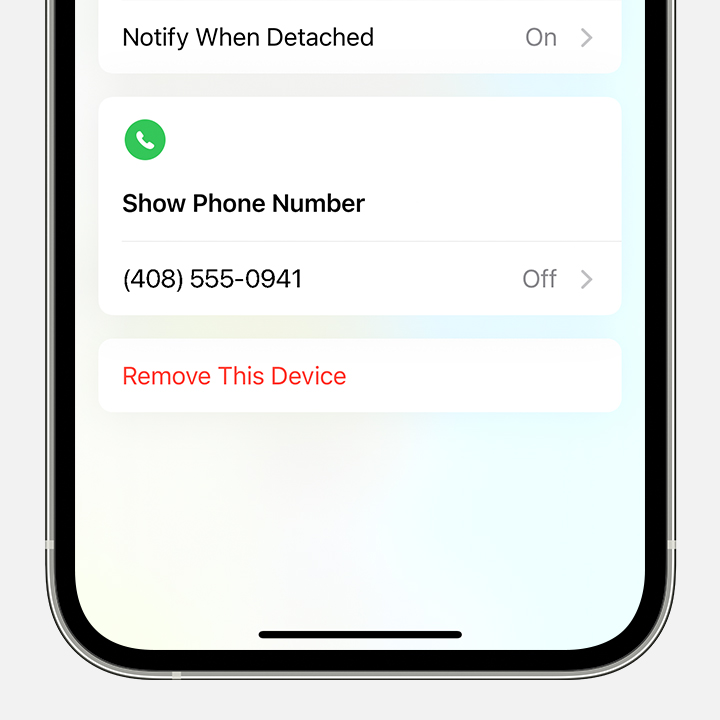
From what you've described, it sounds like you need to remove the Apple Wallet from Find My before you can connect it to your new iPhone. Check out the steps here to remove and then add it back: About the iPhone Leather Wallet with MagSafe - Apple Support
Remove your iPhone Leather Wallet from Find My
1. Open the Find My app.
2. Tap Devices and select your wallet.
3. Tap Remove This Device.
4. Tap Remove.
Let us know how that goes.
Take care!
Hi luvin2013,
Welcome to Apple Support Communities. We understand that you're having an issue with using your leather Apple Wallet with your new iPhone. We'd like to help.
From what you've described, it sounds like you need to remove the Apple Wallet from Find My before you can connect it to your new iPhone. Check out the steps here to remove and then add it back: About the iPhone Leather Wallet with MagSafe - Apple Support
Remove your iPhone Leather Wallet from Find My
1. Open the Find My app.
2. Tap Devices and select your wallet.
3. Tap Remove This Device.
4. Tap Remove.
Let us know how that goes.
Take care!
Hello luvin2013,
Thanks for using Apple Support Communities. If you haven't already, we recommend that you try the following steps from the Related Article at the top of this page:
If an item or device is connected to another Apple ID - Apple Support
If you run into issues, let us know what happens when you try these steps. Be sure to include any steps that you may have tried.
Have a nice day!
How to reset leather wallet