
Video
HELLO MY FRIEND, HOW DO ONE MAKE A Video AND NOT BE concerned ABOUT BEING GOOD OR BAD MAYBE YOU ONLY ANSER TECH QUEST, THERE FOR WHAT IS THE BEST SETTING FOR A GOOD video ON THE IPHONE.
HELLO MY FRIEND, HOW DO ONE MAKE A Video AND NOT BE concerned ABOUT BEING GOOD OR BAD MAYBE YOU ONLY ANSER TECH QUEST, THERE FOR WHAT IS THE BEST SETTING FOR A GOOD video ON THE IPHONE.
Hello daytime110,
Thank you for reaching out to Apple Support Communities, and we'll be happy to help in any way we can. We understand you have questions about taking the best video you can with your camera. Check out the information here about recording videos on your iPhone to get the most information: Record videos with your iPhone camera - Apple Support
"Record a video
By default, video records at 30 frames per second (fps). Depending on your model, you can choose other frame rates and video resolution settings in Settings  > Camera > Record Video. Faster frame rates and higher resolutions result in larger video files.
Use Action mode
On iPhone 14 models, Action mode provides improved stabilization while recording in Video mode. Tap  at the top of the screen to turn Action mode on and
  to turn it off.
Note: Action mode works best in bright light. If you want to use Action mode in lower light, go to Settings > Camera > Record Video, then turn on Action Mode Lower Light. Action mode has a maximum capture resolution of 2.8K.
Record a QuickTake video
On iPhone XS, iPhone XR, and later, you can record a QuickTake video. A QuickTake video is a video you record in Photo mode. While you record a QuickTake video, you can move the Record button into the lock position and keep taking still photos.
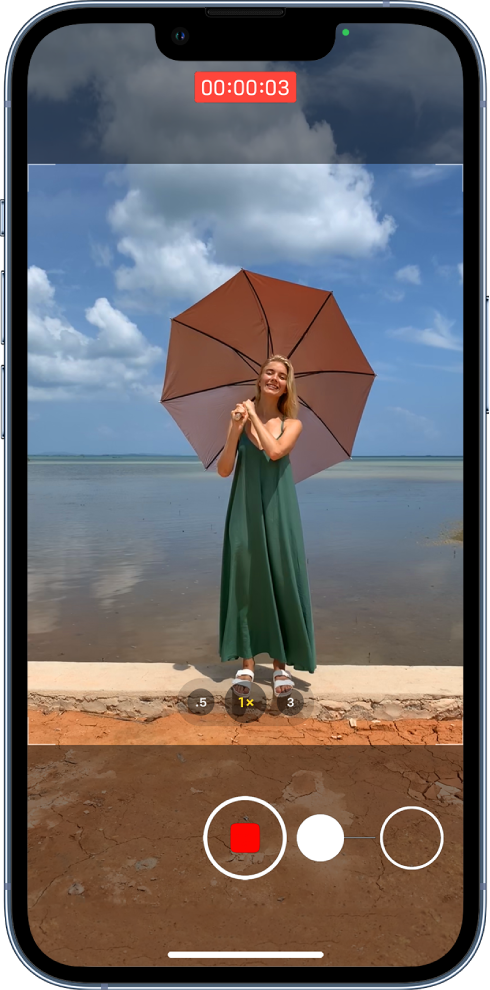
Tap the thumbnail to view the QuickTake video in the Photos app.
Record a slow-motion video
When you record a video in Slo-mo mode, your video records as normal and you see the slow-motion effect when you play it back. You can also edit your video so that the slow-motion action starts and stops at a specific time.
 to record in Slo-mo mode with the front camera.
To set a portion of the video to play in slow motion and the rest at regular speed, tap the video thumbnail, then tap Edit. Slide the vertical bars below the frame viewer to define the section you want to play back in slow motion.
Depending on your model, you can change the slow motion frame rate and resolution. To change slow-motion recording settings, go to Settings > Camera > Record Slo-mo.
Tip: Use quick toggles to adjust the video resolution and frame rate while you record. See Use quick toggles to change video resolution and frame rate.
Record a time-lapse video
Capture footage at selected intervals to create a time‑lapse video of an experience over a period of time—such as a setting sun or traffic flowing.
Tip: On iPhone 12 models and later, use a tripod to capture time-lapse videos with more detail and brightness when recording in low-light situations.
See also
Record ProRes videos with your iPhone camera
Change the camera’s video recording settings on iPhone
Trim video length and adjust slow motion on iPhone"
We hope this helps.
Cheers!
Hello daytime110,
Thank you for reaching out to Apple Support Communities, and we'll be happy to help in any way we can. We understand you have questions about taking the best video you can with your camera. Check out the information here about recording videos on your iPhone to get the most information: Record videos with your iPhone camera - Apple Support
"Record a video
By default, video records at 30 frames per second (fps). Depending on your model, you can choose other frame rates and video resolution settings in Settings > Camera > Record Video. Faster frame rates and higher resolutions result in larger video files.
Use Action mode
On iPhone 14 models, Action mode provides improved stabilization while recording in Video mode. Tap at the top of the screen to turn Action mode on and to turn it off.
Note: Action mode works best in bright light. If you want to use Action mode in lower light, go to Settings > Camera > Record Video, then turn on Action Mode Lower Light. Action mode has a maximum capture resolution of 2.8K.
Record a QuickTake video
On iPhone XS, iPhone XR, and later, you can record a QuickTake video. A QuickTake video is a video you record in Photo mode. While you record a QuickTake video, you can move the Record button into the lock position and keep taking still photos.
Tap the thumbnail to view the QuickTake video in the Photos app.
Record a slow-motion video
When you record a video in Slo-mo mode, your video records as normal and you see the slow-motion effect when you play it back. You can also edit your video so that the slow-motion action starts and stops at a specific time.
to record in Slo-mo mode with the front camera.To set a portion of the video to play in slow motion and the rest at regular speed, tap the video thumbnail, then tap Edit. Slide the vertical bars below the frame viewer to define the section you want to play back in slow motion.
Depending on your model, you can change the slow motion frame rate and resolution. To change slow-motion recording settings, go to Settings > Camera > Record Slo-mo.
Tip: Use quick toggles to adjust the video resolution and frame rate while you record. See Use quick toggles to change video resolution and frame rate.
Record a time-lapse video
Capture footage at selected intervals to create a time‑lapse video of an experience over a period of time—such as a setting sun or traffic flowing.
Tip: On iPhone 12 models and later, use a tripod to capture time-lapse videos with more detail and brightness when recording in low-light situations.
See also
Record ProRes videos with your iPhone camera
Change the camera’s video recording settings on iPhone
Trim video length and adjust slow motion on iPhone"
We hope this helps.
Cheers!
Video

